
At the end of Chapter 2, the game could build a new dungeon from any seed, but you could only look at it. The @ stood in the first room, going nowhere. In this chapter, it starts to move.
You'll walk the @ around the dungeon in eight directions, with the arrow keys, the numeric keypad, or the letters that roguelikes have used since the 1980s. Walls will stop it. The side panel will count your turns, and the message log will start to talk, counting a message that repeats rather than filling up with copies. Then Alt+Enter will switch the game to full screen. And the glyph cache will learn to draw its characters at whatever size the window shows them, so that the text stays crisp at every size.
The next image shows the end of the chapter. The @ has walked down from the first room of seed 7's dungeon, and along a corridor. It has just bumped into the corridor's wall, twice.
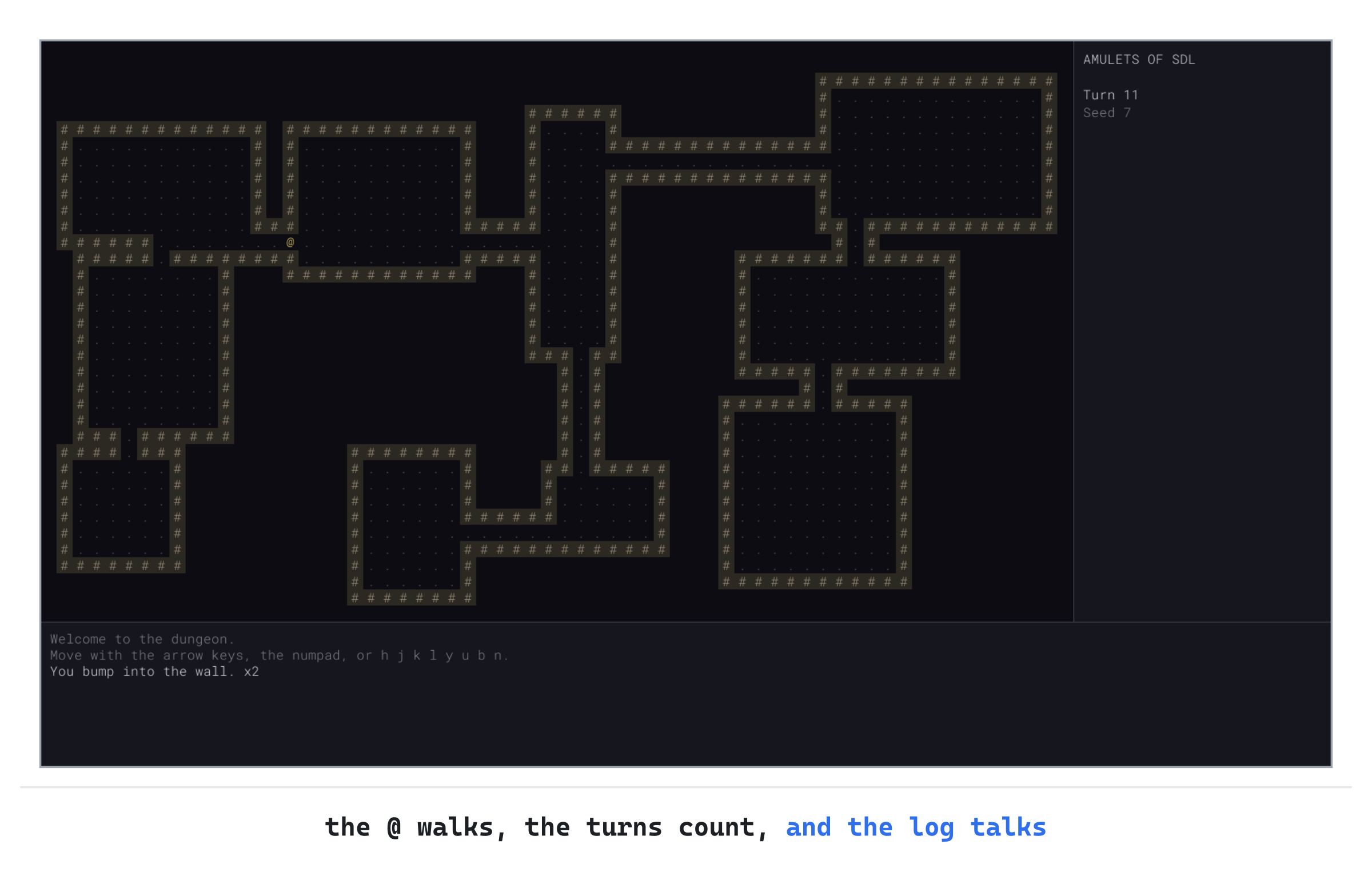
The side panel shows the turn and the seed. The log shows the game's welcome, dimmed because you've acted since, and the bump, bright because it's news.
Chapter 03 in the book's repository holds this chapter's finished project. The chapter carries on in your own project from Chapter 2, or from the book's Chapter 02 folder.In this chapter, we will:
- Walk the
@in eight directions, from one table of keys - Match the arrows and the keypad by where they are, and the letters by what they type
- Count the turns, and let walls stop the
@without costing one - Build a message log that counts repeats and shows what's new brightly
- Switch between the window and the full screen with Alt+Enter
- Draw the characters again at the window's own scale, so text stays crisp at any size
Along the way, there are six checkpoints, as in the last two chapters. Let's get moving.
Planning the Chapter
Chapter 2 left the game with eight files of code. This chapter adds three, changes four, and leaves the map and the dungeon generator alone:
| File | Status | What it's for |
|---|---|---|
src/Player.h |
New | The player: for now, just a place on the map |
src/MessageLog.h, src/MessageLog.cpp |
New | Everything the game has told the player, with repeats counted |
src/main.cpp |
Changed | Moves the player, counts the turns, draws the panel and the log, and switches to full screen |
src/Common.h |
Changed | The log's size: eight lines, 20 pixels apart |
src/GlyphCache.h, src/GlyphCache.cpp |
Changed | Draws the characters again whenever the window's size changes |
src/Map.h, src/Map.cpp, src/RoomGen.h, src/RoomGen.cpp |
Unchanged |
The next image shows how the files fit together at the end of the chapter, with the new ones filled in blue, and the changed ones outlined in blue.
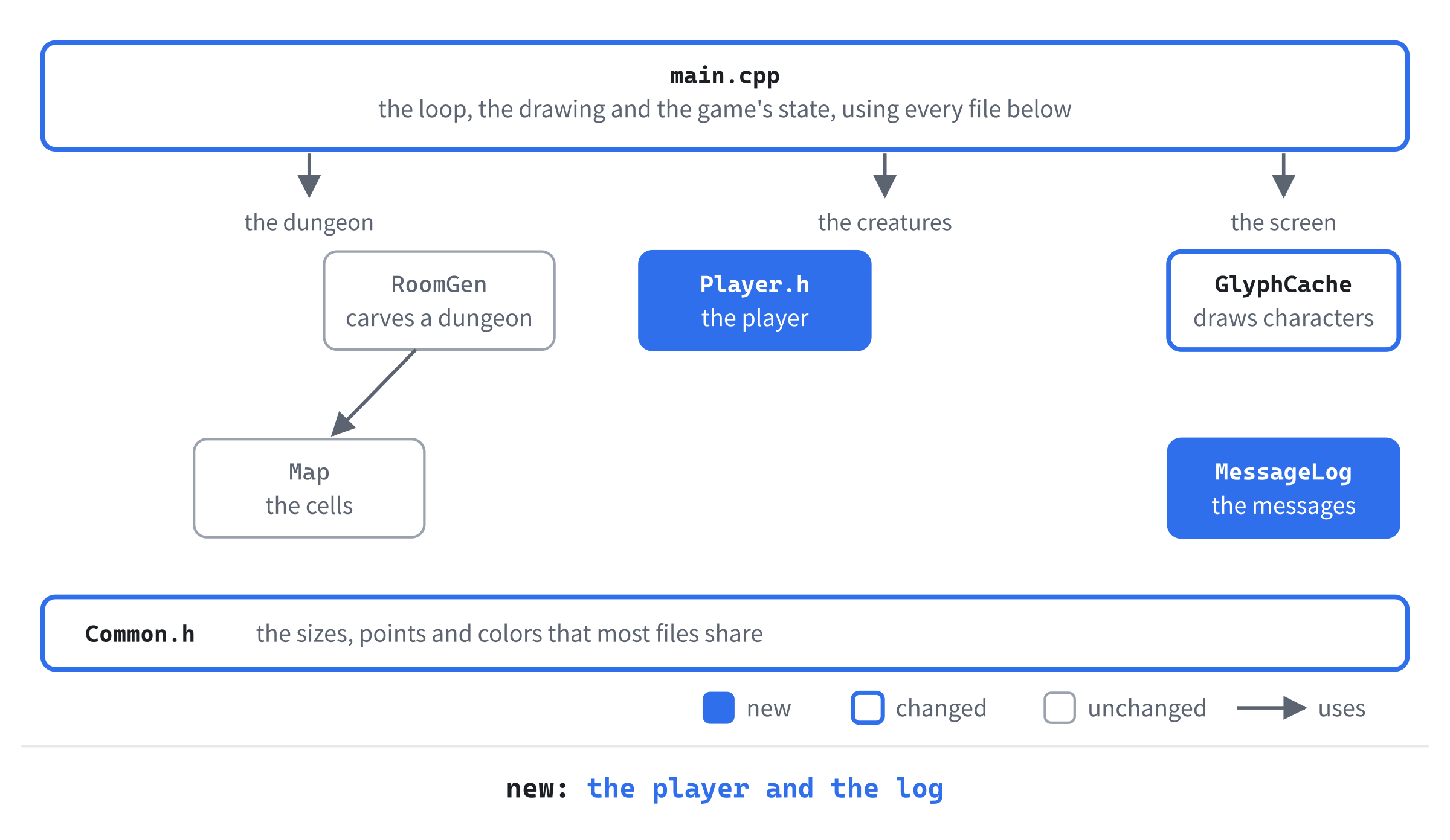
The player gets a file of its own, even though it's only a place on the map for now. It will grow a lot: health in Chapter 6, a pack of items in Chapter 12, and a class in Chapter 22. Starting it in its own file means none of that will need moving later. The message log gets a class of its own for the same reason that the map did: it has one job, and the rest of the game only needs to ask it to do that job.
We'll build the chapter in four steps: moving, then messages and turns, then full screen, and last, crisp text.
Moving the @
The @ needs three things to move: somewhere to keep its place, a way to turn a key into a direction, and a rule for what it can walk into.
The Player
In Solution Explorer, right-click src, choose Add > New Item, and add a Header File (.h) called Player.h. Type the whole file, so that it reads like this:
#pragma once
#include "Common.h"

// The player. For now, just a place on the map
struct Player
{
    Point pos;
};
The Player struct has one member, pos, the cell where the player stands. A Point starts at 0, 0, and the game moves it to the first room as soon as there is one. A struct is the right shape while the player is just data. When the player gets health to lose and items to carry, it will gain functions too.
Eight Directions
Traditional roguelikes let you move in eight directions: up, down, left, right, and the four diagonals. That makes the dungeon feel open. And it matters in a fight, since stepping diagonally is often the quickest way around a monster.
There are three ways to choose a direction, and the game accepts all of them. The arrow keys cover four directions. The numeric keypad covers all eight. Its keys sit in the same places as the directions they point to, with 8 for up, 2 for down, and 7, 9, 1, and 3 for the diagonals.
And the letters h, j, k, and l go left, down, up, and right, with y, u, b, and n for the diagonals. Those letters date back to Rogue, the 1980 game that named the genre. It was written for terminals that often had no arrow keys. They came from vi, a text editor of the time, and many roguelikes still use them. The next image shows all three.

Each direction is a step: how far the x and y change. Up is 0 across and 1 up, so its step is { 0, -1 }, since y counts down from the top. Down and to the left is { -1, 1 }.
Where a Key Is, and What It Types
SDL describes every key in two ways. A scancode says where the key is on the keyboard, whatever is printed on it. A keycode says what the key types, which depends on the keyboard's layout.
The difference matters for the movement keys. The arrows and the keypad should work by where they are. With Num Lock off, the keypad's keys type arrows and other things instead of digits. But their scancodes don't change, so matching them by scancode means that Num Lock makes no difference.
The letters, though, should work by what they type. A player whose keyboard isn't laid out like an American one still sees h and l printed on the keys they're told to press. The next image shows the idea, with one key on two layouts.

So the game matches the arrows and the keypad by scancode, and the letters by keycode. Roguelike commands are often letters chosen for their meaning, such as i for inventory. Matching them by keycode keeps them where their names say they are.
The choice has a cost, though. On a German keyboard, Y and Z swap places. So y, which steps up and to the left, sits at the bottom left of the letters. Players with keyboards like that often prefer the keypad, which works the same everywhere.
A Table of Keys
The game could check every key with a long chain of if statements, but a table is clearer. Each row of the table is one direction: its arrow key, its keypad key, its letter, and its step. Then one small function searches the table.
Open main.cpp, and add the player's header below #include "Map.h":
#include "Player.h"Now main.cpp includes Player.h, so that it can make a Player. Now add the table inside the namespace, below FONT_SIZE:
// The keys that move the player, and the step each one takes. The
// arrow keys and the numeric keypad are matched by where they are on
// the keyboard (their scancodes), so Num Lock makes no difference. The
// letters are matched by what they type (their keycodes), as in many
// roguelikes: h, j, k and l go left, down, up and right, and y, u, b and
// n go diagonally
struct KeyStep
{
    SDL_Scancode arrow;    // SDL_SCANCODE_UNKNOWN for a diagonal
    SDL_Scancode keypad;
    SDL_Keycode letter;
    Point step;
};

constexpr KeyStep KEY_STEPS[] = {
    { SDL_SCANCODE_UP, SDL_SCANCODE_KP_8, SDLK_K, { 0, -1 } },
    { SDL_SCANCODE_DOWN, SDL_SCANCODE_KP_2, SDLK_J, { 0, 1 } },
    { SDL_SCANCODE_LEFT, SDL_SCANCODE_KP_4, SDLK_H, { -1, 0 } },
    { SDL_SCANCODE_RIGHT, SDL_SCANCODE_KP_6, SDLK_L, { 1, 0 } },
    { SDL_SCANCODE_UNKNOWN, SDL_SCANCODE_KP_7, SDLK_Y, { -1, -1 } },
    { SDL_SCANCODE_UNKNOWN, SDL_SCANCODE_KP_9, SDLK_U, { 1, -1 } },
    { SDL_SCANCODE_UNKNOWN, SDL_SCANCODE_KP_1, SDLK_B, { -1, 1 } },
    { SDL_SCANCODE_UNKNOWN, SDL_SCANCODE_KP_3, SDLK_N, { 1, 1 } },
};
In the preceding code, KeyStep is one row of the table. Its first two members are SDL_Scancodes, for the arrow key and the keypad key, and its third is an SDL_Keycode, for the letter. The arrow keys only go four ways, so the four diagonal rows have SDL_SCANCODE_UNKNOWN instead, which means "no key."
The table, KEY_STEPS, is an array of eight rows, one for each direction. It's constexpr, so it's built while the program is compiled, and can never change. Each row is written in braces, with the step in braces of its own, since a Point is a struct too. SDL's names for the letters' keycodes are capitals, such as SDLK_K, though the key types a small k.
Now for the search. Add stepFor below the table:
// Finds the step a key asks for, if it's one of the moving keys
bool stepFor(const SDL_KeyboardEvent& key, Point& step)
{
    for (const KeyStep& keyStep : KEY_STEPS)
    {
        bool isArrow = keyStep.arrow != SDL_SCANCODE_UNKNOWN &&
                       key.scancode == keyStep.arrow;
        if (isArrow || key.scancode == keyStep.keypad ||
            key.key == keyStep.letter)
        {
            step = keyStep.step;
            return true;
        }
    }
    return false;
}
This function, stepFor, takes a key press, as an SDL_KeyboardEvent, and looks for its row in the table. The loop, a range-based for, visits every row of the array in turn.
A key matches a row if its scancode is the row's arrow key, or its keypad key, or if its keycode is the row's letter. The arrow's test checks for SDL_SCANCODE_UNKNOWN first, so a diagonal's empty arrow can never match anything. When a row matches, stepFor copies its step into step and returns true. If no row matches, it returns false.
The function gives back two answers: whether the key moves the player at all, and if it does, which way. The return value carries the first, and the second goes into step, a reference parameter. So the caller's own Point is the one that's filled in. It's a common pattern for a function that may or may not have an answer.
Walking
Now drawFrame needs the player, rather than a start point. Replace the whole of drawFrame with this:
void drawFrame(SDL_Renderer* renderer, const GlyphCache& glyphs,
               const Map& map, const Player& player, unsigned int seed)
{
    setColor(renderer, Palette::BACKGROUND);
    SDL_RenderClear(renderer);
    drawMap(renderer, glyphs, map);
    drawCell(renderer, glyphs, player.pos.x, player.pos.y, '@',
             Palette::PLAYER);
    drawPanels(renderer, glyphs, seed);
    SDL_RenderPresent(renderer);
}
Now drawFrame takes the player by const reference, and draws the @ at player.pos. Next, runGame makes the player. Find these lines, near the top of runGame:
// The dungeon, and the player's place in its first room
Map map;
std::vector<SDL_Rect> rooms = RoomGen::generate(map, rng);
Point start = RoomGen::centerOf(rooms.front());
Replace them with these:
// The dungeon, and the player, in the middle of its first room
Map map;
std::vector<SDL_Rect> rooms = RoomGen::generate(map, rng);
Player player;
player.pos = RoomGen::centerOf(rooms.front());
Now player starts in the middle of the first room, where start used to be. The Space key's new dungeon moves the player too: in its code, change start = RoomGen::centerOf(rooms.front()); to player.pos = RoomGen::centerOf(rooms.front());.
Now for the walking itself. Add this below the Space key's code, before the check for the window's events:
else if (event.type == SDL_EVENT_KEY_DOWN)
{
    // A step, unless there's a wall in the way
    Point step;
    if (stepFor(event.key, step))
    {
        Point to = { player.pos.x + step.x, player.pos.y + step.y };
        if (map.at(to.x, to.y) == Terrain::Floor)
        {
            player.pos = to;
            redraw = true;
        }
    }
}
Any other key press goes to stepFor. If the key is a moving key, to is the cell the step would take the player to. The player moves there only if it's floor, and then the window is drawn again. A wall just stops the step, and nothing else happens.
This check comes after the checks for Escape and Space, so those two keys never reach it. The checks are in an if and else if chain, so the first one that matches is the only one that runs.
Last, the loop passes the player to drawFrame. Near the end of runGame, change drawFrame(renderer, glyphs, map, start, seed); to drawFrame(renderer, glyphs, map, player, seed);, so every frame draws the @ where the player is.
Checkpoint: Press F5, and walk around with the arrow keys, the keypad, and the letters. The @ goes wherever there's floor, and walls stop it. Try the diagonals: y, u, b, and n, or 7, 9, 1, and 3 on the keypad. Then turn Num Lock off, and the keypad still works. Hold a key down, and the @ keeps walking until something stops it.
That last one is the operating system's key repeat at work. While a key is held down, the system sends the same key press again and again, many times a second after a short pause. Each one is another step.
Messages and Turns
A roguelike talks to you through its message log, a few lines of text that say what has just happened. "You bump into the wall." "The kobold hits you." "You feel stronger!" The log is how you learn what the game is doing, so it needs to be easy to read at a glance.
Two traditions help with that. A message that repeats the one before it isn't written out again: the log shows a count instead, as in "You bump into the wall. x3." And the messages that arrived since your last command are bright, while the older ones are dim, so you can see at once what's new. Several messages can arrive from one command, such as a hit and a hit back. So "new" means everything since you last acted, not just the latest line.
Design note:
--More--. Rogue showed one message at a time, on the top line of the screen. When several arrived at once, it stopped with--More--, and waited for a key before showing the next. Nothing was missed, but a busy fight meant a lot of key presses. Later games kept a log that you could look back through. This one keeps its recent messages on screen, the newest bright and the older ones dim, so you never press a key just to read. Counting repeats keeps a long fight down to a few lines.
The game also starts counting turns. A turn passes each time the player acts. Bumping into a wall isn't an action, just a mistake, so it doesn't cost a turn.
The Log's Size
The log shows its last eight messages, each on a line 20 pixels below the last. Open Common.h, and add these lines below MARGIN:
// The message log shows this many lines, LOG_LINE_H pixels apart
constexpr int LOG_LINES = 8;
constexpr int LOG_LINE_H = 20;
The constant LOG_LINES is how many messages the log shows, and LOG_LINE_H is how far apart they are, in pixels. Eight lines of 20 pixels need 160, which fits the log's 180 with room to spare. That's a little closer than the font's own line height of 22, which the side panel uses, since the log's lines come in a stack. Even at 20 pixels apart, there's a gap between the lowest tail on one line and the tallest letter on the next.
MessageLog.h
Add a Header File (.h) called MessageLog.h to src. Below the #pragma once that Visual Studio types for you, add the includes and the start of the class, so that the file begins like this:
#pragma once
#include <string>   // std::string, for the messages
#include <vector>   // std::vector, to keep them in

// Everything the game has told the player, oldest first. A message that
// repeats the one before it isn't added again: its count goes up instead
class MessageLog
{
public:
    struct Entry
    {
        std::string text;
        int count = 1;
        bool isNew = true;   // added since the player's last command

        // The text as the log shows it, with " x3" after a message that
        // came three times in a row
        std::string withCount() const;
    };
Each Entry is one message in the log: its text, how many times in a row it came, and whether it's new. The struct is declared inside the class, so its full name is MessageLog::Entry. That leaves the plain name Entry free everywhere else. Its function withCount gives the text as the log shows it, with the count after it if the message came more than once.
The rest of the class adds messages, and gives them back. Add it below Entry, with a blank line in between:
    void add(const std::string& text);

    // Marks every message as read, so only those added after this are new
    void markRead();

    const std::vector<Entry>& entries() const;

private:
    // The oldest messages are dropped once there are this many
    static constexpr size_t MAX_ENTRIES = 100;

    std::vector<Entry> entries_;
};
The function add adds a message, and markRead marks every message as read, so that only messages added after it count as new. Then entries gives the whole list, oldest first, as a const reference. So the caller can read the messages without copying them, and can't change them.
The log keeps at most MAX_ENTRIES messages, 100, and drops the oldest once there are more. It's static and constexpr, one value for the whole class. Its type is size_t, the type that a vector's size gives, so the two can be compared without a mismatch.
MessageLog.cpp
Add a C++ File (.cpp) called MessageLog.cpp, and type its include and withCount:
#include "MessageLog.h"

std::string MessageLog::Entry::withCount() const
{
    if (count == 1)
    {
        return text;
    }
    return text + " x" + std::to_string(count);
}
For a message that came once, withCount gives the text alone. Otherwise, it adds " x" and the count, which std::to_string turns into text. The function's full name, MessageLog::Entry::withCount, names the class, then the struct inside it, then the function.
Next comes add, which is where repeats are counted. Add it below withCount:
void MessageLog::add(const std::string& text)
{
    // The same message again only raises the count, and makes it new
    if (!entries_.empty() && entries_.back().text == text)
    {
        ++entries_.back().count;
        entries_.back().isNew = true;
        return;
    }

    entries_.push_back({ text, 1, true });
    if (entries_.size() > MAX_ENTRIES)
    {
        entries_.erase(entries_.begin());
    }
}
First, add checks whether the log has any messages, and if it does, whether the newest one has the same text. If so, it raises the newest message's count instead of adding a copy, and marks it as new, since it has just happened again. The check for empty comes first, because back on an empty vector is an error.
Otherwise, the message goes on the end of the list, with a count of 1, as new. If that makes more than MAX_ENTRIES messages, the oldest one, at the beginning, is erased.
Erasing the first element of a vector moves every other element down one place, which is slow for a long vector. For 100 short messages, once in a while, it's nothing.
The last two functions are short. Add them below add:
void MessageLog::markRead()
{
    for (Entry& entry : entries_)
    {
        entry.isNew = false;
    }
}

const std::vector<MessageLog::Entry>& MessageLog::entries() const
{
    return entries_;
}
The first, markRead, visits every entry, and marks each one as read. It visits them by reference, so that it changes the entries themselves rather than copies. Then entries returns the list.
Checkpoint: Click in MessageLog.cpp, and press Ctrl+F7 to compile it. It compiles on its own, since it needs only its own header.
The Panel and the Log
Now main.cpp can keep a log, count turns, and show both. That takes nine changes, all over the file. The next image maps them out, as in the last two chapters.
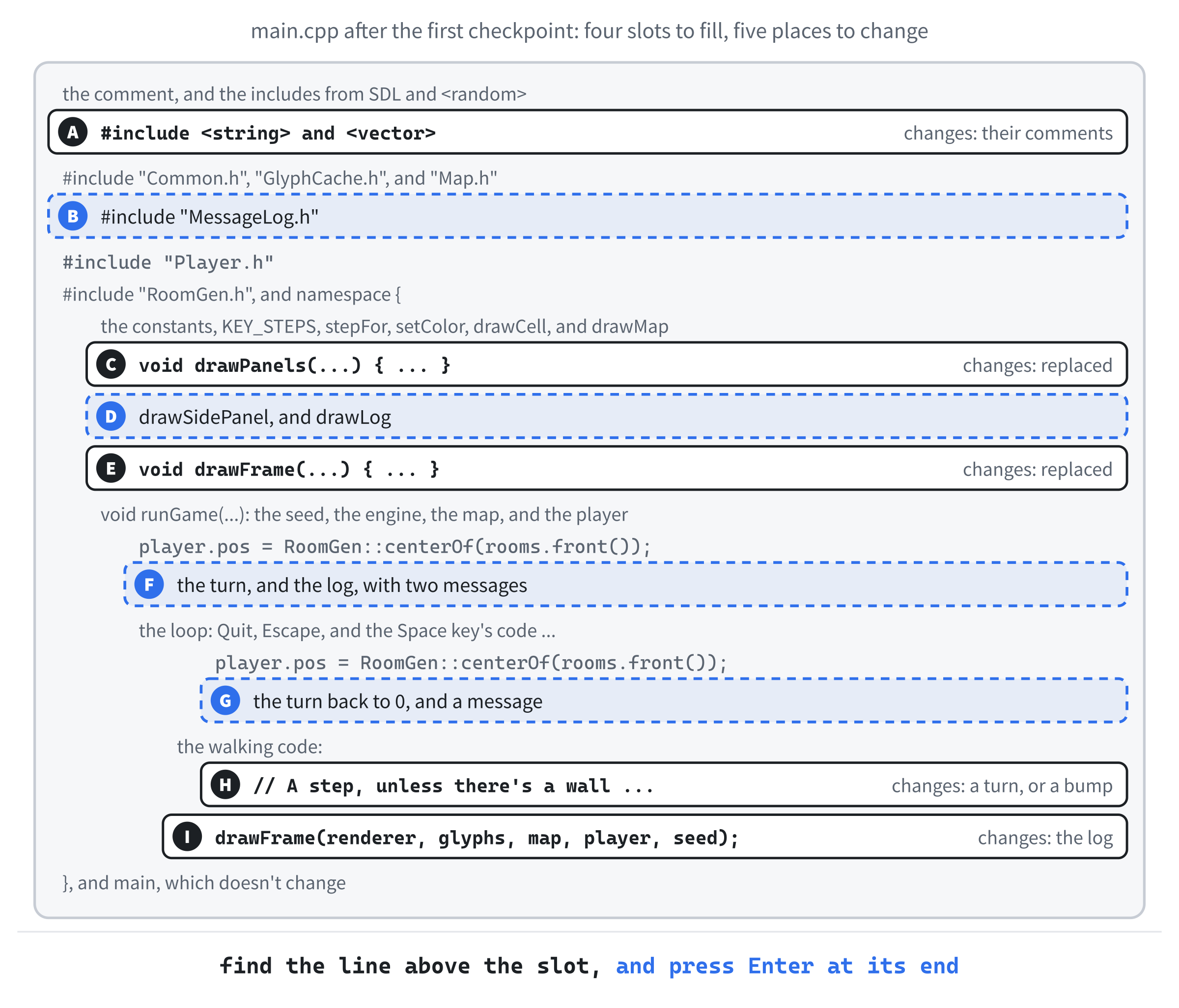
As before, if a slot's place still isn't clear, the Chapter 03 folder in the repository holds main.cpp as it is at the end of the chapter.
At slot A, the comments on two of the includes change, since the side panel will show more than the seed, and the vector will hold the log too. Find these two lines:
#include <string>   // std::string and std::to_string, for the seed
#include <vector>   // std::vector, for the rooms
And change their comments, so they read like this:
#include <string>   // std::string and std::to_string, for the panel
#include <vector>   // std::vector, for the rooms and the log
Only the comments change. Slot B is the log's header. Add it below #include "Map.h":
#include "MessageLog.h"With MessageLog.h included, main.cpp can keep a log.
At slot C, drawPanels stops writing text. It will draw just the panels' backgrounds and lines, and two new functions will write the text. Replace the whole of drawPanels with this:
// The side panel and the message log, each with a line along the edge
// it shares with the map
void drawPanels(SDL_Renderer* renderer)
{
    setColor(renderer, Palette::PANEL);
    SDL_FRect panel = { static_cast<float>(PANEL_X), 0.0f,
                        static_cast<float>(PANEL_W),
                        static_cast<float>(MAP_VIEW_H) };
    SDL_RenderFillRect(renderer, &panel);
    SDL_FRect log = { 0.0f, static_cast<float>(LOG_Y),
                      static_cast<float>(SCREEN_W),
                      static_cast<float>(LOG_H) };
    SDL_RenderFillRect(renderer, &log);

    setColor(renderer, Palette::FRAME);
    SDL_RenderLine(renderer, static_cast<float>(PANEL_X), 0.0f,
                   static_cast<float>(PANEL_X),
                   static_cast<float>(MAP_VIEW_H));
    SDL_RenderLine(renderer, 0.0f, static_cast<float>(LOG_Y),
                   static_cast<float>(SCREEN_W),
                   static_cast<float>(LOG_Y));
}
In the preceding code, drawPanels fills the side panel and the log, and draws their dividing lines, as before. It takes only the renderer now, since it doesn't write anything.
Slot D is the two new functions. Add the first below drawPanels:
// The side panel's text: the game's name, then the run so far, one row
// under another
void drawSidePanel(const GlyphCache& glyphs, int turn, unsigned int seed)
{
    float x = PANEL_X + MARGIN;
    float y = MARGIN;
    float row = glyphs.lineHeight();
    glyphs.drawText("AMULETS OF SDL", x, y, Palette::TEXT);
    y += 2 * row;
    glyphs.drawText("Turn " + std::to_string(turn), x, y, Palette::TEXT);
    y += row;
    glyphs.drawText("Seed " + std::to_string(seed), x, y,
                    Palette::DIM_TEXT);
}
Here, drawSidePanel writes the side panel's text, one row under another. The game's name comes first, then a blank row, then the turn, and then the seed, dimmed. Each row is one line height below the last, and y keeps track of where the next one goes. So adding a row later is a single line.
Now add the second function below drawSidePanel:
// The last LOG_LINES messages, oldest at the top. The ones that came
// since the player's last command are bright, and the rest are dim
void drawLog(const GlyphCache& glyphs, const MessageLog& log)
{
    const std::vector<MessageLog::Entry>& entries = log.entries();
    int count = static_cast<int>(entries.size());
    int first = SDL_max(0, count - LOG_LINES);
    float y = LOG_Y + (LOG_H - LOG_LINES * LOG_LINE_H) / 2.0f;
    for (int i = first; i < count; ++i)
    {
        const MessageLog::Entry& entry = entries[i];
        SDL_Color color = entry.isNew ? Palette::TEXT : Palette::DIM_TEXT;
        glyphs.drawText(entry.withCount(), MARGIN, y, color);
        y += LOG_LINE_H;
    }
}
The new drawLog shows the last LOG_LINES messages. The reference entries refers to the log's own list, without copying it. Then first is the first message to show: eight back from the end, or the very first, if there are fewer than eight. The macro SDL_max gives the larger of two values, so first never goes below 0.
The lines are centered in the log. Eight lines of 20 pixels take 160 of the log's 180, so the first line starts 10 pixels below the log's top. Each message is bright if it's new, and dim if it isn't, and withCount gives its text with its count.
At slot E, drawFrame passes the turn, the seed, and the log to the new functions. Replace the whole of drawFrame with this:
void drawFrame(SDL_Renderer* renderer, const GlyphCache& glyphs,
               const Map& map, const Player& player,
               const MessageLog& log, int turn, unsigned int seed)
{
    setColor(renderer, Palette::BACKGROUND);
    SDL_RenderClear(renderer);
    drawMap(renderer, glyphs, map);
    drawCell(renderer, glyphs, player.pos.x, player.pos.y, '@',
             Palette::PLAYER);
    drawPanels(renderer);
    drawSidePanel(glyphs, turn, seed);
    drawLog(glyphs, log);
    SDL_RenderPresent(renderer);
}
The new drawFrame draws the panels' backgrounds first, then their text, so the text goes on top.
Slot F is the turn and the log themselves. Add these lines below the line that puts the player in the first room:
// A turn passes each time the player acts
int turn = 0;
MessageLog log;
log.add("Welcome to the dungeon.");
log.add("Move with the arrow keys, the numpad, or h j k l y u b n.");
The turn count starts at 0, and the log starts with two messages: a welcome, and how to move. Both are new, so both start out bright.
At slot G, a new dungeon starts the count again, and says so. Add these lines in the Space key's code, below the line that moves the player to the new dungeon's first room:
turn = 0;
log.markRead();
log.add("You enter a new dungeon.");
A new dungeon sets the turn back to 0. Then markRead dims the old messages, and the new dungeon's message arrives bright.
At slot H, a step counts a turn, and a bump says so. Find the walking code, from its comment to the closing brace of its if:
// A step, unless there's a wall in the way
Point step;
if (stepFor(event.key, step))
{
    Point to = { player.pos.x + step.x, player.pos.y + step.y };
    if (map.at(to.x, to.y) == Terrain::Floor)
    {
        player.pos = to;
        redraw = true;
    }
}
Replace it with this:
// A step takes a turn. Bumping into a wall doesn't
Point step;
if (stepFor(event.key, step))
{
    log.markRead();
    Point to = { player.pos.x + step.x, player.pos.y + step.y };
    if (map.at(to.x, to.y) == Terrain::Floor)
    {
        player.pos = to;
        ++turn;
    }
    else
    {
        log.add("You bump into the wall.");
    }
    redraw = true;
}
First, a moving key marks every message as read, since it's a new command. A step onto floor moves the player, and adds one to turn. A step into a wall adds "You bump into the wall." to the log instead, and the turn doesn't change. Either way, the window is drawn again, since something has changed: the player's place, or the log.
At slot I, the loop passes the log and the turn to drawFrame: change drawFrame(renderer, glyphs, map, player, seed); to drawFrame(renderer, glyphs, map, player, log, turn, seed);. That's every slot filled.
Checkpoint: Press F5. The log shows the welcome and how to move, both bright, and the side panel shows the turn and the seed. Walk a few steps: the turn goes up, and the welcome dims. Now walk into a wall, again and again. The log says "You bump into the wall.", then "You bump into the wall. x2", and so on, and the turn stays where it was. Press Space, and the turn starts again from 0.
The next image shows the log as Figure 3.1 left it. The welcome is dim, because the player has acted since it arrived, and the bump is bright, because it came from the last command.
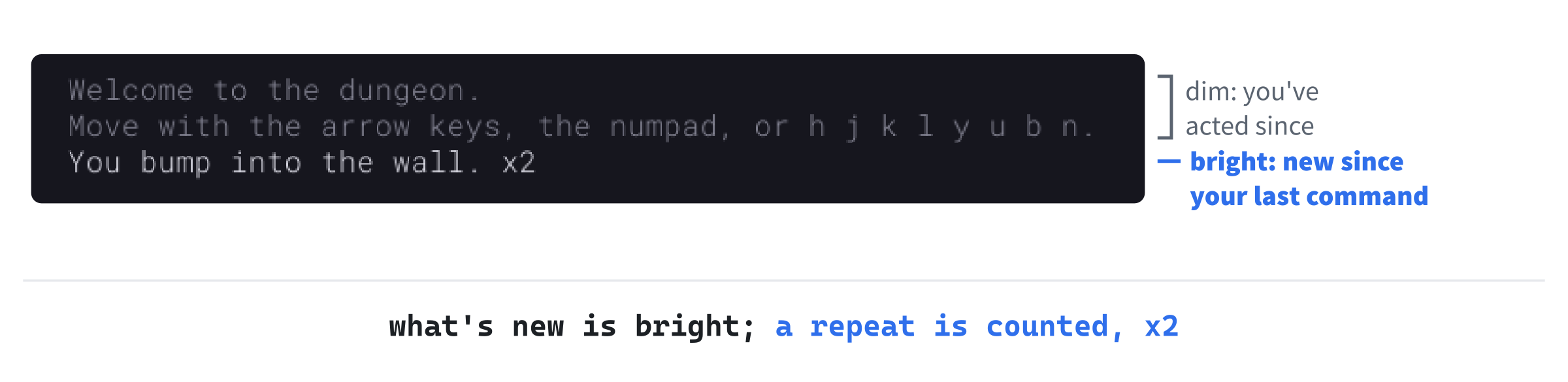
A repeat is counted whenever nothing else has been said in between. Bump a wall, take a step, and bump again. The log says "x2", since the step added no message. When later chapters add more messages, a bump after a fight will start a new line.
Full Screen
Most games switch between a window and the full screen with Alt+Enter, and this one should too. It's only a few lines, but it shows up something worth fixing.
Alt+Enter
First comes a function that switches. Add it inside the namespace, below stepFor:
// Switches between the window and the whole screen
void toggleFullscreen(SDL_Renderer* renderer)
{
    SDL_Window* window = SDL_GetRenderWindow(renderer);
    bool isFullscreen =
        (SDL_GetWindowFlags(window) & SDL_WINDOW_FULLSCREEN) != 0;
    SDL_SetWindowFullscreen(window, !isFullscreen);
}
A call to SDL_GetRenderWindow finds the window that the renderer draws in. Then SDL_GetWindowFlags gives the window's flags. That's a number in which each bit says one thing about the window, such as whether it's full screen.
To test one bit, the code uses &, the bitwise AND, which keeps only the bits that are set in both numbers. So flags & SDL_WINDOW_FULLSCREEN is nonzero exactly when the window is full screen. Then SDL_SetWindowFullscreen switches it the other way.
Now the key. Its check goes between the Escape key's check and the Space key's. Find these two lines, where the Space key's check starts:
else if (event.type == SDL_EVENT_KEY_DOWN &&
         event.key.key == SDLK_SPACE)
Put the new check above them, so that they read like this:
else if (event.type == SDL_EVENT_KEY_DOWN &&
         event.key.key == SDLK_RETURN &&
         (event.key.mod & SDL_KMOD_ALT) != 0)
{
    // Alt+Enter. Holding the keys down doesn't flicker between
    // the window and the screen, because repeats are ignored
    if (!event.key.repeat)
    {
        toggleFullscreen(renderer);
    }
}
else if (event.type == SDL_EVENT_KEY_DOWN &&
         event.key.key == SDLK_SPACE)
The new check is for the Enter key, SDLK_RETURN, while an Alt key is held down. The key event's mod holds a bit for each modifier key that's down, such as Shift, Ctrl, and Alt. And SDL_KMOD_ALT stands for either Alt key, so & tests it, as with the window's flags.
The repeat member is true for the repeated presses that the system sends while a key is held down. Walking takes them, but switching the screen ignores them. Otherwise, holding Alt+Enter would flicker between the window and the full screen, many times a second.
Checkpoint: Press F5, and then Alt+Enter. The game fills the screen. On a 16:9 screen, the picture fits it exactly, and on other shapes it's letterboxed, as Chapter 1 described. Press Alt+Enter again, and the window comes back. Now go full screen once more, and look closely at the text in the side panel. It's soft, a little blurred, and so are the walls and the dots. The bigger your screen, the softer it gets.
Why the Text Goes Soft
The game draws every character into its 1,600 by 900 picture, and SDL scales the picture to fit the window. SDL 3 does that scaling as it draws each character, rather than to the finished picture. So when the window shows the picture 1.2 times its size, a character's 10 by 22 texture is stretched to cover about 12 by 26 of the screen's pixels.
Stretching a picture by a fraction can't map each of its pixels onto exactly one pixel of the screen. Some pixels have to cover parts of two, so the graphics card blends them with their neighbors, and the edges soften. That's fine for a photograph, but crisp characters were the glyph cache's whole point.
Crisp Text at Any Size
The fix is to stop stretching. If the window shows the picture 1.2 times its size, the glyph cache can draw its characters from the font 1.2 times as big in the first place, at 19.2 points instead of 16. Then it draws each character's texture at 1 / 1.2 of its size in the picture. SDL's scaling multiplies it by 1.2 again. So every pixel of the texture lands on exactly one pixel of the screen, with nothing to blend.
The next image shows the two ways side by side, with the real sizes of the M's texture, which a probe of the game measured.
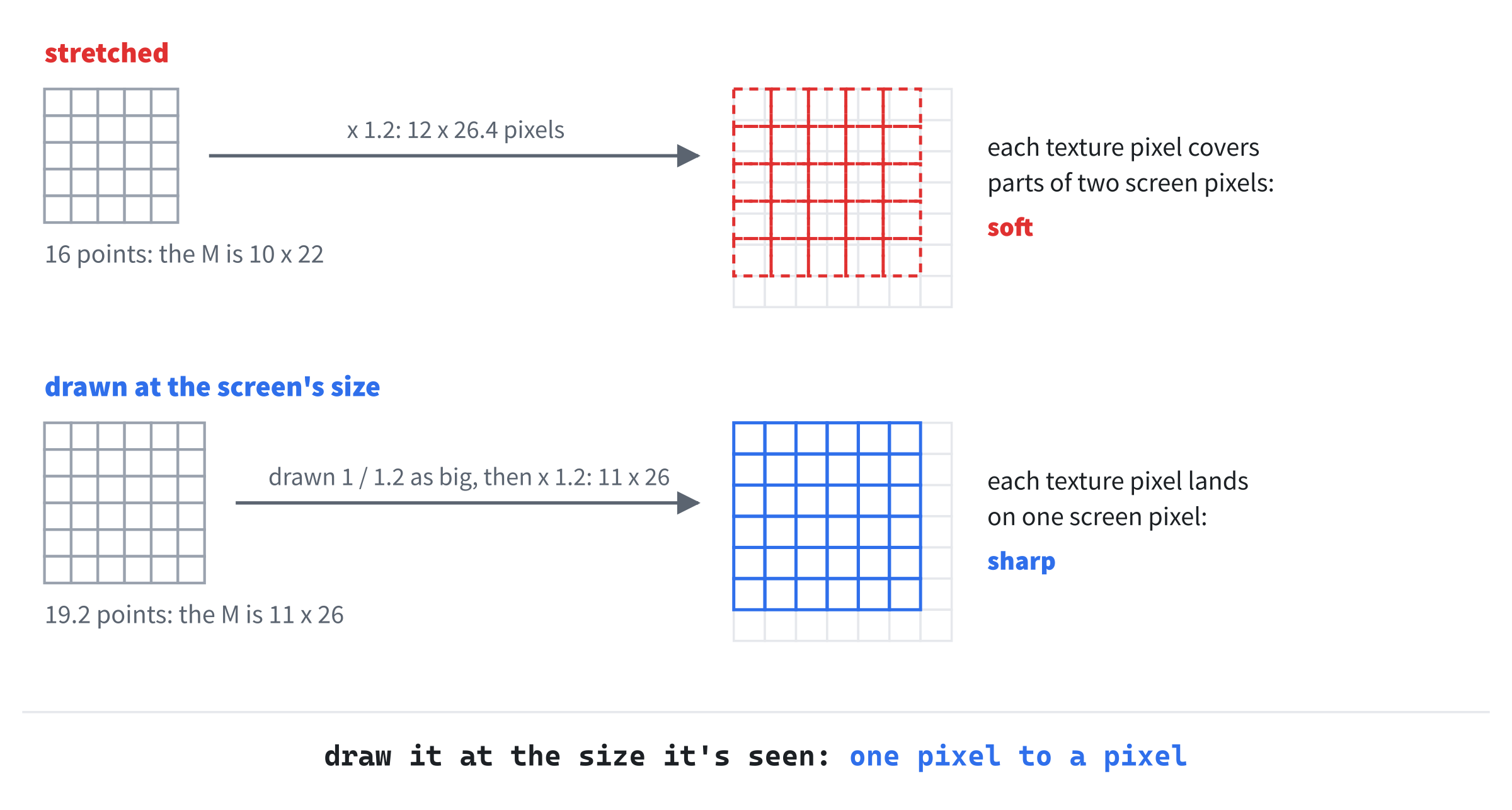
The character's place in the picture doesn't change, only how much detail it's drawn with. The cache still spaces characters 10 pixels apart, and lines 22 apart, as it measured at 16 points. So the layout is the same at every size, and only the sharpness changes.
GlyphCache.h
The cache will draw its characters again whenever the scale changes, so it needs to keep the font open, rather than closing it once the characters are made. That means the class has a TTF_Font* member now, so its header needs SDL3_ttf's header. Open GlyphCache.h, and add it below #include <SDL3/SDL.h>:
#include <SDL3_ttf/SDL_ttf.h>Now GlyphCache.h includes SDL3_ttf, so that it can name TTF_Font. Next, add the function that sets the scale, below the declaration of lineHeight:
// Draws the characters again for a picture that the window shows at
// this scale, so they stay crisp at any size
void setScale(float scale);
The new setScale takes how many of the window's pixels each pixel of the picture covers, such as 1.2, and draws the characters again for it. The cache gets two private helpers, too. Add them above the declaration of drawAt:
void renderGlyphs();
void destroyGlyphs();
The helper renderGlyphs makes the textures from the font, at the current scale, and destroyGlyphs destroys them. Last, the cache needs three more members. Add them below renderer_:
TTF_Font* font_ = nullptr;
float pointSize_ = 0.0f;
float scale_ = 1.0f;
The member font_ is the open font, pointSize_ is the font's size in the picture, 16 points, and scale_ is the scale the characters were last drawn at.
The font is a resource now, just like the textures: it's opened in the constructor, and it must be closed when the cache is finished with it. So RAII, from Chapter 1, covers it too. The destructor will close it, and the deleted copy functions keep two caches from ever sharing it.
GlyphCache.cpp
The constructor changes the most. Its loop that makes the textures moves into renderGlyphs, so that it can run again, and the font stays open. Open GlyphCache.cpp, and start at the top. SDL3_ttf's header is in GlyphCache.h now, so find these three lines:
#include "GlyphCache.h"
#include <SDL3_ttf/SDL_ttf.h>
#include <cmath>   // std::floor, to keep each character on whole pixels
And delete the middle one, so they read like this:
#include "GlyphCache.h"
#include <cmath>   // std::floor, to keep each character on whole pixels
The file GlyphCache.cpp still gets SDL3_ttf, through its own header. Now find the start of the constructor, from its initializer list to the check of the font:
    : renderer_(renderer)
{
    TTF_Font* font = TTF_OpenFont(fontPath.c_str(), pointSize);
    if (font == nullptr)
Replace those lines with these:
    : renderer_(renderer), pointSize_(pointSize)
{
    // The font stays open, so the characters can be drawn again at a new
    // size whenever the window changes size
    font_ = TTF_OpenFont(fontPath.c_str(), pointSize);
    if (font_ == nullptr)
The initializer list keeps the point size. Then the font goes into the member font_, rather than a local variable, so it stays open after the constructor ends.
The loop that made the textures moves out of the constructor. Find the loop, from const SDL_Color white down to the comment below it:
const SDL_Color white = { 255, 255, 255, 255 };
for (char c = FIRST_CHAR; c <= LAST_CHAR; ++c)
{
    SDL_Surface* surface =
        TTF_RenderGlyph_Blended(font, static_cast<Uint32>(c), white);
    if (surface == nullptr)
    {
        SDL_Log("Couldn't draw '%c': %s", c, SDL_GetError());
        continue;
    }
    glyphs_[c - FIRST_CHAR] =
        SDL_CreateTextureFromSurface(renderer_, surface);
    SDL_DestroySurface(surface);
}

// How far each character moves the pen, and how tall a line is
Replace all of that with just this comment:
// How far each character moves the pen, and how tall a line is. These
// are in the game's own 1600 x 900 picture, so they never change
The loop has gone, and the comment above the measurements says that they're in the picture's own pixels, so they never change. Now find the end of the constructor:
TTF_GetGlyphMetrics(font, 'M', &minX, &maxX, &minY, &maxY, &advance);
charWidth_ = static_cast<float>(advance);
lineHeight_ = static_cast<float>(TTF_GetFontHeight(font));

TTF_CloseFont(font);
And change it to this:
TTF_GetGlyphMetrics(font_, 'M', &minX, &maxX, &minY, &maxY, &advance);
charWidth_ = static_cast<float>(advance);
lineHeight_ = static_cast<float>(TTF_GetFontHeight(font_));

renderGlyphs();
Now the measurements use font_, and renderGlyphs makes the textures, rather than the font being closed. The measurements are taken at 16 points, before any scale is set, so they're in the picture's own pixels.
The destructor closes the font now, as well as destroying the textures. Find the loop in the destructor:
for (SDL_Texture* texture : glyphs_)
{
    if (texture != nullptr)
    {
        SDL_DestroyTexture(texture);
    }
}
Replace it with these lines:
destroyGlyphs();
if (font_ != nullptr)
{
    TTF_CloseFont(font_);
}
First, destroyGlyphs destroys the textures, and then the font is closed, if it was opened.
Now for the new functions. Add setScale below lineHeight:
void GlyphCache::setScale(float scale)
{
    if (font_ == nullptr || scale <= 0.0f || scale == scale_)
    {
        return;
    }
    scale_ = scale;
    renderGlyphs();
}
The function setScale does nothing if the font didn't open, or if the scale makes no sense, or if the characters are already drawn at this scale. Otherwise, it keeps the new scale, and draws the characters again. The check for the same scale matters, because the window's size can change without the scale changing, such as when the window gets wider but no taller. Drawing 95 characters again for nothing would be wasted work.
Next comes renderGlyphs, which is the old loop, with three changes. Add its first part below drawText:
// Draws every character at the size the window shows it: a picture shown
// at 1.6 times its size needs characters 1.6 times as big
void GlyphCache::renderGlyphs()
{
    destroyGlyphs();
    TTF_SetFontSize(font_, pointSize_ * scale_);

    const SDL_Color white = { 255, 255, 255, 255 };
    for (char c = FIRST_CHAR; c <= LAST_CHAR; ++c)
    {
        SDL_Surface* surface =
            TTF_RenderGlyph_Blended(font_, static_cast<Uint32>(c), white);
        if (surface == nullptr)
        {
            SDL_Log("Couldn't draw '%c': %s", c, SDL_GetError());
            continue;
        }
First, renderGlyphs destroys any textures it made before, since it's about to make new ones. Then TTF_SetFontSize sets the font's size to the point size times the scale: 16 times 1.2 is 19.2. The loop starts as before, drawing each character into a surface, from font_.
Now add the rest of renderGlyphs, directly below the surface's check:
        SDL_Texture* texture =
            SDL_CreateTextureFromSurface(renderer_, surface);
        SDL_DestroySurface(surface);
        if (texture == nullptr)
        {
            SDL_Log("Couldn't make a texture for '%c': %s", c,
                    SDL_GetError());
            continue;
        }

        // Each pixel of the texture lands on one pixel of the window, so
        // it's copied as it is, never blended with its neighbors
        SDL_SetTextureScaleMode(texture, SDL_SCALEMODE_NEAREST);
        glyphs_[c - FIRST_CHAR] = texture;
    }
}
Each texture is made in a variable of its own, so that it can be checked: if making it failed, the loop logs why, and moves on. Then SDL_SetTextureScaleMode sets how the texture is scaled when it's drawn. The mode SDL_SCALEMODE_NEAREST copies each of its pixels as it is, without blending it with its neighbors. That's exactly right when each one lands on one pixel of the screen. Last, the texture goes into the array, as before.
Now add destroyGlyphs below renderGlyphs:
void GlyphCache::destroyGlyphs()
{
    for (SDL_Texture*& texture : glyphs_)
    {
        if (texture != nullptr)
        {
            SDL_DestroyTexture(texture);
            texture = nullptr;
        }
    }
}
Here, destroyGlyphs destroys every texture, and sets its pointer back to nullptr. The loop's variable is a reference to a pointer, SDL_Texture*&, so that setting it to nullptr changes the pointer in the array itself, not a copy. Without that, the array would still hold pointers to textures that no longer exist.
Last, drawAt draws each texture smaller, to match. Find these lines, in drawAt:
float width = 0.0f;
float height = 0.0f;
SDL_GetTextureSize(texture, &width, &height);
SDL_SetTextureColorMod(texture, color.r, color.g, color.b);
SDL_FRect where = { std::floor(x), std::floor(y), width, height };
Replace them with these:
// The texture is scale_ times the character's size in the picture, so
// it's drawn that much smaller, and the window scales it back up
float width = 0.0f;
float height = 0.0f;
SDL_GetTextureSize(texture, &width, &height);
SDL_SetTextureColorMod(texture, color.r, color.g, color.b);
SDL_FRect where = { std::floor(x), std::floor(y), width / scale_,
                    height / scale_ };
The rectangle's width and height are the texture's, divided by scale_. At a scale of 1.2, an M whose texture is 11 by 26 pixels is drawn about 9.2 by 21.7 pixels in the picture. Then SDL's scaling takes it back to 11 by 26 on the screen. At a scale of 1, nothing changes from before.
Checkpoint: Click in GlyphCache.cpp, and press Ctrl+F7 to compile it. It compiles, though nothing calls setScale yet.
Telling the Cache the Scale
The game needs to know the scale, so that it can tell the cache. Add this function inside the namespace, above toggleFullscreen, with a blank line in between:
// How many of the window's pixels each pixel of the game's picture
// covers: 1.6 when the 1600 x 900 picture fills a 2560 x 1440 screen
float presentationScale(SDL_Renderer* renderer)
{
    SDL_FRect shown = {};
    if (!SDL_GetRenderLogicalPresentationRect(renderer, &shown))
    {
        return 1.0f;
    }
    return shown.w / SCREEN_W;
}
A call to SDL_GetRenderLogicalPresentationRect fills in shown, the rectangle of the window that the picture fills, in the window's own pixels. Its width, divided by the picture's width, is the scale. If SDL can't say, the scale is 1.
The function runGame will call setScale, which changes the cache, so it can't take the cache by const reference any more. In runGame, change const GlyphCache& glyphs to GlyphCache& glyphs. The drawing functions still take it by const reference, since they only draw with it.
Now add these lines at the top of runGame, above the comment // Everything random, with a blank line in between:
// The window may already be smaller than the picture
glyphs.setScale(presentationScale(renderer));
The cache is told the scale as soon as the game starts, since the window may have opened smaller than the picture, on a small screen. Then the cache needs telling whenever the window's size in pixels changes. Add these lines above the check for the window's other events:
else if (event.type == SDL_EVENT_WINDOW_PIXEL_SIZE_CHANGED)
{
    // The picture is shown at a new size, so the characters
    // are drawn again to match it
    glyphs.setScale(presentationScale(renderer));
    redraw = true;
}
An SDL_EVENT_WINDOW_PIXEL_SIZE_CHANGED event arrives whenever the window's size in pixels changes: when it's resized, when it goes full screen, and when it moves to a screen with a different density. The cache draws its characters again for the new scale, and then the window is drawn.
There's one last change, for readers who build the game on a Mac, as Appendix B describes. A Mac's Retina screen has two or more pixels for each of the screen's ordinary units, and a window only gets to use them all if it asks. Find the lines that make the window, in main:
SDL_Window* window = nullptr;
SDL_Renderer* renderer = nullptr;
if (!SDL_CreateWindowAndRenderer("Amulets of SDL", windowW, windowH,
                                 SDL_WINDOW_RESIZABLE,
And change them to these:
// The window can be resized. On a high-density screen, such as a Mac's
// Retina display, it also gets to use every pixel the screen has
SDL_Window* window = nullptr;
SDL_Renderer* renderer = nullptr;
if (!SDL_CreateWindowAndRenderer("Amulets of SDL", windowW, windowH,
                                 SDL_WINDOW_RESIZABLE |
                                 SDL_WINDOW_HIGH_PIXEL_DENSITY,
The window's flags are combined with |, the bitwise OR, which sets the bits of both. The new flag, SDL_WINDOW_HIGH_PIXEL_DENSITY, asks for every pixel that a high-density screen has. On Windows, SDL already sizes windows in pixels, so it changes nothing there. But it means that the same code is sharp on a Mac too.
Checkpoint: Press F5. If your screen has room for the whole 1,600 by 900 window, the game looks exactly as before. If it doesn't, the text that Chapter 1 said would be a little soft is sharp now, from the moment the game starts. Now press Alt+Enter, and look at the text again. It's sharp, and so are the walls and the dots. Drag the window to a new size, or press Alt+Enter to go back to the window, and the text stays sharp at every size.
The next image shows the side panel's text, enlarged, in a 1920 by 1080 window, before and after.
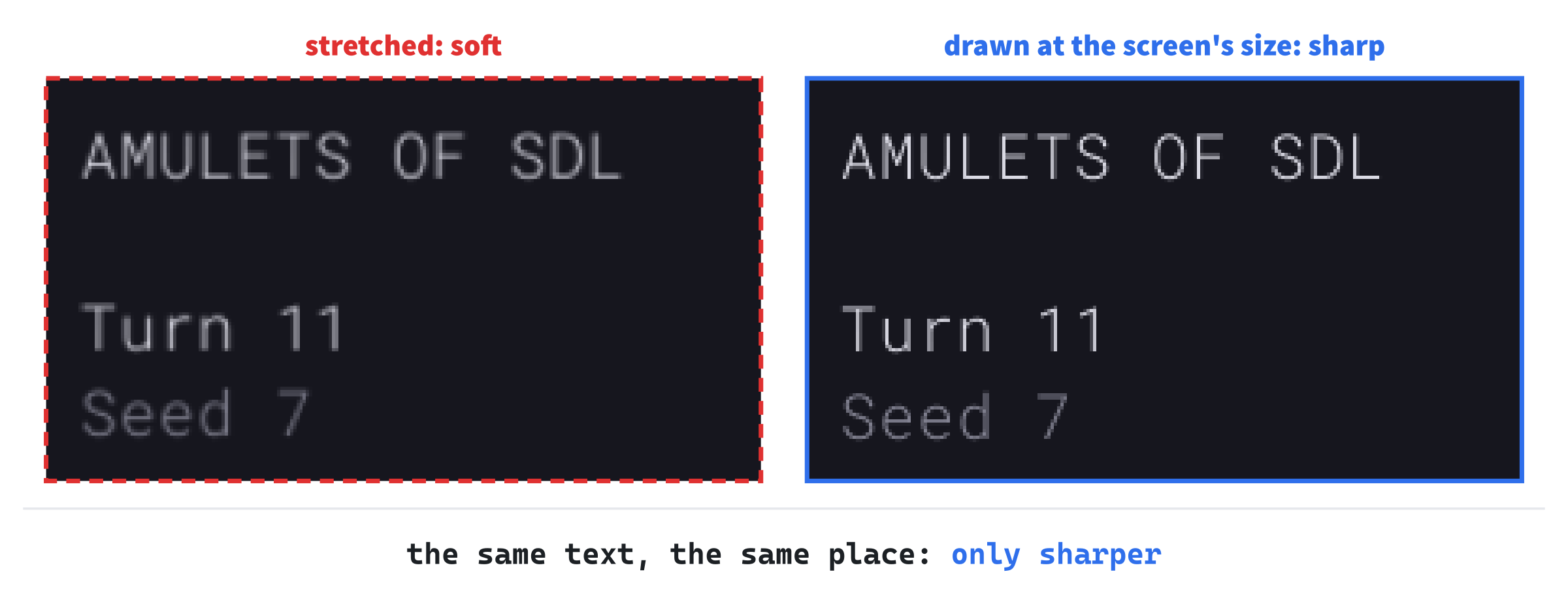
The difference is clearest on the thin strokes, such as the bars of the Es and the 1s, which the stretched version smears across two pixels.
Playing the Game
At last, there's something to do. Walk the @ through the dungeon, and explore every room. Use whichever keys feel natural: many players settle on the keypad, or on h, j, k, and l once their fingers learn them. Try the diagonals in the corridors' corners, and see how much quicker they are.
Watch the side panel's turn count as you go, and the log, as it dims what's old and brightens what's new. Press Space for a new dungeon, and the count starts again. Then try Alt+Enter, and drag the window to odd sizes, to see the text stay sharp.
Understanding the Code
The loop is still the same sleeping loop from Chapter 1, but it now has more to wake up for. Each event goes down a chain of checks, and the first that matches deals with it. Escape and the window's close button stop the game, Alt+Enter switches the screen, and Space makes a new dungeon. Any other key goes to stepFor, which turns it into a step, if it's a moving key. The step either moves the player and costs a turn, or adds a bump to the log.
The rules are split from the drawing, as before. The loop changes the player, the turn, and the log, and sets redraw. Then drawFrame shows whatever they hold. The drawing functions never change anything, which is why they all take what they draw by const reference.
The glyph cache now holds two kinds of resource, its textures and its font, and cleans up both. It makes its textures again whenever the window's scale changes, at the size they'll really be seen. But the game's layout stays in the picture's own fixed units.
Experimenting
Each of these is a small change. Try them one at a time, and put each back afterward:
- A key to wait. Add a ninth row to
KEY_STEPS:{ SDL_SCANCODE_UNKNOWN, SDL_SCANCODE_KP_5, SDLK_PERIOD, { 0, 0 } }. The.key and keypad 5 now take a step of nowhere, onto the floor where the player already stands, so a turn passes and nothing else happens. Roguelikes need a key like this, and Chapter 11 adds one for real. - Bumping costs a turn. In the walking code, move
++turn;out of theif, so that every moving key counts. Bump a wall, and watch the turn go up. - A shorter log. Change
LOG_LINESto4. The log shows only four messages, centered in the same space. - Newest at the top. In
drawLog, run the loop backward, fromcount - 1down tofirst, so that the newest message is at the top and the oldest at the bottom. - Stretched again. In the check for
SDL_EVENT_WINDOW_PIXEL_SIZE_CHANGED, comment out the call tosetScale. Go full screen, and look closely at the text. It isn't soft, as it was before this chapter, because the textures now scale without blending. Instead, it's uneven: SDL stretches each character's texture, drawn for the window's starting size, to the full screen's scale. So some of its rows and columns of pixels are doubled and others aren't. Compare the two 1s of the turn count, which come out at different weights.
Each experiment is a line or two, and the turn count and the log show its effect at once.
Common Errors and Fixes
If the game didn't build, or doesn't behave as described, the problem is probably one of these.
C2065: 'SDLK_k_renamed_SDLK_K': undeclared identifier, followed by errors about KEY_STEPS, such as C2737: constexpr object must be initialized. SDL 3 renamed the letters' keycodes to capitals, and SDL's headers turn SDL 2's old names into a message that says what to use instead. It should read SDLK_K. Watch for this when you copy code from examples written for SDL 2.
C4430: missing type specifier - int assumed. Note: C++ does not support default-int, on the second line of drawFrame, where it says const Player& player, followed by errors about player. The compiler has never heard of Player in main.cpp. Check that #include "Player.h" is there, below #include "Map.h".
LNK2019: unresolved external symbol for MessageLog::add, MessageLog::markRead, MessageLog::entries, and MessageLog::Entry::withCount, and then LNK1120: 4 unresolved externals. MessageLog.cpp isn't part of the project. With Show All Files on, right-click it in Solution Explorer, and choose Include In Project.
C2065: 'Entry': undeclared identifier, followed by errors about std::vector. The struct Entry is declared inside MessageLog, so outside the class, it needs the class's name in front of it. It should read MessageLog::Entry.
C2662: 'std::string MessageLog::Entry::withCount(void)': cannot convert 'this' pointer from 'const MessageLog::Entry' to 'MessageLog::Entry &'. The function withCount is missing its const. The function drawLog holds the entries by const reference, and can only call const functions on them. Add const after withCount() in both MessageLog.h and MessageLog.cpp.
C2662: 'void GlyphCache::setScale(float)': cannot convert 'this' pointer from 'const GlyphCache' to 'GlyphCache &', twice. The function runGame still takes the cache by const reference, but setScale changes it. It should read GlyphCache& glyphs.
C2143: syntax error: missing ';' before '*', in GlyphCache.h, followed by errors such as C3861: 'TTF_OpenFont': identifier not found. The header GlyphCache.h doesn't include SDL3_ttf's header, so it doesn't know what a TTF_Font is. Check that #include <SDL3_ttf/SDL_ttf.h> is there, below #include <SDL3/SDL.h>.
The @ walks through walls. The walking code is missing its check. It should only move the player if map.at(to.x, to.y) == Terrain::Floor.
Every message stays bright. Nothing is calling markRead. Check that the walking code calls log.markRead() before it does anything else.
The text in full screen is blocky, with some strokes thicker than others. The characters are being stretched, rather than drawn at the window's scale. Check that the game calls setScale when SDL_EVENT_WINDOW_PIXEL_SIZE_CHANGED arrives. If it does, check that drawAt divides the texture's width and height by scale_. Without that, the characters also come out too big for their places.
FAQ
Q) Why do roguelikes use h, j, k, and l?
A) Because of where they started. Rogue was written in 1980 for terminals, many of which had no arrow keys. It borrowed its movement keys from vi, a text editor of the time. That editor had borrowed them from a terminal called the ADM-3A, whose h, j, k, and l keys had arrows printed on them. Generations of roguelikes have kept them, and many players still prefer them to anything else, since their fingers never leave the letters.
Q) Holding a key down keeps the @ walking. Is that on purpose?
A) Yes. The repeated presses that the system sends make walking down a long corridor painless. Chapter 23 adds commands that walk you somewhere in one go, and stop when something interesting comes into view. That's safer than holding a key when there are monsters about.
Q) Why doesn't bumping a wall take a turn?
A) Because it isn't a choice, just a slip, and a turn-based game shouldn't punish a slip. Bumping into other things will be different. In Chapter 6, bumping into a monster attacks it, and in Chapter 19, bumping into a closed door opens it. Both of those take a turn, because they do something.
Q) Why keep 100 messages, if the log only shows eight?
A) Because the log is the game's memory of what it has said, and eight lines is only what fits on the screen. The AI exercise below uses the rest, for a screen that shows the history. A hundred short strings take a few kilobytes, which is nothing.
Q) Why not just use a bigger font in full screen?
A) Because a bigger font would change the layout. Text would take more room, and every position in the code would have to change with it. Drawing at the screen's scale keeps every position in the picture's own units, so the layout is the same at every size, and only the detail changes.
Q) My laptop runs Windows at 125% or 150% scale. Does that matter?
A) No. SDL 3 sizes windows on Windows in real pixels, and the game works out its scale from the window. So the text is sharp whatever Windows' scale is set to.
AI Exercise (Optional)
Many roguelikes let you look back through the messages that have scrolled out of the log, often with Ctrl+P. If you'd like to add that with an AI's help, open your AI chatbot of choice, and try a prompt like this:
"I'm writing a roguelike in C++ with SDL 3. A class, MessageLog, keeps the last 100 messages in a std::vector<MessageLog::Entry>, which entries() returns by const reference. Each Entry has text, a count, a bool isNew, and withCount(), which gives the text with ' x3' after a repeated message. The game draws a fixed 1600 by 900 picture. A function drawLog(const GlyphCache& glyphs, const MessageLog& log) draws the last eight messages in the log at the bottom, with glyphs.drawText(text, x, y, color). The game's loop sleeps in SDL_WaitEvent, and only calls drawFrame when a bool called redraw is true. I'd like Ctrl+P to show the last 30 messages in a panel drawn over the map, oldest at the top, until any key is pressed. Show me the changes, with each curly brace on its own line, and keep the loop sleeping in SDL_WaitEvent."
Notice what the preceding prompt does. It describes the log's class and the functions that draw it, so the AI uses them rather than inventing its own. The prompt also says how the loop works, which is the part an AI is most likely to get wrong. Many SDL examples redraw on every pass of a busy loop.
When the answer comes back, check it against your code. Does the key that closes the history also move the @, or is it swallowed? Either can be right, but you should know which. Does the panel get drawn after the map, so it covers it? And does opening and closing it set redraw, so that the screen changes at once?
Summary
The @ moves, by arrow, keypad or letter, and the log talks. And the text is sharp at every size, in a window or in full screen. In Chapter 4, the lights go out. The game will work out what the @ can see, by casting shadows from every wall. It will also remember everything it has seen, so that each dungeon is explored one room at a time.