
In the last chapter, we worked through int, float, bool, and the rest, but we did it all in the abstract: boxes with labels on them. That's a fine way to learn what variables are, but it doesn't quite show you what they do. The point of this chapter is to do exactly that, and to take those building blocks and make them produce something visible. By the end, you'll have a bright red ball bouncing around the screen, and everything about it, from its position, size, and speed to the colors on screen, will be controlled by a variable or a constant you can change.
This is the first project where you'll feel that satisfying click of theory turning into pixels. It's deliberately small, at about 140 lines, and most of them are the SDL setup you already know. But it's also the first thing you've built that genuinely behaves like a game: it moves, it reacts to its surroundings, and it keeps going until you stop it.
SDL3 Projects/Bouncing ball — the complete source for this chapter lives here.In this chapter, we will:
- Set up a new SDL project, using Chapter 1's routine as a checklist
- Store the ball's position and velocity in variables, and its size and colors in constants
- Use one of SDL's structs to name our colors
- Move the ball with velocity and delta time
- Make the ball bounce off the edges of the window
- Run it, experiment with the values, and fix the most common mistakes
- Try an optional AI exercise to extend the project
Let's build it.
Setting Up the Project
Setting up a project works exactly as it did in Chapter 1, so here's the routine as a checklist:
- Choose File > New > Project, pick Empty Project (the one tagged C++, Windows, and Console), name it
BouncingBall, and click Create. - In Solution Explorer, right-click Source Files, choose Add > New Item, and add a file called
main.cpp. - Right-click the project, choose Properties, set the two dropdowns to All Configurations and All Platforms, and then make the four changes:
- C/C++ > General > Additional Include Directories:
C:\SDL3\include - C/C++ > Language > C++ Language Standard: ISO C++20 Standard (/std:c++20)
- Linker > General > Additional Library Directories:
C:\SDL3\lib\x64 - Linker > Input > Additional Dependencies:
SDL3.lib
- C/C++ > General > Additional Include Directories:
- Right-click the project, choose Open Folder in File Explorer, and copy
SDL3.dllfromC:\SDL3\lib\x64into that folder, besidemain.cpp.
If any of that feels hazy, Chapter 1 walks through every step slowly, and its Common Errors section covers anything that goes wrong.
Setting up SDL for every project gets old fast. Once a project is configured, choose Project > Export Template, pick Project template, and give it a name like SDL3 Starter. From then on, it appears in the Create a new project list with all four settings already made. You'll still need to copy SDL3.dll into each new project folder, because the DLL isn't part of the project itself.
With the project ready, it's time to write the game.
Coding the Game
We'll build the program the same way we built the Controllable Square. First comes an empty window with a working game loop, then the ball, a piece at a time, with a checkpoint whenever there's something new to see. As before, the blocks are shown without the indentation they'll have in your file, and the complete program at the end shows every line where it sits.
The Header Comment and Includes
Type this at the very top of main.cpp:
/*
    Bouncing Ball
    The Chapter 3 project from Learning C++ by Building Games

    A ball, drawn as a square, starts in the middle of the window,
    drifts at a steady speed, and bounces off all four walls.
    Escape, or the window's X, quits.
*/

#include <SDL3/SDL.h>
#include <SDL3/SDL_main.h>
In the preceding code, the multi-line comment says what the program does, and the two #include lines bring in SDL and its helper for main, exactly as in Chapter 1.
The Constants
Now for the numbers that describe the game. Add these below the includes, leaving a blank line after the includes:
const int   WINDOW_W    = 800;                  // window width in pixels
const int   WINDOW_H    = 600;                  // window height in pixels
const float BALL_RADIUS = 20.0f;                // center to edge, in pixels
const float BALL_SIZE   = BALL_RADIUS * 2.0f;   // the ball's width and height
const float START_VEL_X = 300.0f;               // pixels per second, + is right
const float START_VEL_Y = 250.0f;               // pixels per second, + is down
In the preceding code, the first two constants are the window's size, as in Chapter 1. Then BALL_RADIUS is the distance from the middle of the ball to its edge. Our ball will be a square, since SDL can't draw circles by itself, so its "radius" is half its width.
Look at how BALL_SIZE gets its value. A constant doesn't have to be a literal: it can be worked out from other constants, and here it's twice the radius. If you change BALL_RADIUS later, BALL_SIZE follows along automatically, and the two can never disagree.
The last two constants are the ball's starting velocity, split into a horizontal part and a vertical part. A velocity is a speed with a direction attached, and the sign carries the direction: positive x moves the ball right and negative x moves it left. For y, positive means down, because y grows downward, just as it did in Chapter 1.
Next come the colors. Add these two lines below the other constants, with a blank line in between:
const SDL_Color BACKGROUND = { 20, 24, 40, 255 };    // deep blue-black
const SDL_Color BALL_COLOR = { 255, 70, 70, 255 };   // bright red
In the preceding code, each color is an SDL_Color, which is one of SDL's structs, just like Chapter 2's SDL_FRect. It has four members, r, g, b, and a, for red, green, blue, and alpha, and each one is a Uint8, which is why each value runs from 0 to 255. The curly braces fill the members in order, so the background is a little red, a little green, a bit more blue, and fully solid. Naming the colors means the drawing code will say what it's drawing, and changing a color means changing one line.
main and the SDL Setup
Now for main. Add it below the constants, leaving a blank line after them, with just return 0; inside for now:
int main(int argc, char* argv[])
{
    return 0;
}
In the preceding code, main has the same two values in its parentheses, argc and argv, that SDL's helper expects, and return 0; reports that all went well. Everything else goes inside main, above return 0;.
The setup comes first. Click at the end of the line with main’s opening brace, press Enter, and add this:
// Start SDL, then make the window and the renderer
if (!SDL_Init(SDL_INIT_VIDEO))
{
    SDL_Log("SDL_Init failed: %s", SDL_GetError());
    return 1;
}

SDL_Window* window = SDL_CreateWindow("Bouncing Ball",
                                      WINDOW_W, WINDOW_H, 0);
if (!window)
{
    SDL_Log("SDL_CreateWindow failed: %s", SDL_GetError());
    SDL_Quit();
    return 1;
}
In the preceding code, we start SDL's video system and then create the window, checking each step and bailing out with a message if it fails, just as in Chapter 1. The only difference is that the call to SDL_CreateWindow is squeezed onto two lines this time, with the title on the first and the size and options on the second.
While you're partway through typing, Visual Studio often draws red squiggles under perfectly good code, because it's checking a program that isn't finished yet. Finish the block you're typing, and they usually vanish. If one stays, hover over it to see what Visual Studio is complaining about. It's often a missing semicolon or brace on the line above.
The renderer and vsync finish the setup. Add this below the window check, with a blank line in between:
SDL_Renderer* renderer = SDL_CreateRenderer(window, nullptr);
if (!renderer)
{
    SDL_Log("SDL_CreateRenderer failed: %s", SDL_GetError());
    SDL_DestroyWindow(window);
    SDL_Quit();
    return 1;
}

// Show each frame in step with the monitor's refresh
SDL_SetRenderVSync(renderer, 1);
In the preceding code, we create the renderer, tidying up the window if that fails, and then turn on vsync so the game runs at the monitor's pace. Again, this is Chapter 1's code, line for line.
The Game Loop
Next comes the game loop, with its event handling already inside, since you've seen it all before. Add it below the vsync line:
bool running = true;
SDL_Event event;

while (running)
{
    // Events: quit on the window's X, or on Escape
    while (SDL_PollEvent(&event))
    {
        if (event.type == SDL_EVENT_QUIT)
        {
            running = false;
        }
        if (event.type == SDL_EVENT_KEY_DOWN &&
            event.key.key == SDLK_ESCAPE)
        {
            running = false;
        }
    }
}
In the preceding code, running is a flag, a bool that records a yes-or-no state, and it keeps the loop going, and the inner loop empties SDL's event queue every frame. Clicking the window's X or pressing Escape sets running to false, and the loop ends.
The last job in each frame is drawing it, so add this inside the game loop, below the event loop's closing brace:
// Draw the frame
SDL_SetRenderDrawColor(renderer, BACKGROUND.r, BACKGROUND.g,
                       BACKGROUND.b, BACKGROUND.a);
SDL_RenderClear(renderer);

SDL_RenderPresent(renderer);
In the preceding code, the color passed to SDL_SetRenderDrawColor now comes from our BACKGROUND constant. Using Chapter 2's dot, BACKGROUND.r reaches into the struct for its red part, BACKGROUND.g for its green, and so on. The call is too long for one line, so it carries on to the next. Then we clear the window to that color and present the frame, leaving a gap between the two where the ball will be drawn.
Finally, add the cleanup below the game loop's closing brace, just above return 0;, with a blank line on each side:
// Clean up, in the reverse order we created things
SDL_DestroyRenderer(renderer);
SDL_DestroyWindow(window);
SDL_Quit();
In the preceding code, we destroy the renderer and the window and shut SDL down, in the reverse order we made them.
Checkpoint: Press F5. You should see an empty, deep blue-black window titled Bouncing Ball, and pressing Escape or clicking its X should close it. If it doesn't build, compare your file with the complete program at the end of this section.
The Ball
Now for the ball itself. From here on, each block goes into a gap in the code you've already typed, just as in Chapter 1, and the gaps are in the same places too. Figure 3.1 is the map.
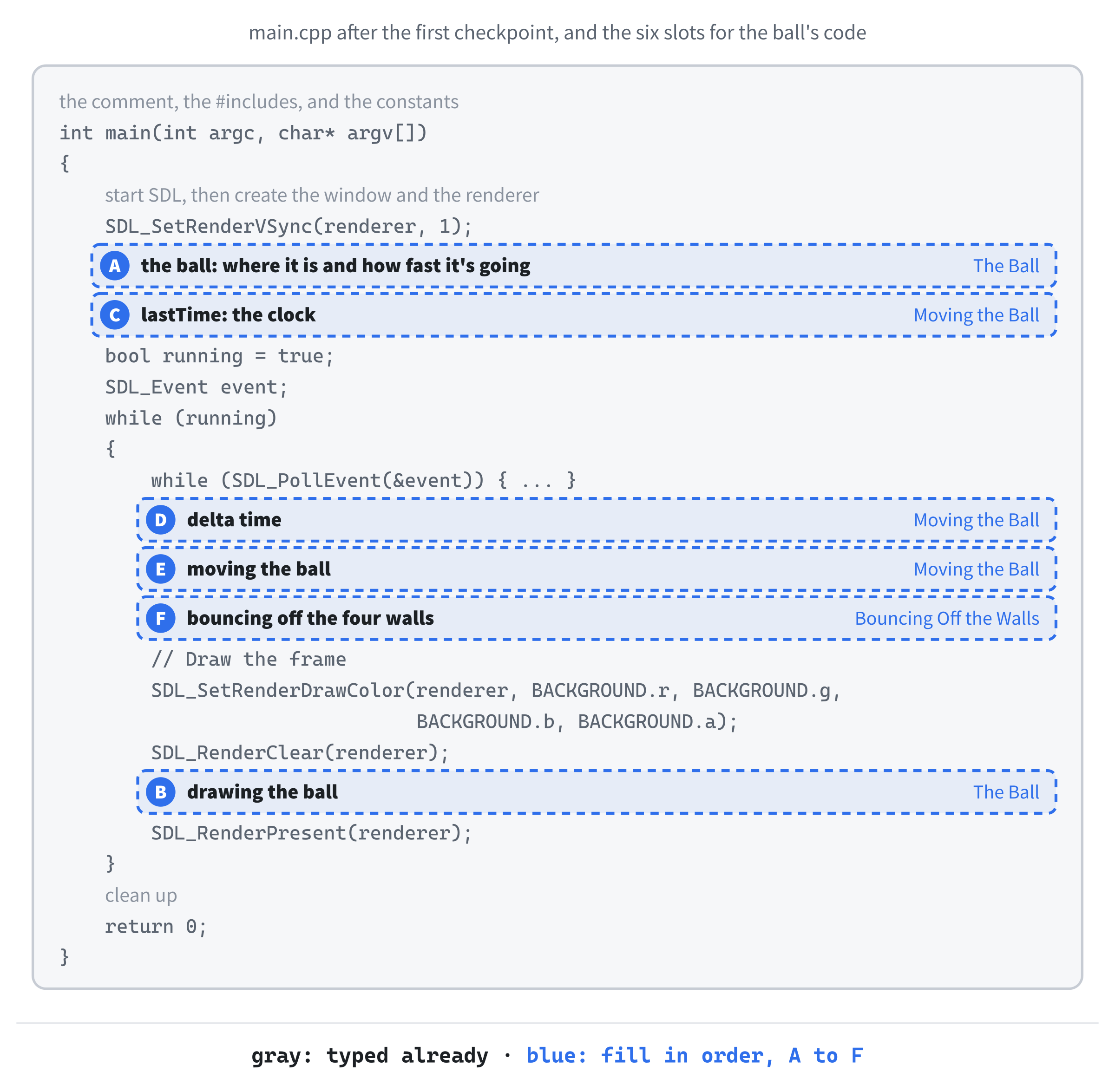
The ball needs four variables: two for where its center is, and two for its velocity. They go in slot A, above the game loop, between the vsync line and bool running = true;, with a blank line on each side:
// The ball: where its center is, and how fast it's moving
float ballX = WINDOW_W / 2.0f;
float ballY = WINDOW_H / 2.0f;
float ballVelX = START_VEL_X;
float ballVelY = START_VEL_Y;
In the preceding code, ballX and ballY start at the middle of the window. Remember Chapter 2's integer division trap: WINDOW_W is an int, but dividing it by 2.0f, a float, gives a float result, 400.0. Dividing by plain 2 would have worked here too, since 800 divides exactly, but writing 2.0f makes the kind of division obvious.
Notice that ballVelX and ballVelY are variables, not constants, even though they start with the constants' values. The ball's velocity has to change every time it hits a wall, so it can't be locked. The constants only say how it starts.
Now we can draw it. These lines go in slot B, near the bottom of the game loop, between SDL_RenderClear(renderer); and SDL_RenderPresent(renderer);, with a blank line on each side:
SDL_SetRenderDrawColor(renderer, BALL_COLOR.r, BALL_COLOR.g,
                       BALL_COLOR.b, BALL_COLOR.a);
SDL_FRect ballRect = {
    ballX - BALL_RADIUS,   // left edge
    ballY - BALL_RADIUS,   // top edge
    BALL_SIZE,             // width
    BALL_SIZE              // height
};
SDL_RenderFillRect(renderer, &ballRect);
In the preceding code, we switch the draw color to BALL_COLOR, build an SDL_FRect for the ball, and fill it, just as Chapter 1 filled its square. The rectangle's four values are spread over four lines this time, each with a comment naming the member it fills, because the first two need a little arithmetic.
That arithmetic is the interesting part. Our ballX and ballY mark the ball's center, but an SDL_FRect is placed by its top-left corner. As Figure 3.2 shows, the corner is one radius to the left of the center and one radius above it, so its position is ballX - BALL_RADIUS across and ballY - BALL_RADIUS down. The width and height are both BALL_SIZE.
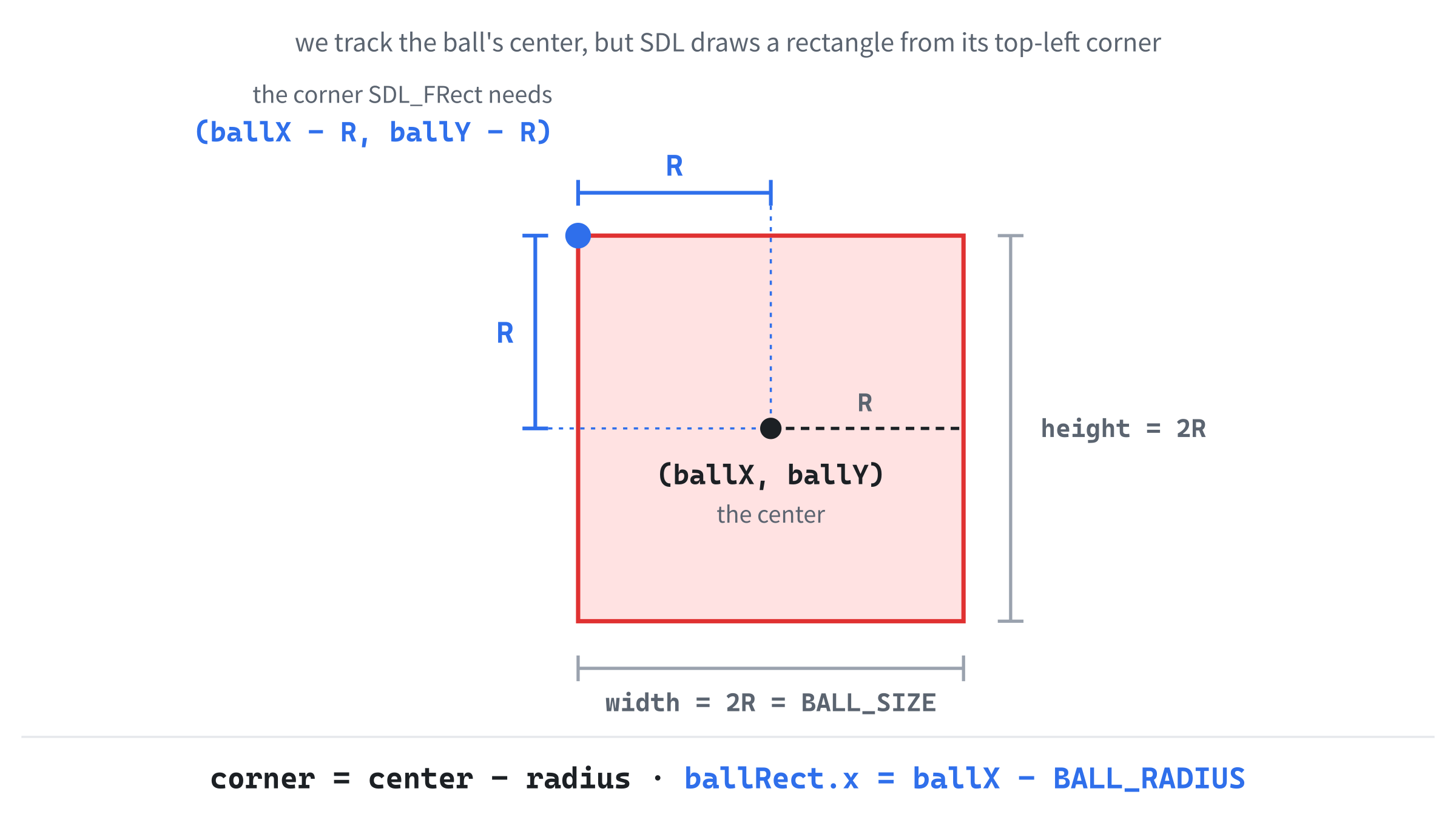
Why track the center instead of the corner? It makes everything else simpler. The ball touches the left wall when its center is one radius from it, and it touches the right wall when its center is one radius short of it, which is symmetrical and easy to reason about. We only need the corner at the moment we draw, so that's the only place we work it out.
Checkpoint: Press F5. A bright red ball sits in the middle of the window. It doesn't move yet, because nothing changes ballX or ballY. That's next.
Moving the Ball
To move the ball smoothly on any computer, we'll use delta time, exactly as Chapter 1 did. First, the clock. This line goes in slot C, just below the ball's variables and still above bool running = true;, with a blank line on each side:
// The time at the last frame, in milliseconds
Uint64 lastTime = SDL_GetTicks();
In the preceding code, lastTime records when the game started, so the first frame has something to measure from.
The measuring happens once per frame, in slot D. Add this inside the game loop, below the event loop's closing brace and above the // Draw the frame comment, with a blank line on each side:
// Delta time: how many seconds the last frame took
Uint64 now = SDL_GetTicks();
float delta = (now - lastTime) / 1000.0f;
lastTime = now;
In the preceding code, we read the clock, work out how many seconds have passed since the last frame, and remember the new time for next time. It's Chapter 1's delta time, word for word, and Figure 1.10 is there if you want a reminder of why it works.
Now for the lines that actually move the ball. They go in slot E, below the delta time lines and still above // Draw the frame, with a blank line on each side:
// Move the ball: velocity times the time that has passed
ballX += ballVelX * delta;
ballY += ballVelY * delta;
In the preceding code, each line takes the velocity in pixels per second, multiplies it by the seconds that have passed, and adds the result to the position. On a 60 Hz monitor, a frame lasts about 0.016 seconds, so ballX grows by 300 × 0.016, which is 4.8 pixels, each frame. On a faster monitor, the frames are shorter and the steps are smaller, but either way, the ball covers 300 pixels every second.
Two lines, one ball, two directions, moving smoothly. Take a moment to appreciate that: the whole idea of a moving thing on screen, the foundation of every game in this book, fits in two lines of arithmetic on float variables.
Checkpoint: Press F5 and watch the ball drift down and to the right, straight off the edge of the window, never to be seen again. That's not a bug in your code. Nothing tells the ball to stay on screen yet, and that's the last job.
Bouncing Off the Walls
To make the ball bounce, we check each wall in turn. If the ball has gone past one, we put it back inside and reverse its velocity in that direction. The checks go in slot F, starting with the left and right walls. Add this below the movement lines, still above // Draw the frame, with a blank line on each side:
// Bounce off the left and right walls
if (ballX - BALL_RADIUS < 0.0f)
{
    ballX = BALL_RADIUS;                // snap back inside...
    ballVelX = -ballVelX;               // ...then reverse
}
if (ballX + BALL_RADIUS > WINDOW_W)
{
    ballX = WINDOW_W - BALL_RADIUS;
    ballVelX = -ballVelX;
}
In the preceding code, the first if checks the left wall. The ball's left edge is its center minus its radius, and the < means "is less than," so ballX - BALL_RADIUS < 0.0f asks whether the left edge has gone past the left side of the window, where x is 0. If it has, we do two things. First, we set ballX to exactly BALL_RADIUS, which puts the ball back inside with its left edge touching the wall. Then we flip the sign of ballVelX.
That little minus sign is doing the real work. Written in front of a value, - gives you its opposite, so if ballVelX is -300, then -ballVelX is 300: the same speed, in the other direction. The ball was moving left, and now it moves right, away from the wall.
The second if is the mirror image for the right wall. The ball's right edge is ballX + BALL_RADIUS, and if that has gone past WINDOW_W, we put the ball back so that its right edge touches the wall and send it the other way. Figure 3.3 shows those two steps. Mixing types in these checks is fine, too: WINDOW_W is an int and the rest are floats, but C++ quietly turns the int into a float before it compares, and nothing is lost.
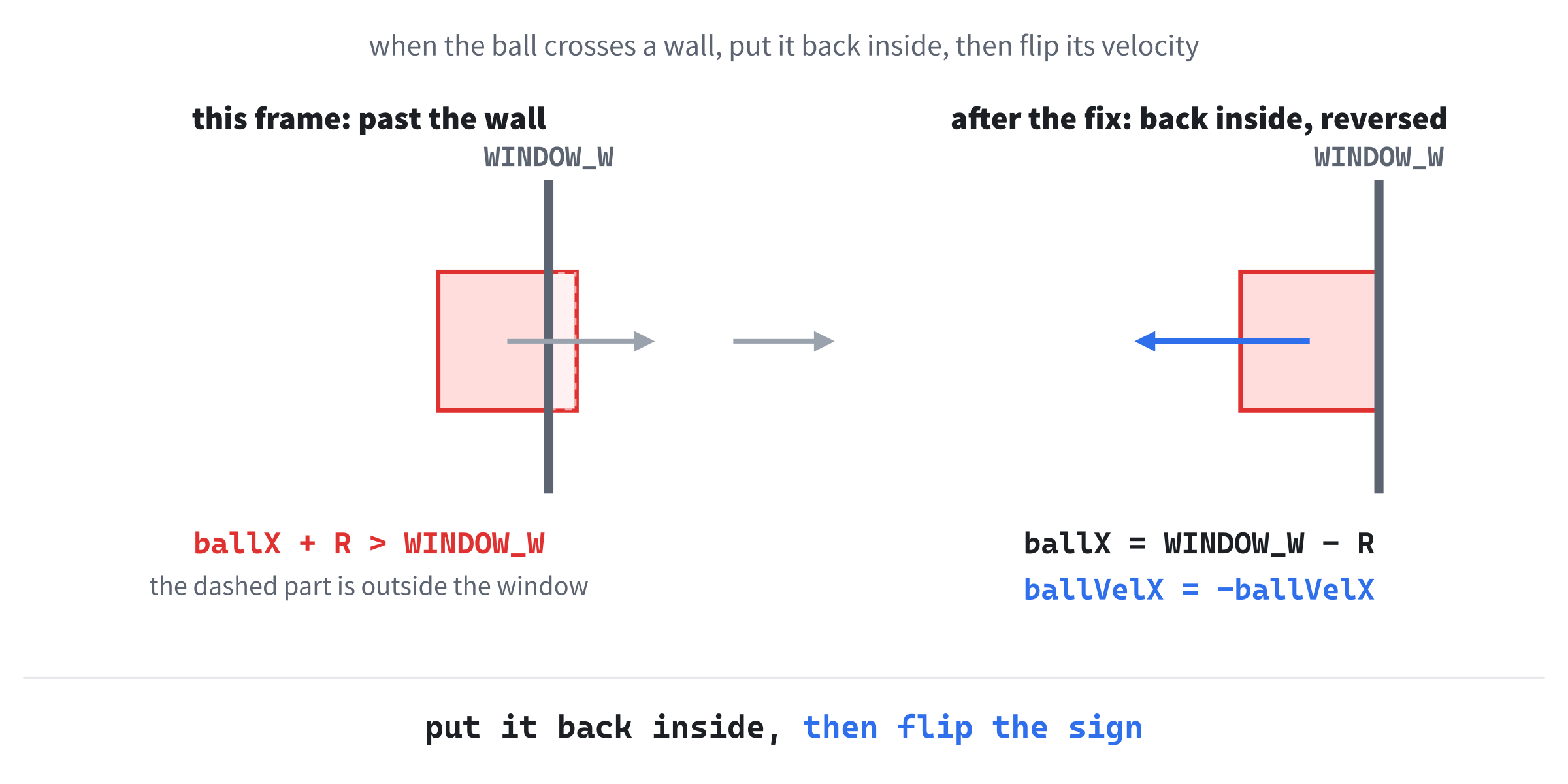
Why snap the ball back before reversing it? Frames jump, so the ball rarely lands exactly on a wall. It usually overshoots it a little. If we only reversed the velocity, a ball that had overshot far enough could still be past the wall on the next frame, and it would reverse again, back toward the wall, and get stuck there, jittering. Snapping it back inside first means that each bounce happens exactly once.
The top and bottom walls work the same way, with y in place of x. Add this below the right-wall check's closing brace, still in slot F, with a blank line on each side:
// Bounce off the top and bottom walls
if (ballY - BALL_RADIUS < 0.0f)
{
    ballY = BALL_RADIUS;
    ballVelY = -ballVelY;
}
if (ballY + BALL_RADIUS > WINDOW_H)
{
    ballY = WINDOW_H - BALL_RADIUS;
    ballVelY = -ballVelY;
}
In the preceding code, the ball's top edge is ballY - BALL_RADIUS and its bottom edge is ballY + BALL_RADIUS, and each check snaps the ball back and reverses ballVelY when an edge goes past the top of the window or its bottom, at WINDOW_H. Because the x and y checks are separate, a ball that hits a corner bounces off both walls at once and heads back out diagonally.
See the bounce happen in slow motion. Put a breakpoint on the ballVelX = -ballVelX; line inside the right-wall check, and press F5. When the ball reaches the right wall, Visual Studio pauses. Find ballVelX in the Autos window, press F10, and watch it flip from 300 to -300. Then remove the breakpoint and press F5 to let the ball carry on.
Notice how cleanly the constants pay off in all four checks. Thanks to BALL_RADIUS and WINDOW_W, the code reads almost like English: "if the ball's right edge is past the window's width, put it back at the window's width minus the radius." Without the constants, we'd have a 20, an 800, and a 780 scattered around, and changing the window size would mean hunting down every number that depended on it.
That fills the last slot, and the game is finished.
The Complete Program
Here's the whole file in one piece, with every line at its real indentation. If you've typed every block in the place described, this is exactly what you have:
/*
    Bouncing Ball
    The Chapter 3 project from Learning C++ by Building Games

    A ball, drawn as a square, starts in the middle of the window,
    drifts at a steady speed, and bounces off all four walls.
    Escape, or the window's X, quits.
*/

#include <SDL3/SDL.h>
#include <SDL3/SDL_main.h>

const int   WINDOW_W    = 800;                  // window width in pixels
const int   WINDOW_H    = 600;                  // window height in pixels
const float BALL_RADIUS = 20.0f;                // center to edge, in pixels
const float BALL_SIZE   = BALL_RADIUS * 2.0f;   // the ball's width and height
const float START_VEL_X = 300.0f;               // pixels per second, + is right
const float START_VEL_Y = 250.0f;               // pixels per second, + is down

const SDL_Color BACKGROUND = { 20, 24, 40, 255 };    // deep blue-black
const SDL_Color BALL_COLOR = { 255, 70, 70, 255 };   // bright red

int main(int argc, char* argv[])
{
    // Start SDL, then make the window and the renderer
    if (!SDL_Init(SDL_INIT_VIDEO))
    {
        SDL_Log("SDL_Init failed: %s", SDL_GetError());
        return 1;
    }

    SDL_Window* window = SDL_CreateWindow("Bouncing Ball",
                                          WINDOW_W, WINDOW_H, 0);
    if (!window)
    {
        SDL_Log("SDL_CreateWindow failed: %s", SDL_GetError());
        SDL_Quit();
        return 1;
    }

    SDL_Renderer* renderer = SDL_CreateRenderer(window, nullptr);
    if (!renderer)
    {
        SDL_Log("SDL_CreateRenderer failed: %s", SDL_GetError());
        SDL_DestroyWindow(window);
        SDL_Quit();
        return 1;
    }

    // Show each frame in step with the monitor's refresh
    SDL_SetRenderVSync(renderer, 1);

    // The ball: where its center is, and how fast it's moving
    float ballX = WINDOW_W / 2.0f;
    float ballY = WINDOW_H / 2.0f;
    float ballVelX = START_VEL_X;
    float ballVelY = START_VEL_Y;

    // The time at the last frame, in milliseconds
    Uint64 lastTime = SDL_GetTicks();

    bool running = true;
    SDL_Event event;

    while (running)
    {
        // Events: quit on the window's X, or on Escape
        while (SDL_PollEvent(&event))
        {
            if (event.type == SDL_EVENT_QUIT)
            {
                running = false;
            }
            if (event.type == SDL_EVENT_KEY_DOWN &&
                event.key.key == SDLK_ESCAPE)
            {
                running = false;
            }
        }

        // Delta time: how many seconds the last frame took
        Uint64 now = SDL_GetTicks();
        float delta = (now - lastTime) / 1000.0f;
        lastTime = now;

        // Move the ball: velocity times the time that has passed
        ballX += ballVelX * delta;
        ballY += ballVelY * delta;

        // Bounce off the left and right walls
        if (ballX - BALL_RADIUS < 0.0f)
        {
            ballX = BALL_RADIUS;                // snap back inside...
            ballVelX = -ballVelX;               // ...then reverse
        }
        if (ballX + BALL_RADIUS > WINDOW_W)
        {
            ballX = WINDOW_W - BALL_RADIUS;
            ballVelX = -ballVelX;
        }

        // Bounce off the top and bottom walls
        if (ballY - BALL_RADIUS < 0.0f)
        {
            ballY = BALL_RADIUS;
            ballVelY = -ballVelY;
        }
        if (ballY + BALL_RADIUS > WINDOW_H)
        {
            ballY = WINDOW_H - BALL_RADIUS;
            ballVelY = -ballVelY;
        }

        // Draw the frame
        SDL_SetRenderDrawColor(renderer, BACKGROUND.r, BACKGROUND.g,
                               BACKGROUND.b, BACKGROUND.a);
        SDL_RenderClear(renderer);

        SDL_SetRenderDrawColor(renderer, BALL_COLOR.r, BALL_COLOR.g,
                               BALL_COLOR.b, BALL_COLOR.a);
        SDL_FRect ballRect = {
            ballX - BALL_RADIUS,   // left edge
            ballY - BALL_RADIUS,   // top edge
            BALL_SIZE,             // width
            BALL_SIZE              // height
        };
        SDL_RenderFillRect(renderer, &ballRect);

        SDL_RenderPresent(renderer);
    }

    // Clean up, in the reverse order we created things
    SDL_DestroyRenderer(renderer);
    SDL_DestroyWindow(window);
    SDL_Quit();

    return 0;
}
In the preceding code, you can see the same shape as Chapter 1: the constants at the top, then the setup, the game loop, and the cleanup inside main. The ball's code sits in exactly the places Figure 3.1 promised.
Playing the Game
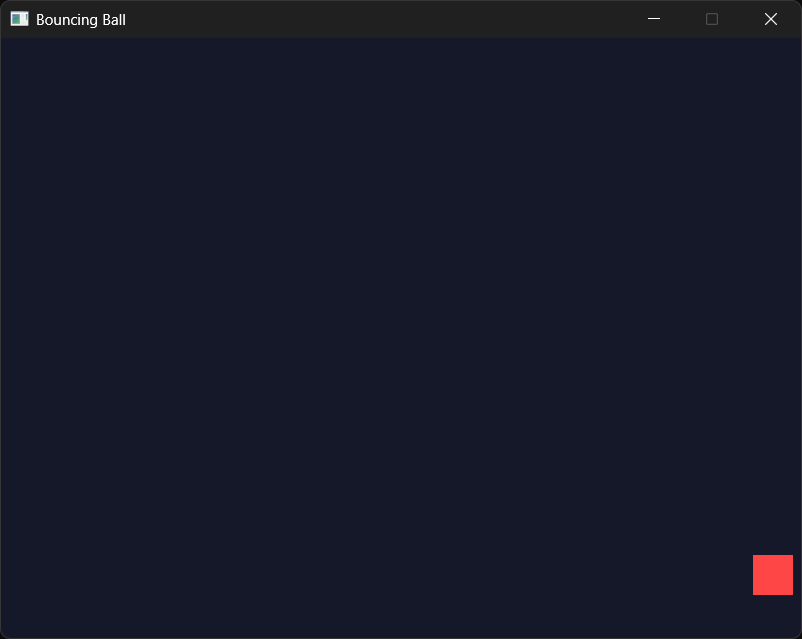
Press F5. A deep blue-black window opens, with a red ball drifting away from the center. It reaches the bottom wall and bounces. It reaches the right wall and bounces. And it keeps on bouncing, off every wall, for as long as you care to watch, as Figure 3.4 shows.
This is your first program that does something all by itself, with no input required. It will quite happily bounce forever, until you press Escape or close the window. Sit and watch it for a minute. It's strangely satisfying.
Understanding the Code
Let's step back and look at the shape of what we wrote, because it's the shape of every game in this book. Figure 3.5 shows it.

The whole program has two layers. The outer layer is setup and cleanup: start SDL and create a window and renderer at the top, then destroy them and quit SDL at the bottom. The inner layer is the game loop, where the action happens, and it has three jobs that it repeats every frame:
- Handle events, in case the player wants to quit.
- Update the game, moving the ball according to its velocity and the time that has passed, and bouncing it off the walls.
- Draw the current state of the world on the screen.
That three-step rhythm of input, update, and draw is the heart of every real-time game ever made, from Pong to the latest big-budget release. The only things that change from game to game are what gets updated and what gets drawn.
The variables do almost all the heavy lifting: ballX and ballY hold the ball's position, and ballVelX and ballVelY hold its velocity. Two lines of arithmetic move the ball, and four small if blocks send it the other way when it hits a wall. That's the entire physics simulation: variables in, variables out, and a picture on the screen.
This is the click. Variables aren't just abstract boxes. They're the controls of the game: change a number, and you change a behavior.
Experimenting
Now that you've got it running, the best thing you can do is mess with it. Each of these is a quick change, so try them one at a time and see what happens:
- Change
BALL_RADIUSto60.0f. A much bigger ball, andBALL_SIZEfollows along by itself. - Change
BALL_RADIUSto5.0f. A tiny ball. Notice how much farther it travels before it hits a wall. - Change
START_VEL_Xto800.0fandSTART_VEL_Yto700.0f. A frantic, fast ball. - Change them to
40.0fand30.0f. A slow, lazy ball. - Make one starting velocity negative, such as
START_VEL_X = -300.0f. The ball sets off to the left instead of the right. - Change
BACKGROUNDto{ 20, 60, 30, 255 }. A dark green background. - Change
BALL_COLORto{ 0, 200, 255, 255 }. A bright sky-blue ball, and a whole new mood.
None of this changes the program in any fundamental way, because the structure stays exactly the same. But the result on screen is dramatically different, and that's what variables and constants give you: the structure stays put while the behavior flexes.
Common Errors and Fixes
If the build fails with errors about SDL3/SDL.h, SDL3.lib, or unresolved external symbols, the problem is the project setup, and Chapter 1's Common Errors section covers each one. Here are the problems that are particular to this chapter.
The ball doesn't move. Check the delta time line. If it divides by 1000 instead of 1000.0f, then integer division turns every frame's time into 0, and the ball never goes anywhere. Also check that both movement lines use += and multiply by delta.
The ball zips around too fast to see, or flickers between the walls. One of the movement lines is missing * delta, so the ball moves 300 pixels every frame instead of every second, which crosses the whole window in a handful of frames.
The ball flies off and never comes back. One of the four wall checks is wrong. Most often, it's a typo: ballX where there should be ballY, or > where there should be <. Read the check for the wall the ball escapes through, and compare it with the listing.
The ball gets stuck to a wall and jitters. The snap-back line is missing from one of the checks. Without it, a ball that overshoots the wall can still be past it on the next frame, so it reverses again, and then again, and it never gets away. Put the line that sets the position back before the line that flips the velocity.
The ball's color is wrong, and Visual Studio warned C4838: conversion from 'int' to 'Uint8' requires a narrowing conversion. One of the color values is bigger than 255 (or less than 0), which doesn't fit in a Uint8. It wraps around instead, as Chapter 2's Figure 2.3 showed, so 300 becomes 44. Keep every color value between 0 and 255.
A message box says "The code execution cannot proceed because SDL3.dll was not found." Copy SDL3.dll from C:\SDL3\lib\x64 into the project folder, beside main.cpp.
AI Exercise (Optional)
If you'd like to take this project a little further with AI help, here's a low-stakes vibe coding challenge. Skip the section entirely if you'd rather not; there's nothing here you'll need later.
Open your AI chatbot of choice, and try a prompt like this:
"I have a small C++ SDL 3 program that bounces a single red square around an 800x600 window. The ball has four variables, ballX, ballY, ballVelX, and ballVelY, plus a BALL_RADIUS constant, and it bounces with four if statements. I'm a beginner who has only just learned about variables and simple structs: no loops, no functions, and no arrays yet. Show me how to add a second ball, with a different color and size, using only more variables of the kinds I already have. Don't introduce any new C++ features. Show me the full program so I can compare it with mine."
Notice what that prompt does. It tells the AI exactly what you've got, what you know, and, crucially, what you don't know yet. The "no loops, no functions, and no arrays" constraint is the magic bit. Without it, the AI will gleefully introduce a std::vector and a for loop, which will give you a working program but won't teach you anything you can read yet.
When the AI answers, read every line. Can you point to the variables that belong to the new ball? Can you follow its bouncing code? If the AI has smuggled in something you don't recognize, push back: "That uses a feature I haven't learned yet. Show me a version that only uses variables and if statements." Make the AI work to your level.
There's no single right answer here, so your two-ball version will differ from anyone else's, and that's the point.
Summary
You've taken the variables from the last chapter and turned them into a bouncing ball. Its position and velocity are variables, and its size, starting speed, and colors are constants, including two of SDL's SDL_Color structs. Tweak any of them, and the game's behavior changes immediately. That tight loop between changing a value and seeing something different on screen is the most important thing a beginner programmer can experience. It's the moment code stops feeling like a foreign language and starts feeling like a set of dials you're learning to turn.
In the next chapter, we'll teach our code to make decisions properly, with if, else, comparisons, and logical operators. That's the missing piece that turns things on screen into things on screen that react. Then, in Chapter 5, we'll come straight back to SDL and use those decisions to build something a lot more interactive than a ball minding its own business.