
Everything a computer does eventually boils down to moving numbers and text around in memory. Variables are how we, as programmers, give those numbers and that text names we can actually remember and work with. Without variables, we'd have no way to store a player's score, track the position of a spaceship, or remember whether the player has collected the key. In other words, without variables, we have no games.
You've already used a handful. Chapter 1's x, y, delta, and running were all variables, and its SDL_FRect was a struct, though we didn't stop to say so. This chapter puts that right. We'll cover the C++ types our games rely on for the rest of the book, the tools for doing math with them, and a few modern C++ features that make life easier. None of it is difficult on its own, but taken together, it's the foundation everything else is built on.
In this chapter, we will:
- Understand what a variable is, and give variables good names
- Set up a sandbox project for trying out code
- Meet the number types, including the unsigned, exact-size types behind Chapter 1's
Uint64 - Do math with variables, and dodge the integer division trap
- Store true-or-false states, single characters, and text
- Lock values in place with constants, and convert between types with
static_cast - Let the compiler work out types with
auto, and take a first look at scope - Bundle related variables into structs, and see how SDL uses them
- Try an optional AI exercise to explore variables further
Let's start at the beginning.
What Is a Variable?
A variable is a named container for a piece of data. That's it. You tell the computer "I want a chunk of memory, I want to call it score, and I want it to hold a whole number." From that moment on, whenever you use the word score in your code, the computer knows exactly which piece of memory you mean and what kind of data lives there.
A useful way to picture this is a row of labeled boxes on a shelf, as in Figure 2.1. Each box holds exactly one thing, and each box has its name written on the front. When you want to know what's in score, you look in the score box. When you want to change it, you reach in and swap what's inside for something new.
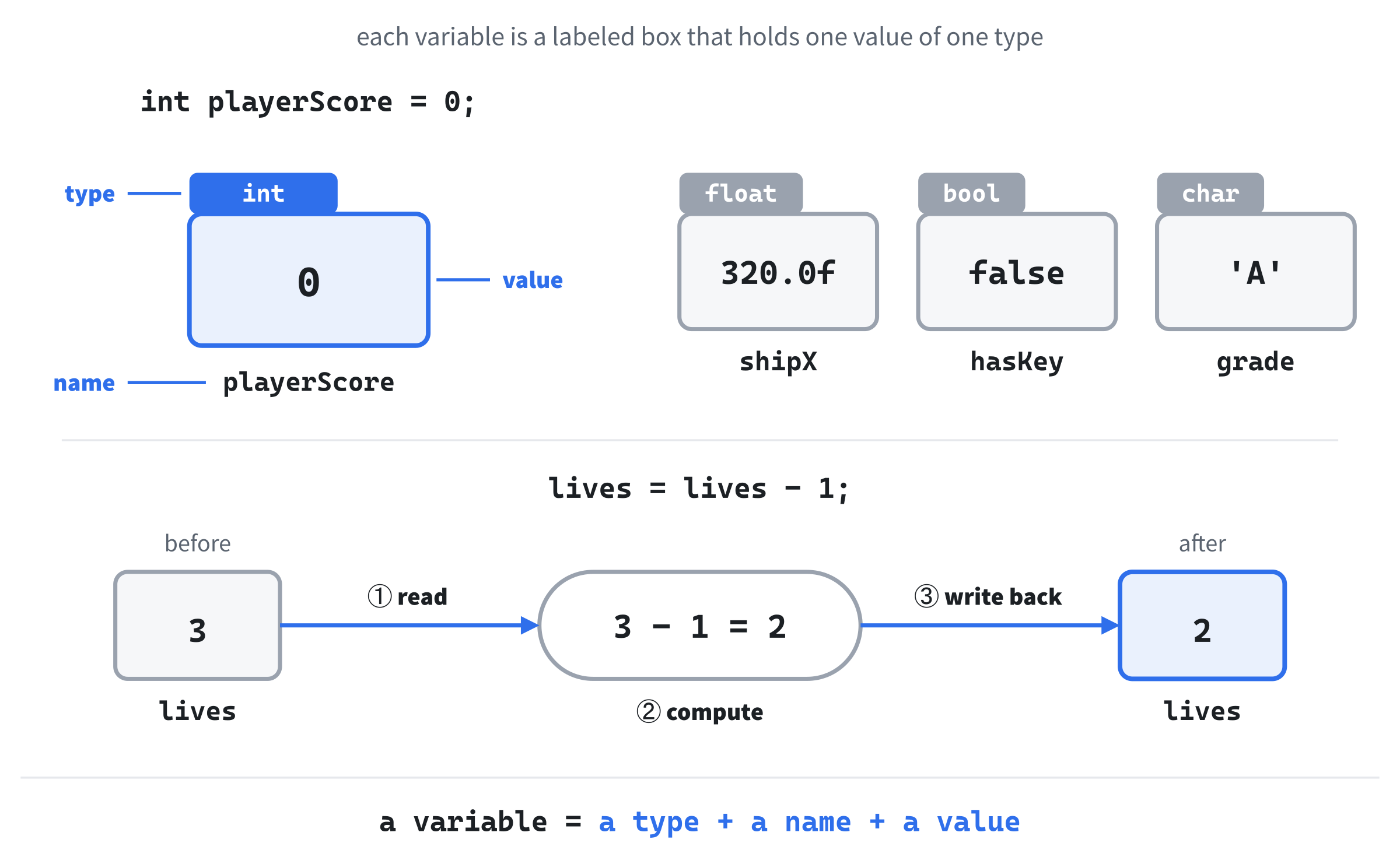
There are two things we always have to tell the computer when we create a variable: its type and its name. The type says what kind of thing will live in the box, such as a whole number, a decimal, a letter, a word, or a true-or-false value. The name is what we use to refer to it in our code.
C++ has a few rules about names. They can contain letters, numbers, and underscores, but they can't start with a number, they can't contain spaces, and they can't be one of C++'s own keywords, like int or while. Beyond the rules, there's a strong convention: C++ programmers usually write variable names in camelCase, with the first word in lowercase and each later word starting with a capital, like playerScore, enemyHealth, or isGameOver. We'll stick to that throughout the book.
A well-named variable is worth its weight in gold. Calling something x might be fine in a throwaway example, but playerScore tells you, and anyone who reads your code later, exactly what the value represents. Good names are one of the cheapest and most effective ways to make your code easier to work with.
Before we meet the types, let's make somewhere to try them out.
A Sandbox for Trying Things Out
The examples in this chapter aren't games. They're small experiments, a few lines each, and the best way to understand them is to run them and poke at them. So let's make a sandbox: a plain C++ project with no SDL in it, where you can drop in any example, run it, and see what happens. We'll use it for every theory chapter in the book.
Create it just as you created Chapter 1's project, minus the SDL parts:
- In Visual Studio, choose File > New > Project, pick Empty Project (the one tagged C++, Windows, and Console), and click Next.
- Name it
Sandbox, and click Create. - In Solution Explorer, right-click Source Files, choose Add > New Item, and add a file called
main.cpp. - Open the project's Properties, set the two dropdowns to All Configurations and All Platforms, and set C/C++ > Language > C++ Language Standard to ISO C++20 Standard (/std:c++20), just as in Chapter 1.
There's nothing else to set up. The sandbox doesn't use SDL, so it needs no include folders, no library files, and no DLL. Now type this into main.cpp:
#include <iostream>

int main()
{
    int playerScore = 0;
    std::cout << "Score: " << playerScore << std::endl;

    return 0;
}
In the preceding code, the first line includes iostream, which is part of C++'s standard library. The standard library is a big collection of ready-made tools that comes with every C++ compiler, and iostream is the part that lets a program print text in the console window. Then comes main. Without SDL, it doesn't need the two values in its parentheses that SDL's helper wanted in Chapter 1, so the parentheses can stay empty.
Inside main, the first line creates a variable called playerScore that holds 0. We'll look at exactly how that works in the next section.
The line after it prints the variable. Think of std::cout (say "see-out," short for "character output") as the console window itself, and of each << as an arrow that sends the value on its right into it, from left to right. Text in double quotes is printed exactly as written, so the first << prints Score:, space and all. The second prints whatever playerScore holds, and the third sends std::endl, which ends the line. The std:: in front of both names says that they come from the standard library, and we'll see why that matters when we meet std::string.
Press F5, and the console window shows this, followed by Visual Studio's usual message about the program exiting with code 0:
Score: 0Notice that the text and the number sit side by side on one line, because nothing is printed between them except the space inside the quotes.
That's the whole routine. To try any example from this chapter, put it inside main, above return 0;, in place of the lines that are there, and add a std::cout line for anything you want to see. When you want to see several values at once, you can skip the printing. Put a breakpoint on the return 0; line, press F5, and read every variable in the Locals window, just as you read the Autos window in Chapter 1. We'll do exactly that with decimals in a few pages.
int
The int type stores a whole number: positive, negative, or zero. There's no decimal point and no fraction, just whole numbers like 0, 7, -42, or 1000.
In games, int is everywhere. Scores, lives, ammo counts, the number of enemies on screen, which level the player is on: all of these are whole numbers, and all of them make natural int variables. Here's how we create three of them:
int playerScore = 0;
int lives = 3;
int enemiesRemaining = 20;
In the preceding code, each line declares a variable, which means creating it by stating its type and its name. Each line also initializes its variable, which means giving it a first value at the moment it's created. Values typed straight into the code, like 0, 3, and 20, are called literals. The = between the name and the value gives the variable its first value.
You can change an int whenever you like after it's created, by assigning it a new value:
playerScore = 100;       // the player scored some points
lives = lives - 1;       // the player lost a life
enemiesRemaining = 19;   // one enemy defeated
In the preceding code, none of the lines starts with a type, because the variables already exist: we're changing them, not creating them, and = used like this is the assignment operator, which puts the value on its right into the variable on its left. The second line uses lives on both sides of the =. As the bottom half of Figure 2.1 shows, the computer works out the right-hand side first, reading the 3 out of lives and subtracting 1, and only then stores the answer, 2, back in lives. Calculating with a variable and then storing the result back in it is a pattern you'll see constantly in games. (Try both blocks in the sandbox, print lives at the end, and check that you get 2.)
An int can hold positive and negative numbers, but it does have limits. On Windows, and on almost every other system today, an int runs from about -2.1 billion to about +2.1 billion. For nearly every game variable you'll ever need, that's plenty of room, and for the rare exceptions, C++ has bigger types, which we'll meet shortly.
float and double
Not every number is a whole number. A spaceship's position might be 342.7 pixels across, and a timer might count down in fractions of a second. For numbers with a decimal point, we use float or double.
Both types store floating-point numbers, so called because the decimal point can "float" to wherever it's needed. The difference between them is precision. A double uses twice as much memory as a float, and in return it keeps about twice as many significant digits: a float keeps about seven, and a double about 15. Here's how we create them:
float shipX = 320.0f;
float shipY = 240.0f;
double preciseTimer = 1.234567890;
In the preceding code, two float variables hold the spaceship's position, and a double holds a timer. Notice the f at the end of 320.0f and 240.0f, which you first met in Chapter 1's 80.0f. In C++, a number with a decimal point is a double unless you say otherwise, and the f says otherwise: it makes the literal a float.
Leave the f off, and you're asking the compiler to squeeze a double into a float. It does it without complaint for a number like 320.0, but for one like 0.1 it warns you, with C4305: 'initializing': truncation from 'double' to 'float'. Adding the f every time keeps your code tidy and your warnings meaningful.
So which should you use? For games, float is the usual choice. Graphics libraries, physics engines, and SDL itself use float for positions, speeds, and sizes, which is why Chapter 1's square used them. A double is for when precision really matters: scientific calculations, timers that run for a very long time, or anywhere small rounding errors could pile up into big ones.
There's one thing about floating-point numbers that trips up every programmer at some point: they can't store most decimals exactly. Here's a quick experiment for the sandbox. Put a breakpoint on the return 0; line before you run it:
float tenth = 0.1f;
double preciseTenth = 0.1;
std::cout << tenth << std::endl;
In the preceding code, both variables are meant to hold one tenth, and the last line prints the float. Run it, and the console shows 0.1, which looks perfect. Now look at the Locals window in Figure 2.2.
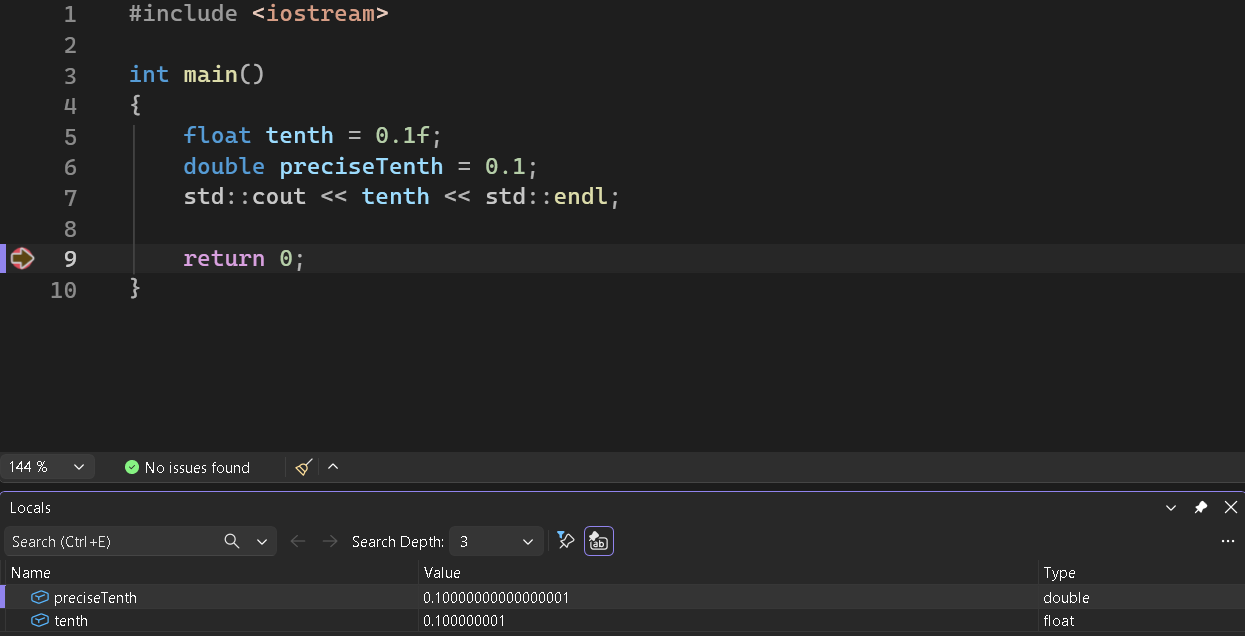
The float actually holds 0.100000001, and even the double holds 0.10000000000000001. Neither is exactly one tenth. Computers store numbers in binary, and one tenth has no exact binary form, just as one third has no exact decimal form: 0.3333 goes on forever. When it prints, std::cout rounds to six significant digits, which hides the difference, but the debugger shows you the truth. You've seen this before, too: the delta in Chapter 1's Figure 1.13 was 0.00700000022, not 0.007.
Most of the time, this doesn't matter. Nobody notices a spaceship one ten-millionth of a pixel out of place. But it does mean that comparing two floating-point numbers with == can give surprising answers, and Chapter 4, which covers comparisons properly, shows a safer way to do it.
long and long long
Occasionally, an int isn't big enough. If you're adding up the scores of every player who has ever played your game, or counting the milliseconds in a month, 2.1 billion starts to feel cramped. For those rare cases, C++ has long and long long.
Here's the catch, and it catches plenty of experienced programmers too. On Windows, a long is exactly the same size as an int, so it runs out at the same 2.1 billion. On Linux and macOS it's bigger, which is why you'll see long used for big numbers in books and websites written with those systems in mind. Try three billion in Visual Studio, and it doesn't fit:
long bigNumber = 3000000000L;In the preceding code, the L on the end marks the literal as a long, just as f marks a float. Visual Studio warns C4309: 'initializing': truncation of constant value, and if you print bigNumber in the sandbox, you get -1294967296. The number was too big for a Windows long, so it overflowed and wrapped around into the negatives.
The type that's big enough on every system is long long, which is always at least 64 bits:
long long totalPlayTimeMs = 3000000000LL; // three billion, no problemIn the preceding code, the LL suffix marks the literal as a long long. A long long reaches about nine quintillion, which is a nine followed by 18 zeros. If you need more than that, you're probably writing the wrong kind of program.
You'll rarely need numbers this big in this book's games, but when you do, reach for long long, not long.
Unsigned Types and Exact Sizes
Chapter 1 used two types that we haven't explained yet. One was Uint64, for the time from SDL_GetTicks. The other was hidden inside SDL_SetRenderDrawColor: its four color values are each a Uint8, which is why each one ran from 0 to 255. Both come from two ideas: unsigned types and exact sizes.
Everything in memory is stored as bits. A bit is a single 0 or 1, and eight bits together make a byte. The number of bits a type uses decides how many different values it can hold. Each extra bit doubles the count, so eight bits make 256 different patterns, as Figure 2.3 shows.
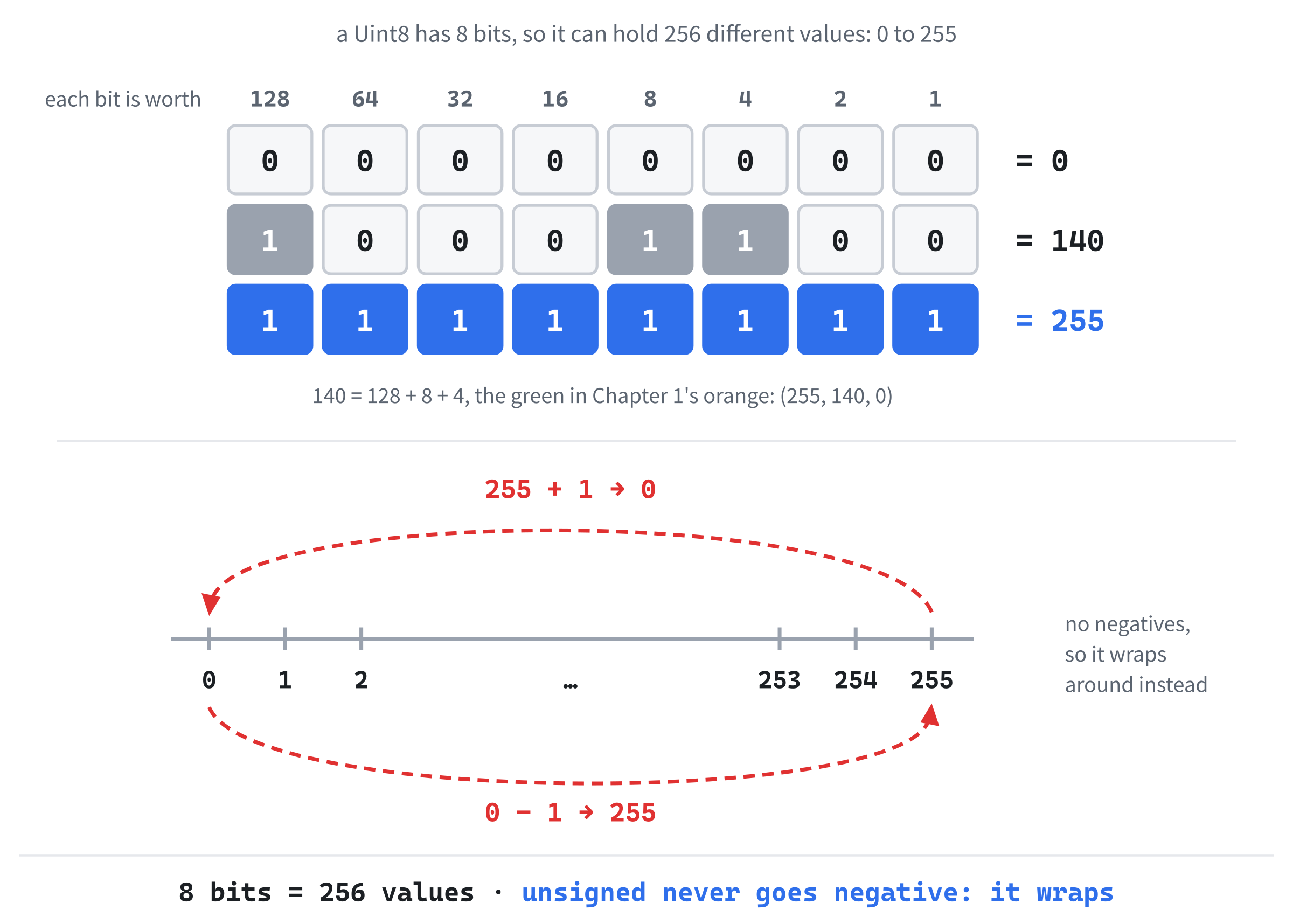
An int uses 32 bits, which gives about 4.3 billion patterns. It spends half of them on negative numbers, which is why an int tops out at about 2.1 billion. An unsigned type spends all of its patterns on zero and up instead. So an unsigned int runs from 0 to about 4.3 billion, and a Uint8, with only eight bits, from 0 to 255.
The other idea is exact sizes. C++ lets the size of types like int and long vary from one system to another, which is how long ends up smaller on Windows. When the size really matters, C++ has types with the size built into their names, which come from a header called cstdint. Its #include goes at the top of the file, below the one for iostream, and the three variables go inside main:
#include <cstdint>

std::uint8_t red = 255;     // unsigned, exactly 8 bits: 0 to 255
std::int32_t lives = 3;     // signed, exactly 32 bits
std::uint64_t ticks = 0;    // unsigned, exactly 64 bits
In the preceding code, the names spell everything out. A leading u means unsigned, and without it the type is signed, meaning it can hold negative numbers. Then comes int, the number of bits, and _t, which is just the standard library's habit when naming types like these. SDL has its own shorter names for exactly the same types, so its functions look the same on every system: Uint8, Uint16, Uint32, and Uint64 for the unsigned ones, and Sint8 through Sint64 for the signed ones. That's all Chapter 1's Uint64 was: a 64-bit unsigned whole number, a perfect fit for a count of milliseconds that only ever grows.
Here are the types you'll meet most often, side by side:
| Type | Size | Range | Good for |
|---|---|---|---|
Uint8 or std::uint8_t |
8 bits | 0 to 255 | one color channel |
int |
32 bits | about ±2.1 billion | scores, lives, and counts |
unsigned int |
32 bits | 0 to about 4.3 billion | things that can never be negative |
long long |
64 bits | about ±9.2 quintillion | really big numbers |
Uint64 or std::uint64_t |
64 bits | 0 to about 18 quintillion | SDL_GetTicks, which only grows |
float |
32 bits | about 7 significant digits | positions, speeds, and sizes |
double |
64 bits | about 15 significant digits | precise math |
Unsigned types can't go negative, so they wrap around instead, and the compiler won't warn you. After unsigned int lives = 0;, the line lives = lives - 1; leaves lives holding 4,294,967,295, the biggest value it can hold, instead of -1. Use int for anything that might ever dip below zero, such as scores, lives, and positions, and save unsigned types for things that genuinely can't, like colors and clock readings.
With the number types sorted out, let's do some math with them.
Mathematical Operators
Storing numbers is useful, but doing math with them is where the fun starts. C++ gives us all the arithmetic you learned in school, plus a few handy shortcuts.
Arithmetic Operators
The basic operators are the ones you'd expect. Try these in the sandbox, and print each result:
int a = 10;
int b = 3;

int sum        = a + b;   // 13
int difference = a - b;   // 7
int product    = a * b;   // 30
int quotient   = a / b;   // 3, not 3.33333!
int remainder  = a % b;   // 1
In the preceding code, the first four operators are add, subtract, multiply, and divide, written +, -, *, and /. The last one, %, is the modulo operator, and it gives the remainder after dividing. So 10 % 3 is 1, because 3 goes into 10 three times with 1 left over. Modulo turns out to be surprisingly useful. For a start, a number is even when dividing it by 2 leaves nothing over, and in Chapter 7 we'll use modulo to make colors cycle round and round.
Look at the quotient for a moment. Dividing 10 by 3 gave us 3, not 3.33333. When you divide one int by another, C++ gives you an int, and it throws the fraction away. This is integer division, shown in Figure 2.4, and it trips up beginners constantly.

Integer division is exactly why Chapter 1 divided its milliseconds by 1000.0f rather than 1000. With whole numbers, 16 divided by 1,000 is 0, and the square would never have moved. If you want a decimal answer, at least one side of the division must be a float or a double:
float exactQuotient = 10.0f / 3.0f; // 3.33333In the preceding code, both numbers are floats, so the division keeps the fraction. When you print it, you'll see 3.33333, because std::cout shows six significant digits.
This is the first of many small C++ gotchas, and it won't be the last. The compiler is literal-minded and does exactly what you tell it to, so tell it what you mean.
Compound Assignment Operators
We often want to change a variable based on its current value, as with lives = lives - 1. That pattern is so common that C++ has shortcuts for it, and Chapter 1 used two of them:
int score = 100;

score += 10;   // same as score = score + 10;   now 110
score -= 5;    // same as score = score - 5;    now 105
score *= 2;    // same as score = score * 2;    now 210
score /= 3;    // same as score = score / 3;    now 70
score %= 8;    // same as score = score % 8;    now 6
In the preceding code, each compound assignment operator does its arithmetic with the value on its right, then stores the result back in the variable on its left. They do exactly the same job as the longer versions, with fewer keystrokes, and they read a little more naturally. Chapter 1's y -= SPEED * delta; was one of them. Use them where they help, and write the long version where it's clearer.
Increment and Decrement
Adding or subtracting 1 is so common in games that it gets its own pair of operators:
int lives = 3;

lives++;   // same as lives += 1;   now 4
lives--;   // same as lives -= 1;   now 3
In the preceding code, ++ is the increment operator and -- is the decrement operator. You'll see them constantly in loops, counters, and game logic.
Each one comes in two flavors, lives++ and ++lives, and on a line of their own, they do exactly the same thing. The difference only shows when you use one inside a bigger expression:
int a = 5;
int b = a++;   // b gets 5, then a becomes 6
int c = ++a;   // a becomes 7, then c gets 7
In the preceding code, the postfix version, a++, hands over the old value and then adds 1, so b gets 5. The prefix version, ++a, adds 1 first and then hands over the new value, so c gets 7. Code that depends on that difference is easy to misread, so this book keeps ++ and -- on lines of their own, where the difference disappears.
bool
Not every question in a game has a numeric answer. Sometimes you just want to know yes or no. Is the game paused? Has the player collected the key? Did the bullet hit the enemy?
For these, we use bool, which is short for Boolean, a name that honors the nineteenth-century mathematician George Boole. A bool can hold only two values, true or false:
bool isGameOver = false;
bool hasKey = false;
bool isJumping = true;
In the preceding code, three bool variables record three yes-or-no states in a game. It's good practice to name a bool so that it reads like a question, as in isAlive, hasKey, canJump, or isPaused, because code like if (hasKey) then reads almost like English. Chapter 1's running was a bool too. One quirk to know about: if you print a bool with std::cout, you'll see 1 for true and 0 for false.
Don't let the simplicity fool you. An enormous amount of game logic is just bool variables being switched on and off in response to things that happen. Collision detection, game states, and input handling are all built on Booleans underneath. We'll really put them through their paces in Chapter 4, when we control the flow of the code with if statements, and in Chapter 6, when we meet loops.
char
The char type stores a single character, such as a letter, a digit, or a punctuation mark. The name is short for "character." A char value in code is always surrounded by single quotes:
char grade = 'A';
char initial = 'J';
char symbol = '#';
In the preceding code, three char variables each store one character. Notice the single quotes around 'A', 'J', and '#'. Single quotes are for exactly one character, and double quotes, which we'll see in a moment, are for text.
A char is less common in everyday game code than an int or a float, but it turns up in places you might not expect. Text files are read character by character, and the final project in this book draws its entire dungeon out of characters.
As an interesting aside, a char is really a small whole number in disguise. Each character has a number, set by a standard called ASCII: 'A' is 65, 'B' is 66, and 'a' is 97. So you can do math on characters, and char next = 'A' + 1; stores 'B'. Be careful printing the math directly, though: std::cout << 'A' + 1 prints 66, because the answer stays a plain number until you store it in a char.
That numeric side of char makes tricks like cycling through the alphabet surprisingly easy. Most of the time, though, we want more than one character at a time.
std::string
A char holds one character, but most of the time we want whole words, sentences, names, or messages. For those, C++ gives us std::string.
The std::string type is a little different from the types we've seen so far. The int, float, bool, and char types are built into the C++ language itself, but std::string comes from the standard library, the same collection that gave us std::cout. To use it, we include its header at the top of the file:
#include <string>In the preceding code, the #include works exactly like Chapter 1's #include <SDL3/SDL.h>, except that this header comes with Visual Studio, so there's no include folder to set up.
Declaring and Initializing Strings
Here's how we create a few strings:
std::string playerName = "Alex";
std::string welcomeMessage = "Welcome to the game!";
std::string emptyString = "";
In the preceding code, notice the double quotes around the text. A char uses single quotes and a string uses double quotes, and the compiler is strict about the difference. The last line creates an empty string, with no characters in it at all.
The std:: part in front of string stands for standard. It tells the compiler that the string we mean is the standard library's version. There are ways to drop the std:: and write plain string, but this book keeps it: it's a little more typing, but there's never any doubt about where the type comes from.
Common String Operations
Strings can do plenty that plain numbers can't. Here are three of the most common operations:
std::string firstName = "Alex";
std::string lastName = "Morgan";

std::string fullName = firstName + " " + lastName;   // "Alex Morgan"
std::size_t nameLength = fullName.length();          // 11
bool sameName = (firstName == "Alex");               // true
In the preceding code, the + operator joins, or concatenates, strings, so firstName, a space, and lastName make "Alex Morgan". Next, .length() asks the string how many characters it holds, counting the space, and the answer is 11. That answer is a std::size_t, the unsigned type the standard library uses for sizes and counts, because a size can never be negative. If you store it in an int instead, Visual Studio warns C4267: 'initializing': conversion from 'size_t' to 'int', possible loss of data. Finally, == compares two strings and gives a bool: true if they match exactly, capital letters and all.
The dot in fullName.length() is your first glimpse of something bigger. A std::string is an object, a value that comes with its own built-in actions, which you reach with a dot. We'll cover objects properly in Chapter 18, when we get to object-oriented programming. For now, read fullName.length() as asking fullName for its length.
Showing Text in a Game
The whole point of strings in a game is usually to show them on screen, and that takes more work than printing them in the console. SDL can't draw proper text by itself. It has a tiny built-in font for debugging, and that's all, so for real text on screen, games add another library.
Our first games show text in simpler ways. Chapter 11's Whack-a-Mole puts its score in the window's title bar, and Chapter 17's endless runner draws its numbers from pictures of digits. In Chapter 30, the final project uses a library called SDL3_ttf to draw real text in real fonts. Until Chapter 11, the console is where our text goes.
Constants
Sometimes you have a value that should never, ever change while your program runs: the width of the game window, the maximum number of lives, or the value of pi. For these, C++ gives us constants.
A constant is a variable whose value is locked in the moment it's created. Try to change it later, and the compiler refuses to build your code. That refusal is the whole point: it stops you from accidentally changing something that was never meant to change. Chapter 1's WINDOW_W and its friends were constants.
const
The most common way to make a constant is with the const keyword:
const int MAX_LIVES = 3;
const int SCREEN_WIDTH = 1920;
const int SCREEN_HEIGHT = 1080;
const float GRAVITY = 9.81f;
In the preceding code, we create four constants, and none of them can ever be given a new value. Write MAX_LIVES = 5; later on, and the compiler stops you with C3892: 'MAX_LIVES': assignment to const-qualified variable of type 'const int'.
Notice the naming convention. Constants are traditionally written in UPPER_SNAKE_CASE: all capitals, with underscores between the words. The language doesn't require it, but the convention is so strong that experienced C++ programmers expect it. When you see SCREEN_WIDTH in code, you know it's a constant without even looking for where it was declared.
constexpr
C++ also has a newer keyword, constexpr. It's similar to const, but stronger: it promises that the value is known at compile time, while the compiler is building the program, not just that it can't change while the program runs:
constexpr int MAX_ENEMIES = 100;In the preceding code, MAX_ENEMIES is fixed at 100 before the program even starts. For the constants in this book, const and constexpr behave the same way, and constexpr only shows its extra power in advanced code. You'll meet it in some of the later projects, including the final one. If you're not sure which to use, stick with const for now.
Why Magic Numbers Are Bad
Here's a small piece of code that works perfectly well but is a nightmare to maintain:
if (playerLives > 3)
{
    playerLives = 3;   // cap lives at the maximum
}

if (enemyX > 1920)
{
    enemyX = 0;        // wrap around the screen
}
In the preceding code, the > means "is greater than," so the first if pulls playerLives back down to 3 whenever it goes over, and the second moves enemyX back to the left edge when it passes 1920. But what do 3 and 1920 mean? You can probably guess from the comments, but imagine coming back to this in six months. Or imagine the screen resolution changes, and 1920 needs to become 1280. Now you have to hunt through your whole program for every 1920, and work out which ones are the screen width and which are coincidences.
Unexplained numbers scattered through code like this are called magic numbers, and they're bad news. Compare the same code with constants:
const int MAX_LIVES = 3;
const int SCREEN_WIDTH = 1920;

if (playerLives > MAX_LIVES)
{
    playerLives = MAX_LIVES;
}

if (enemyX > SCREEN_WIDTH)
{
    enemyX = 0;
}
In the preceding code, the same two checks now read almost like English, and changing the screen width is a one-line fix. The constants do two jobs at once: they protect values that shouldn't change, and they give those values meaningful names. Use them.
Type Casting
Every now and then, we need to take a value of one type and treat it as another. We might have an int that we need to divide precisely, which means turning it into a float first. Or we might have a float position that we need as a whole number of pixels, which means turning it into an int. Converting between types is called type casting, or just casting.
Implicit Casting
C++ sometimes converts values for you, automatically, without being asked. This is called implicit casting:
int wholeNumber = 10;
double decimalNumber = wholeNumber;   // quietly becomes 10.0
In the preceding code, the int value 10 is quietly converted into the double value 10.0. The compiler doesn't mention it, because nothing can be lost: a double holds every int exactly.
Going the other way is where it gets interesting:
float position = 342.7f;
int pixel = position;   // the .7 is thrown away
In the preceding code, the float becomes an int, and the fraction is simply chopped off, so 342.7 becomes 342, not 343. That's a real loss of information, and Visual Studio wants to make sure you know, so it warns C4244: 'initializing': conversion from 'float' to 'int', possible loss of data.
Explicit Casting with static_cast
When you do want the conversion, say so with static_cast:
float position = 342.7f;
int pixel = static_cast<int>(position);   // no warning: we asked for it
In the preceding code, static_cast<int>(position) is a direct instruction to the compiler: "Take this value and give it to me as an int. Yes, I know the fraction will be lost." The type you want goes between the angle brackets, and the value to convert goes in the parentheses. The warning disappears, because you've clearly stated what you meant.
The static_cast keyword is the modern, explicit way to cast in C++, and you'll see it throughout the rest of the book. It's a little wordy, but that's deliberate: a conversion is important enough that it should stand out in the code, not hide. Here's the integer division trap from earlier, fixed properly:
int totalScore = 100;
int numberOfGames = 3;

float averageScore = static_cast<float>(totalScore) / numberOfGames;
In the preceding code, we convert totalScore to a float before dividing. With a float on one side, C++ divides with decimals, so averageScore gets 33.3333 instead of 33.
The auto Keyword
Sometimes the type of a variable is obvious from the value on the right of the =. In those cases, modern C++ lets us write auto and have the compiler work out the type for us:
auto score = 100;                        // an int
auto shipX = 320.0f;                     // a float
auto playerName = std::string("Alex");   // a std::string
In the preceding code, auto tells the compiler, "Look at the value I'm assigning, and work out the type yourself." The literal 100 is an int, so score becomes an int, and the f makes shipX a float. On the last line, std::string("Alex") builds a std::string out of the text in the quotes. That's needed because text in double quotes on its own isn't a std::string at all. It's an older, simpler kind of text inherited from C, the language C++ grew out of, and auto would faithfully give you that instead.
Watch out for auto with text in double quotes. After auto name = "Alex";, the variable name isn't a std::string, so name.length() fails with the puzzling error C2228: left of '.length' must have class/struct/union. Write std::string name = "Alex"; instead, or wrap the text as std::string("Alex"), and all the string operations work.
Use auto where it makes code easier to read, and skip it where it doesn't. If the type isn't obvious from the value, a reader has to stop and work it out, which defeats the purpose. So auto score = 100; is fine, but auto thing = getComplicatedThing(); isn't, because nobody can tell what thing is. The auto keyword really earns its keep in Chapter 13, where some types get long enough that spelling them out is a chore.
Scope (First Look)
Here's a question that might already be lurking at the back of your mind. If you can create variables all over a program, how does the compiler keep track of which ones exist where?
The answer is scope. Every variable in C++ has a scope, which is the region of code where it exists and can be used. Outside that region, as far as your code is concerned, the variable doesn't exist.
Scope in C++ is marked by curly braces. A variable created inside a pair of braces exists from its declaration until the matching closing brace, and no further:
{
    int localScore = 50;
    // localScore can be used here
}
// localScore doesn't exist here
In the preceding code, localScore is created inside a pair of braces, and the moment the code reaches the closing brace, localScore is gone. Try to use it after that point, and the compiler gives you the same error you met in Chapter 1's Common Errors: C2065: 'localScore': undeclared identifier.
This explains a detail from Chapter 1, too. The variables now and delta were created inside the game loop's braces, so they vanished at the end of each trip around the loop and were created afresh on the next. That's why lastTime had to be created outside the loop, above it: it has to survive from one frame to the next to remember when the previous frame happened.
This is only a first look at scope. We'll come back to it properly in Chapter 8, when we meet functions, because that's where scope really starts to matter. For now, the takeaway is simple: a variable created inside curly braces only lives inside those braces.
C++ Structs
Sometimes a single piece of data isn't really a single thing. A player's position on screen is two values, an x and a y. Colors are three values: red, green, and blue. We could store each part in a separate variable, but they belong together, and treating them as a group makes our code easier to think about.
A struct, short for structure, bundles several variables into one named unit. Here's a simple example:
struct Position
{
    float x;
    float y;
};
In the preceding code, we define a new type called Position that contains two float values, x and y. The variables inside a struct are called its members. Notice the semicolon after the closing brace.
Don't forget the semicolon after a struct's closing brace. It's one of the few places a closing brace needs one, and leaving it off gives an error that points somewhere else entirely, such as C2628: 'Position' followed by 'int' is illegal (did you forget a ';'?), when the next thing in the file is int main(). When an error makes no sense, look at the end of the struct just above it.
Once we've defined the struct, we can create variables of that type, just like any built-in type:
Position playerPosition;
playerPosition.x = 320.0f;
playerPosition.y = 240.0f;

Position enemyPosition = { 100.0f, 50.0f };
In the preceding code, we create two Position variables. For playerPosition, we set each member separately, using a dot: playerPosition.x means "the x member of playerPosition." For enemyPosition, we fill both members at once as it's created, with a list of values in curly braces, which go into the members in order: first x, then y.
Structs are wonderful for game programming. Instead of juggling separate playerX and playerY variables, and enemyX and enemyY, and bulletX and bulletY, we can group everything about one thing in one place:
struct Enemy
{
    float x;
    float y;
    int health;
    bool isAlive;
};

Enemy goblin;
goblin.x = 200.0f;
goblin.y = 150.0f;
goblin.health = 100;
goblin.isAlive = true;
In the preceding code, an Enemy has four members of three different types, and goblin is one Enemy, with all the data that describes it in one place. Figure 2.5 shows goblin as a single box with four compartments. When we eventually have lots of enemies, we'll manage them as a group of Enemy values, rather than a tangle of separate variables.

Structs in SDL
Here's the payoff for Chapter 1. An SDL_FRect is a struct, and in C++ terms, SDL defines it like this:
struct SDL_FRect
{
    float x;
    float y;
    float w;
    float h;
};
In the preceding code, the four members are the rectangle's left edge, top edge, width, and height. (SDL is written in C, so its real definition looks slightly different, but it means the same thing.) So when Chapter 1 wrote SDL_FRect square = { x, y, SQUARE_SZ, SQUARE_SZ };, the values in the braces filled the four members in order, exactly as the right-hand side of Figure 2.5 shows.
Events work the same way. An SDL_Event bundles together the details of every kind of event SDL can report, and event.key is the part that describes a keyboard event. That part is itself a struct, of type SDL_KeyboardEvent, and its key member says which key it was. So event.key.key reaches in two levels: into the event's keyboard part, and then into its key.
Strictly speaking, an SDL_Event is a union, a close cousin of the struct whose members all share the same memory, because an event is only ever one kind at a time. For reading events, though, it behaves exactly like a struct.
Structs are our simplest taste of a much bigger idea, bundling data and behavior together, which we'll explore properly in Chapter 18, when we cover object-oriented programming. For now, think of a struct as a custom container that holds related variables under one name.
AI Exercise (Optional)
If you'd like to explore variables a little further with an AI assistant, here's an exercise to try. Skip it if you'd rather not use AI at all; you won't miss any core content.
Open your AI chatbot of choice and paste in this prompt:
"I'm a complete beginner learning C++. Please explain the difference between float and double in more depth than a typical tutorial would. Cover how much memory each uses, how many digits of precision each gives, and one example from game programming where using a double instead of a float would actually matter. Don't use bullet points, keep it conversational, and assume I've just learned what a variable is."
Notice that the preceding prompt does several things at once. It tells the AI who you are (a beginner), what you want (a deeper explanation), exactly what to cover (memory, precision, and a real example), and what to avoid (bullet points and assumed knowledge). That level of detail is what separates a useful answer from a generic one.
When the answer comes back, read it carefully. Does it answer all three of your questions? Does the game example make sense, or does it lean on terms you haven't learned yet? If it falls short, push back: "That example was too advanced; give me a simpler one" is a perfectly good follow-up. For a second round, ask it to write a short program that uses only variables and std::cout, then run it in your sandbox and make sure you can explain every line.
As the book goes on, we'll use AI for increasingly ambitious things, but the principle stays the same. Prompt specifically, read critically, and push back when you need to.
Summary
You've now met the building blocks that every C++ program is made of. Whole numbers go in an int, decimals in a float or a double, big numbers in a long long, and exact-size and unsigned numbers in types like Uint8 and Uint64. Yes-or-no values live in a bool, single characters in a char, and text in a std::string. You can do math without falling into the integer division trap, lock values in place with const, convert safely with static_cast, and let auto work out a type for you. You've had a first look at scope, bundled related variables together with structs, found out what Chapter 1's SDL_FRect and event.key.key really were, and built a sandbox for trying out anything new.
None of this has put anything new on the screen yet, and that changes in the next chapter. We'll put these variables to work in a real SDL project, a bouncing ball, where the values you choose directly control what happens on screen. Variables aren't just boxes for numbers. They're the levers and dials that drive everything your game does.