
Chapter 7's ship moved by physics: thrust built up its speed, and drag wore it down. Much of the motion in a game isn't like that. A menu slides into place. A health bar drains smoothly to its new value. A camera glides after the player, and a door swings open and settles. None of these needs a velocity or an acceleration. Each needs a way to go from one value to another, smoothly, over time.
The tool behind all of them is interpolation: finding the values partway between two others. Its partner is easing, which bends the path between them. Eased motion can start gently, end gently, or both. The two rest on one tiny function, lerp. You'll use it for movement, fading, smoothing and mixing in nearly every game you write. By the end of the chapter, you'll run it forward and backward, and fix the frame-rate bug that hides in its most popular use. You'll also build easing curves from scratch, so that they're no longer formulas to memorize.
In this chapter, we will:
- Blend between two values with linear interpolation,
lerp - Run it backward with inverse lerp, and remap one range onto another
- Follow a moving target smoothly, at any frame rate
- Bend the blend with easing curves, and read a curve's slope as speed
- Build ease-out from ease-in, and smoothstep from four conditions
- Blend colors and angles, and turn the short way round
- Build Ease Lab, where five markers race under five curves
We'll start with the function that everything else here is built on.
Linear Interpolation
What's the value a third of the way from 10 to 70? The distance from 10 to 70 is 60, and a third of it is 20. Add that to the start, and you're at 30. That's linear interpolation, or lerp for short. Its rule is to start at a, and add a fraction t of the way to b:
lerp(a, b, t) = a + (b - a) × tThe fraction t is the blend. When t is 0, the result is a exactly. When it's 1, the result is b, and when it's 0.5, it's the midpoint. In between, the result moves steadily from one to the other. So a t that grows steadily with time slides a value from a to b at a constant speed.
There's a second way to read the formula. Multiply it out, and it's (1 - t) × a + t × b: a mix of the two, with weights that always add up to 1. At a t of 0.25, the mix is three parts a to one part b, which for 10 and 70 is 7.5 plus 17.5, or 25. So a lerp is a weighted average, and t says how much of b is in the mix.
The formula only subtracts, scales and adds, and Vec2 can do all three. So the same formula blends two points, and it moves a point along the straight line between them. Add both versions to Vec2.h, at the end:
// Interpolation (Chapter 8): the value a fraction t of the way from a to
// b. It's a when t is 0, b when t is 1, and halfway between when t is 0.5.
inline float lerp(float a, float b, float t)
{
    return a + (b - a) * t;
}

inline Vec2 lerp(const Vec2& a, const Vec2& b, float t)
{
    return a + (b - a) * t;
}
They're free functions, and they're inline, as Chapter 2's operator* is, since they're defined in a header. The two share a name, and C++ picks the right one from the arguments: two floats, or two vectors.
Outside 0 to 1
Nothing stops t from going below 0 or above 1. The formula carries on along the same line, beyond the ends: lerp(10, 70, 1.5) is 100, and lerp(10, 70, -0.5) is −20. That's called extrapolation. Now and then, it's what you want, for an overshoot on purpose. Far more often, it's a bug, such as a timer that ran past its end and carried an object past its target. The next image shows lerp between two points, with t inside the range and outside it.
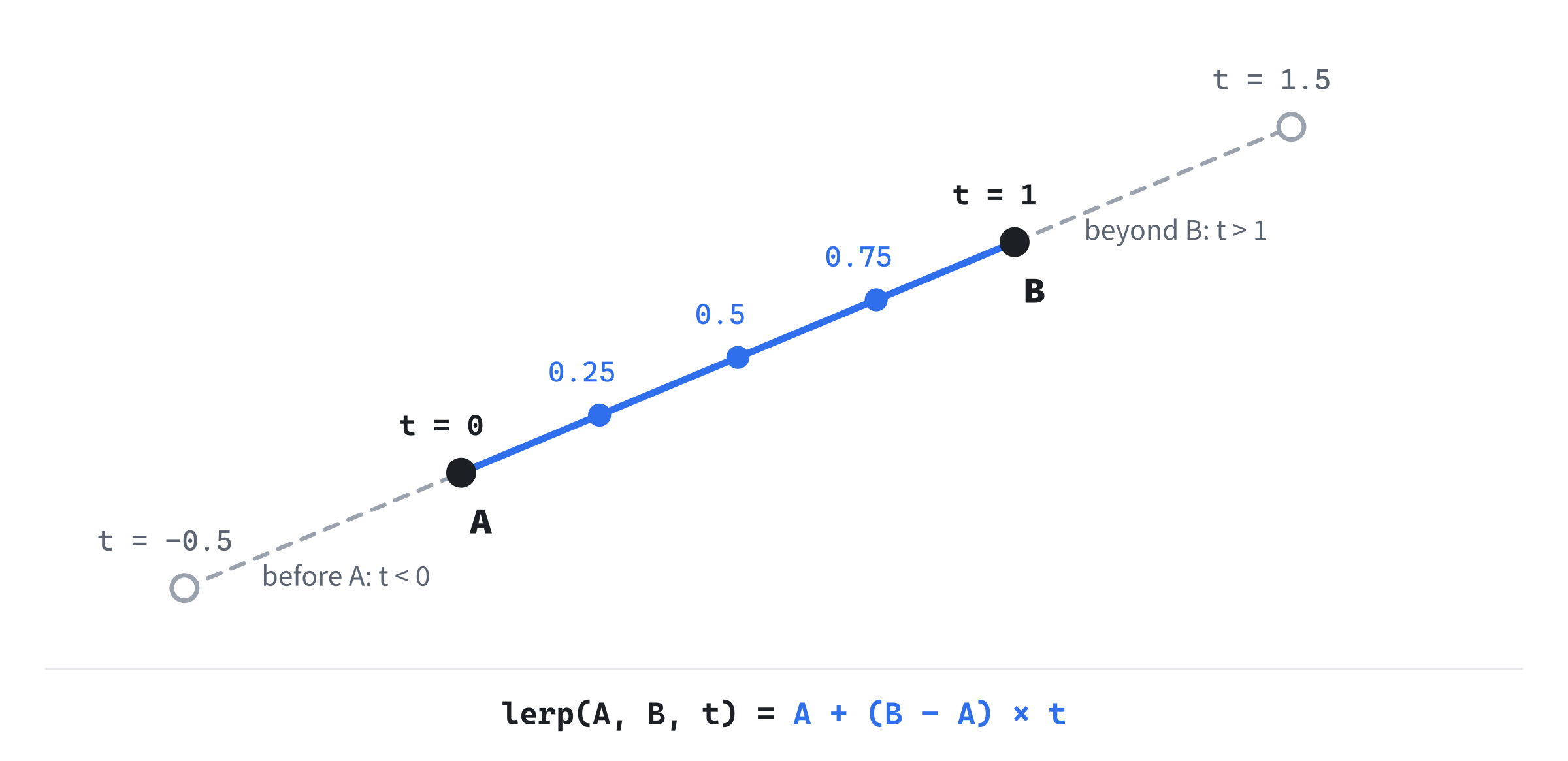
When t must stay in range, clamp it first. The std::clamp function, from <algorithm>, holds a value between a lowest and a highest:
// A sketch: keep t between 0 and 1 before blending with it.
t = std::clamp(t, 0.0f, 1.0f);
Every point on the line through A and B is a lerp of the two for some t, and the clamp keeps it on the part between them.
Inverse Lerp and Remapping
Lerp answers one question: what value is a fraction t of the way from a to b? The reverse question is just as useful. What fraction of the way from a to b is the value v? That's inverse lerp. Take the lerp formula, v = a + (b - a) × t, and solve it for t:
t = (v - a) / (b - a)The top, v - a, is how far v is past the start. Dividing it by the whole distance, b - a, turns it into a fraction. A player with 30 health out of 120 is at (30 - 0) / (120 - 0), a quarter of the way, so their health bar should be a quarter full.
There's one pair of ends the formula can't take. When a and b are equal, b - a is 0, and the division gives infinity, or NaN if v is equal to them too. A range with no width has no fractions in it, so our version gives 0 for it, rather than a value that would poison everything it touches. Add inverseLerp to Vec2.h, at the end:
// Lerp run backward: the fraction of the way from a to b that v is. A
// range with no width, where a equals b, has no fractions, so it gives 0.
inline float inverseLerp(float a, float b, float v)
{
    return (a != b) ? (v - a) / (b - a) : 0.0f;
}
A value outside the range gives a fraction outside 0 to 1, just as lerp extrapolates. That's correct, and sometimes useful, but a health bar filled to 1.25 would draw past its frame. Clamp the fraction when that matters.
Remapping
Put the two together, and you can move a value from one range onto another. Find its fraction of the way through the first range, with inverse lerp. Then go the same fraction of the way through the second range, with lerp. That's called a remap. Add it to Vec2.h, at the end:
// A value moved from one range onto another: its fraction of the way
// from a to b, taken the same fraction of the way from c to d.
inline float remap(float v, float a, float b, float c, float d)
{
    return lerp(c, d, inverseLerp(a, b, v));
}
Here's a remap at work. A monster growls louder as it gets closer: at 400 pixels away, it's silent, and at 100, it's at full volume. So the volume is remap(distance, 100, 400, 1, 0). At 250 pixels, the distance is halfway through its range, so the volume is halfway from 1 to 0, which is 0.5. At 160 pixels, the distance is a fifth of the way through, and the volume is 0.8.
Notice that the second range runs downward, from 1 to 0. That's allowed, and it flips the direction, so the nearer the monster, the louder it is. Ease Lab draws its graph with this same trick, later in the chapter. At 500 pixels, though, the distance is past the end of its range. The volume comes out at −0.33, which no sound system wants. When a remap can go out of range, clamp the result.
Remaps are everywhere in game code. A mouse's position becomes a slider's value, a ship's speed becomes its engine's pitch, and a height becomes a color on a map. Each is an inverse lerp out of one range, and then a lerp into another.
Following a Target
Here's another way to use lerp, and it's one of the most popular lines in game code. Each frame, move an object a share of the way toward a target:
// A sketch: each frame, close a tenth of the gap to the target.
pos = lerp(pos, target, 0.1f);
This time, t stays the same, but the start doesn't, since each frame starts from where the last one left off. When the gap is big, a tenth of it is a big step. As the gap shrinks, so do the steps, and the object glides in and settles. Cameras follow players this way, health bars drain this way, and Chapter 3's amber dot chased its target in much the same way.
The Frame-Rate Bug
But the share is per frame, and frames aren't a fixed length. On a screen that shows 144 frames a second, the line runs 144 times a second, and on a laptop that manages 30, only 30 times. Each frame keeps 0.9 of the gap, so after a second, the gap left is 0.9 multiplied by itself once for each frame:
| Frame rate | Gap left after a second |
|---|---|
| 30 frames a second | 4.2% |
| 60 frames a second | 0.18% |
| 144 frames a second | 0.00003% |
The same code is a lazy glide on one computer, and nearly a snap on another. The gap halves in 0.22 seconds at 30 frames a second, and in 0.05 seconds at 144, which is nearly five times as fast.
Chapter 7's rule, to multiply every rate by dt, doesn't quite fix it. Chase's amber dot did that: it closed rate * dt of the gap each frame, with a rate of 3. At 60 frames a second, that's 0.05 of the gap each frame, and after a second, 4.6% of the gap is left. At 144 frames a second, 4.8% is left, and at 20, 3.9%. That's close, but not the same. And Chapter 3 found its weak spot: if rate * dt ever reaches 1, the dot lands on the target in one jump, and beyond that, it overshoots. A share per frame doesn't scale with time in a straight line, as Chapter 7 warned.
A Share for Any Frame
The fix comes from asking what must be true. One frame of a 30th of a second must have the same effect as two frames of a 60th. At 60 frames a second, each frame keeps 0.9 of the gap, so two of them keep 0.9 of 0.9 of it, which is 0.81. Kept shares multiply. So a 30th of a second must keep 0.81, which is 0.9 squared. Three 60ths would keep 0.9 cubed, and half a 60th would keep the square root of 0.9.
In general, a frame of dt seconds is dt × 60 sixtieths of a second, so it must keep 0.9 to the power dt × 60. The share it closes is whatever it doesn't keep:
kept  = 0.9 ^ (dt × 60)
share = 1 - 0.9 ^ (dt × 60)
In C++, the std::pow function, from <cmath>, raises a number to a power:
// A sketch: keep 0.9 of the gap each 60th of a second, however long the
// frame is.
float share = 1.0f - std::pow(0.9f, dt * 60.0f);
pos = lerp(pos, target, share);
Check it. When dt is a 60th, the power is 1, and the share is 0.1, as before. When dt is a 30th, the share is 0.19, and when it's a 144th, the share is 0.043. At a higher frame rate, each frame closes less of the gap, but there are more frames. After a second, the gap left is 0.18% at every frame rate.
The 0.9 and the 60 are an awkward pair of knobs, though. A clearer one is the half-life: the time it takes the gap to halve. To keep half the gap every halfLife seconds, a frame keeps 0.5 to the power dt / halfLife:
// A sketch: the gap halves every halfLife seconds, at any frame rate.
const float halfLife = 0.11f;
float share = 1.0f - std::pow(0.5f, dt / halfLife);
pos = lerp(pos, target, share);
A half-life of 0.11 seconds is almost exactly the tenth a frame at 60 frames a second. After two half-lives, a quarter of the gap is left. After three, an eighth is left, and after ten, about a thousandth. You can choose a half-life by feel: 0.05 seconds is snappy, and 0.3 is lazy. The next image shows the gap closing at 30 and 144 frames a second, first with a fixed share each frame, and then with a share for any frame.

With a fixed share each frame, the faster frame rate closes the gap far sooner. With a share worked out from dt, the two frame rates' steps fall on one curve.
It Never Quite Arrives
Each frame closes a share of what's left, so in exact arithmetic, the gap never reaches zero. In floats, it stops shrinking. A value going from 0 to 100, a tenth of the gap a frame, stops changing after 140 frames, at 99.99997. Its gap, 0.00003, is so small that a tenth of it is less than half the space between neighboring floats near 100. So adding it rounds back to the same float.
For drawing, that doesn't matter, since the value is within a pixel of 100 after 44 frames. But code that waits for pos == target waits forever. So snap it to the target, once it's close enough:
// A sketch: snap to the target once it's within half a pixel.
if (distance(pos, target) < 0.5f) pos = target;
Following suits a target that may move at any time. When a move has a fixed start, a fixed end and a set length of time, as most animations do, there's a better tool: easing.
Easing
To animate a move from one place to another in a set time, count the time since it started, and divide it by the move's length. That gives a t that runs from 0 to 1, and a lerp turns it into a position:
// A sketch: a move from start to end that takes duration seconds.
elapsed += dt;
float t = std::clamp(elapsed / duration, 0.0f, 1.0f);
pos = lerp(start, end, t);
The clamp stops the move at its end, once elapsed runs past duration. As it stands, though, the object moves at a constant speed, and starts and stops dead. Real things don't move like that. They build up speed, and slow down to stop. Easing gives a move that feel, by bending t before the lerp uses it.
An easing function takes a t from 0 to 1, and gives back a different t, also from 0 to 1. The ends are the same, 0 at 0 and 1 at 1, but the path between them isn't a straight line. Pass the eased t to the lerp, so that the last line becomes pos = lerp(start, end, easeIn(t)), and the motion takes on the curve's shape. The simplest easing is no easing at all, a straight line, and the next simplest is a square:
// The easing curves. Each takes a t from 0 to 1, and gives back an eased
// t, also from 0 to 1: the same two ends, by a different path.
float easeLinear(float t) { return t; }

// Slow to start, since t squared is tiny while t is small.
float easeIn(float t) { return t * t; }
Squaring t keeps its ends, since 0 squared is 0, and 1 squared is 1. But in between, it holds t back. A quarter of the way through, easeIn gives a sixteenth. So an object that's eased in starts slowly, and speeds up as it goes, which is why the curve is called ease-in. It suits things that are leaving, such as a rocket lifting off, or a menu sliding away.
Its opposite, ease-out, starts fast and slows to a stop, which suits things arriving. Smoothstep eases both ends: it starts slowly, speeds up, and slows down again. And ease-in-out does the same as smoothstep, but more strongly. The sections that follow build each of them. The next image shows all five curves together, with t across and the eased value up.

Every curve starts at the bottom left and ends at the top right. Only the path between them differs, and the path is the whole point.
Slope Is Speed
A curve's graph shows more than where an eased object is. Because t grows steadily with time, the curve's steepness at any moment is how fast the eased value is changing: its speed. Where the curve is flat, the object is nearly still. Where the curve is steep, it's moving fast.
The straight line has a steepness, or slope, of 1 everywhere, so its eased value changes exactly as fast as t. A slope of 2 means twice that speed, and a slope of 0 means stopped. You don't need calculus to measure a slope. Take a tiny step, and compare. From a t of 0.99 to 1, the square goes from 0.9801 to 1, a rise of 0.0199, which is nearly twice the step of 0.01. So ease-in arrives with a slope of 2, at twice the straight line's speed. At its start, the same test gives a rise of 0.0001 for a step of 0.01, so its slope there is nearly 0.
Here are the five curves' speeds, as multiples of the straight line's:
| Curve | At the start | In the middle | At the end |
|---|---|---|---|
| Linear | 1 | 1 | 1 |
| Ease-in | 0 | 1 | 2 |
| Ease-out | 2 | 1 | 0 |
| Smoothstep | 0 | 1.5 | 0 |
| Ease-in-out | 0 | 3 | 0 |
That table explains how each curve feels. Ease-in arrives at twice the speed and stops dead, so it looks like a hit, which suits a falling object or a slam. Ease-out leaves at full speed and settles gently, which suits anything coming to rest. Smoothstep and ease-in-out start and stop at rest, so they suit a move between two still places, such as a door opening. The price is that they rush through the middle to make up the time. The next image shows the speeds as spacing. Each row has eleven rings, a tenth of the time apart.
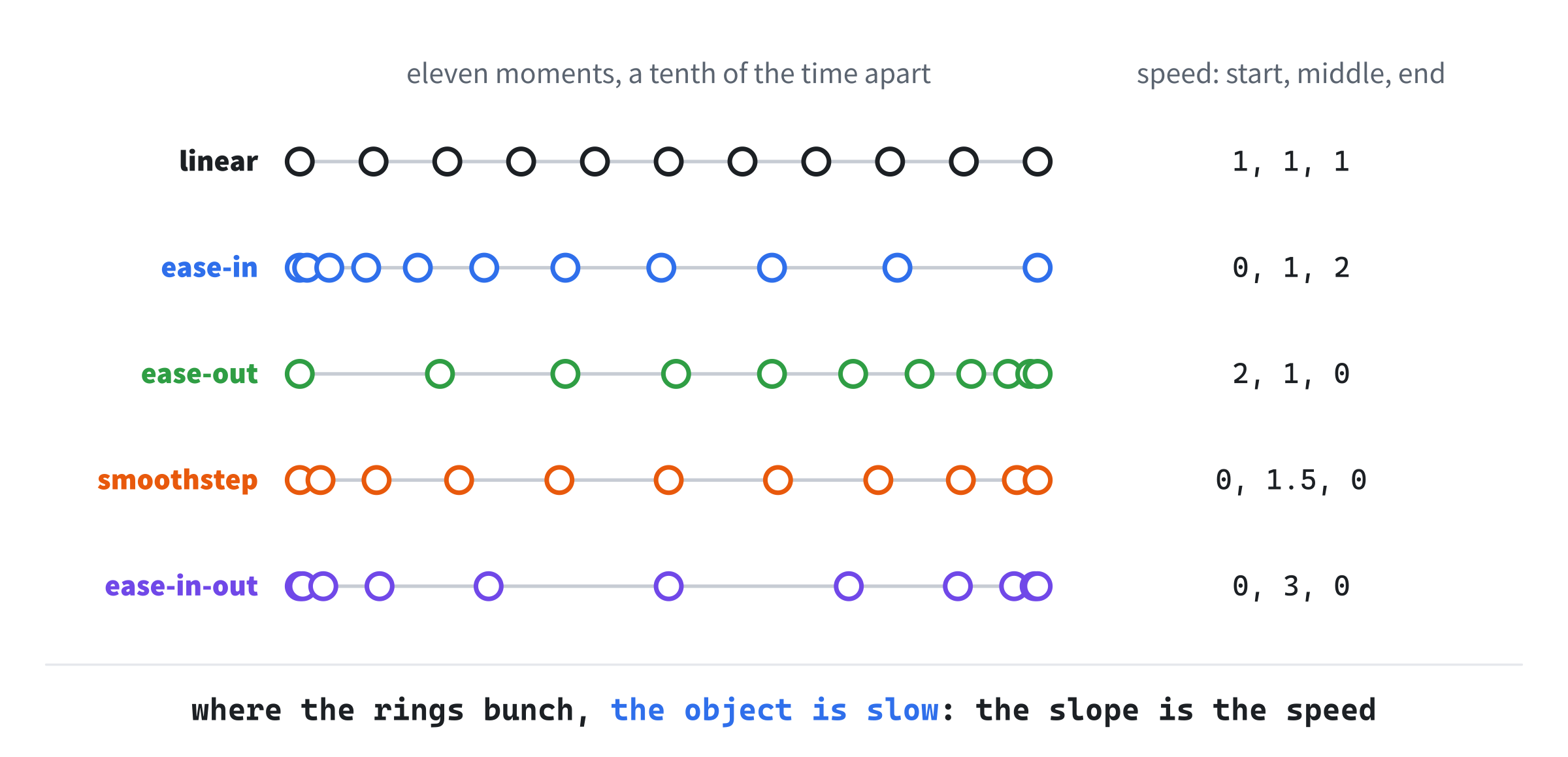
Speed matters where two moves join, too. If one move ends at twice the speed, and the next starts at the straight line's speed, the object lurches at the join. A curve that ends at rest joins smoothly to anything that starts at rest.
Ease-Out From Ease-In
Every ease-in has an ease-out hiding in it. Run the time backward, by using 1 - t instead of t. Then the curve starts fast, where it used to end, and ends slowly, where it used to begin. But it now runs from 1 down to 0, so turn it over, by taking it away from 1:
// Slow to finish: ease-in with the time run backward, turned over.
float easeOut(float t) { return 1.0f - easeIn(1.0f - t); }
Take a t of 0.25. Then 1 - t is 0.75, and its square is 0.5625. Taken away from 1, that leaves 0.4375. So a quarter of the way through the time, an object that's eased out has already gone 44% of the way. Running backward and turning over is a half turn of the graph about its center, which is why ease-in and ease-out look like each other turned upside down in Figure 8.3. It swaps the slopes at the ends, too: ease-out starts at twice the speed, and ends at rest.
Multiplying out gives the same curve without the call, since 1 - (1 - t) × (1 - t) is 2t - t². Written with easeIn, though, the code says how the curve was made. And any ease-in you write gives you its ease-out for free.
Building Smoothstep
Smoothstep's formula, 3t² - 2t³, looks like something to memorize. It isn't. It's what you get when you write down what you want, and solve.
We want a curve that starts at 0 and ends at 1, and that's flat at both ends, so the motion starts and stops at rest. That's four conditions. A cubic, a t³ + b t² + c t + d, has four numbers to choose, one for each condition:
- At a
tof 0, everything butdis zero, so starting at 0 meansd = 0. - Near a
tof 0,t²andt³are tiny next tot, so the curve is close toc t, whose slope isc. Flat at the start meansc = 0. - That leaves
a t³ + b t², which at atof 1 isa + b. Ending at 1 meansa + b = 1. - Near a
tof 1, a tiny step back changest²by twice the step, as Slope Is Speed found. It changest³by three times the step: 0.99 cubed is 0.9703, a drop of 0.0297. So the slope at the end is3a + 2b, and flat at the end means3a + 2b = 0.
From the third condition, b = 1 - a. Put that into the fourth, and 3a + 2 - 2a = 0, so a = -2, and then b = 3. The curve is 3t² - 2t³. Take t² out of both terms, and it's t² × (3 - 2t), which saves a multiplication:
// Slow at both ends: the cubic 3t^2 - 2t^3, with t^2 taken out.
float smoothstep(float t) { return t * t * (3.0f - 2.0f * t); }
Check it. At 0, it's 0. At 1, it's 3 − 2, which is 1. At 0.5, it's 0.75 − 0.25, which is 0.5. That's the middle, as it should be for a curve that's symmetrical about its center. Its slope in the middle is 1.5, since it makes up for its slow ends by going faster through the middle. The same method makes any curve you can describe. Add two more conditions, so that the speed itself changes smoothly at both ends, and it gives a longer curve, known as smootherstep.
Ease-In-Out
Ease-in-out also eases both ends, but it's built from pieces. For the first half of the time, it eases in, and for the second half, it eases out. Each half is a cubic ease-in, u³, squeezed into half the time and half the height:
// Ease in for the first half, and out for the second. Each half is the
// cubic ease-in, u * u * u, squeezed into half the time and half the
// height.
float easeInOut(float t)
{
    if (t < 0.5f)
    {
        float u = 2.0f * t;            // the time so far, doubled
        return u * u * u / 2.0f;
    }
    float u = 2.0f * (1.0f - t);       // the time left, doubled
    return 1.0f - u * u * u / 2.0f;
}
In the first half, u is the time so far, doubled, so it runs from 0 to 1 while t runs from 0 to 0.5. Its cube, halved, rises from 0 to 0.5. In the second half, u is the time left, doubled. The same cube, halved and taken away from 1, is the first half turned over, as ease-out was made. At a t of 0.5, both halves give 0.5, so they meet.
A cube arrives with a slope of 3, as the square arrives with 2. Squeezing it into half the time doubles that slope, and halving its height halves it again. So in the middle, ease-in-out moves at three times the straight line's speed, twice as fast as smoothstep, and its ends are flatter in exchange. You'll often see its second half written as 1 - (-2t + 2)³ / 2. That -2t + 2 is our u, the time left doubled, multiplied out.
Colors and Angles
Lerp works on anything that can be subtracted, scaled and added. Colors can, with a little care, and angles can, with more.
Colors
An SDL_Color is four numbers from 0 to 255: red, green, blue and alpha. To blend two colors, lerp each channel on its own. The result is a float, though, and a channel needs a whole number, so round it. A cast would cut 135.5 down to 135, and 254.7 down to 254, so a blend would come out a shade too dark. Ease Lab's lerpColor rounds with std::lround:
// A color a fraction t of the way from a to b: each channel lerped, then
// rounded to the nearest whole number, since a cast would round down.
SDL_Color lerpColor(SDL_Color a, SDL_Color b, float t)
{
    return { (Uint8)std::lround(lerp(a.r, b.r, t)),
             (Uint8)std::lround(lerp(a.g, b.g, t)),
             (Uint8)std::lround(lerp(a.b, b.b, t)),
             (Uint8)std::lround(lerp(a.a, b.a, t)) };
}
The alpha blends too, so the same function fades a color out, from an alpha of 255 to 0. For shapes, that only shows when the renderer is told to blend, with SDL_SetRenderDrawBlendMode(renderer, SDL_BLENDMODE_BLEND), which later demos do. And t must stay between 0 and 1 here. A channel lerped outside 0 to 255 doesn't fit in a Uint8, and the cast wraps it round to the other end.
Ease Lab's green is (47, 158, 68), and its red is (224, 49, 49). Halfway between them is (136, 104, 59). That's a muddy olive brown, darker than either end, and the FAQ explains why.
Angles
Angles are the one place a plain lerp goes badly wrong, because they wrap around. Lerp from 300 degrees to 60, and the numbers go down, through 240, 180 and 120. That's the long way round, 240 degrees in all. The natural move goes the other way, on through 360, which is 0, and turns only 120 degrees.
Chapter 5 found the shortest turn from one angle to another: their wrapped difference. So lerp the turn, not the numbers. Start at a, and add a fraction t of the shortest turn to b. Add lerpAngle to Vec2.h, at the end:
// An angle a fraction t of the way from a to b, in radians, turning the
// shortest way round: by the wrapped difference of the two (Chapter 5).
inline float lerpAngle(float a, float b, float t)
{
    return a + wrapAngle(b - a) * t;
}
Work it through for 300 degrees to 60. The difference, 60 − 300, is −240 degrees. Wrapped, it's 120, so the shortest turn is 120 degrees on, which is clockwise on the screen. Halfway, lerpAngle gives 300 + 60, which is 360 degrees, pointing the same way as 0. At the end, it gives 420 degrees, pointing the same way as 60. The result can leave the range from −180 to 180 degrees, but its direction is right. When it must stay in range, wrap it with wrapAngle.
Directions
A direction can also be a unit vector, and lerping two of them seems to work. But it doesn't keep the length. Halfway from (1, 0) to (0, 1) is (0.5, 0.5), whose length is 0.71, since the lerp cuts across the corner of the circle, rather than going around it. Normalize the result, and it's a direction again. But halfway between two opposite directions, such as (1, 0) and (-1, 0), the lerp is (0, 0). That has no direction at all, and normalizing can't save it. When a direction may turn far, lerp its angle instead.
Building Ease Lab
Ease Lab makes easing visible by racing it against itself. Five markers travel along their tracks, all driven by the same t, but each through a different curve, so you can see side by side how the curves differ. A graph on the right plots the five curves, with a line marking the current t. Below the tracks, the same t blends a color, and turns two needles around a dial, one by a plain lerp and one by lerpAngle. The clock runs t from 0 to 1 and back, over and over. Space pauses it, and holding the left mouse button sets t from the mouse.
Get the code. The complete project is in the
Ease Labfolder of the book's repository.
Ease Lab starts from the skeleton, with its timing and its mouse. It reuses fillCircle, drawArrow, fmt2 and drawCircleOutline, but it has no grid. Its Vec2.h is Thrust's, with this chapter's interpolation added at the end. It includes <algorithm>, for std::clamp. To Unit Circle's colors, it adds Chapter 4's red, Chapter 6's faint grey and a new violet. Then it sets where the tracks and the graph go:
#include <algorithm>
#include <cmath>
#include <string>
#include "Vec2.h"

constexpr int WINDOW_WIDTH  = 1000;
constexpr int WINDOW_HEIGHT = 700;

constexpr SDL_Color TEXT = { 235, 238, 242, 255 };
constexpr SDL_Color GREY = { 90, 100, 112, 255 };
constexpr SDL_Color BLUE = { 47, 111, 235, 255 };
constexpr SDL_Color AMBER = { 232, 89, 12, 255 };
constexpr SDL_Color GREEN = { 47, 158, 68, 255 };
constexpr SDL_Color RED = { 224, 49, 49, 255 };
constexpr SDL_Color VIOLET = { 150, 102, 230, 255 };
constexpr SDL_Color FAINT = { 70, 78, 90, 255 };

// Where things go: the tracks on the left, and the graph on the right.
constexpr float TRACK_LEFT = 160.0f;
constexpr float TRACK_RIGHT = 480.0f;
constexpr float GRAPH_LEFT = 580.0f;
constexpr float GRAPH_RIGHT = 940.0f;
constexpr float GRAPH_TOP = 100.0f;
constexpr float GRAPH_BOTTOM = 460.0f;
One small helper is new. Every row and every curve sets the draw color from one of the named colors, so a helper does it in one call:
// Set the color the renderer draws with, from an SDL_Color.
void setColor(SDL_Renderer* renderer, SDL_Color color)
{
    SDL_SetRenderDrawColor(renderer, color.r, color.g, color.b, color.a);
}
It passes the four channels of an SDL_Color to SDL_SetRenderDrawColor, which takes them one by one. The rest of the demo comes in four parts: the curves, the clock, the rows, and the graph.
The Curves
The five easing functions are the ones this chapter built. To treat them all alike, each goes in a small struct, with a name and a color, and the five structs go in an array:
// An easing curve, with the name and the color the demo shows it in. Its
// fn is a pointer to the curve's function, so that a loop can run every
// curve the same way.
struct Easing
{
    const char* name;
    SDL_Color color;
    float (*fn)(float);
};

constexpr Easing EASINGS[] = {
    { "linear", TEXT, easeLinear },
    { "ease in", BLUE, easeIn },
    { "ease out", GREEN, easeOut },
    { "smoothstep", AMBER, smoothstep },
    { "ease in-out", VIOLET, easeInOut },
};
The member fn is a function pointer: a variable that holds the address of a function, so that the function can be called through it. Its type, float (*fn)(float), reads outward from the name. The name fn is a pointer, (*fn), to a function that takes a float, and returns a float. A function's name, such as easeIn, gives its address. So the array can store each function beside its name, and e.fn(t) calls whichever function e holds. A loop over the array then runs every curve the same way, instead of five near-copies of the same code.
The array is constexpr, as the colors are. Everything in it is known when the program is compiled: the names, the colors and the functions' addresses.
The Clock
The clock's state goes after the font is loaded, with the dial for the angle row:
// The clock. The phase runs from 0 to 2 and starts again, and t
// follows it from 0 to 1 and back, so the markers go there and back.
float phase = 0.0f;
bool playing = true;

// The dial for the angle row, and the two angles its needles turn
// between, in radians.
const Vec2 dial = { 320.0f, 580.0f };
const float dialRadius = 70.0f;
const float startAngle = 300.0f * PI / 180.0f;
const float endAngle = 60.0f * PI / 180.0f;
The phase runs from 0 to 2, and t follows it out to 1 and back. The dial's two angles are written in degrees and turned into radians, as Chapter 5 did. Space pauses and restarts the clock, in the events:
else if (event.key.key == SDLK_SPACE) playing = !playing;After the mouse is read, the clock moves on:
SDL_MouseButtonFlags buttons = SDL_GetMouseState(&mx, &my);

// The clock moves on while it plays. A held left button sets the
// phase from the mouse instead: the mouse's fraction of the way
// across the graph, clamped, since the mouse can go past its ends.
if (buttons & SDL_BUTTON_LMASK)
{
    float u = inverseLerp(GRAPH_LEFT, GRAPH_RIGHT, mx);
    phase = std::clamp(u, 0.0f, 1.0f);
}
else if (playing)
{
    phase += 0.5f * dt;
    if (phase >= 2.0f) phase -= 2.0f;
}
float t = (phase < 1.0f) ? phase : 2.0f - phase;
The mouse's buttons come back from SDL_GetMouseState, as in Vector Lab. While the left button is held, the clock doesn't run. Instead, inverseLerp turns the mouse's x into its fraction of the way across the graph, and std::clamp keeps that between 0 and 1, since the mouse can go past either end of the graph. Without the clamp, a mouse to the left of the graph would give a negative t. Then ease-in would square it into a positive one, 0.16 for a t of −0.4, and the blue marker would move forward.
While the clock plays, the phase grows by half a unit a second, so each trip out or back takes two seconds, and the phase starts again at 2. Then t is the phase on the way out, and 2 - phase on the way back, which counts down from 1 to 0. That's called a ping-pong: a phase of 0.5, and a phase of 1.5, both give a t of 0.5.
The Rows
After the clear, the tracks are drawn, one for each curve:
// The tracks. Every marker gets the same t, through its own curve,
// and the eased value says how far along its track it is.
float y = 100.0f;
for (const Easing& e : EASINGS)
{
    Vec2 start = { TRACK_LEFT, y };
    Vec2 end = { TRACK_RIGHT, y };
    float eased = e.fn(t);
    setColor(renderer, FAINT);
    SDL_RenderLine(renderer, start.x, start.y, end.x, end.y);
    setColor(renderer, e.color);
    fillCircle(renderer, lerp(start, end, eased), 9.0f);
    drawText(renderer, font, e.name, 12, y - 10, e.color);
    drawText(renderer, font, fmt2(eased), 500, y - 10, GREY);
    y += 70.0f;
}
Every marker gets the same t. The only thing that differs from row to row is the curve, e.fn, which turns t into the row's eased value. The marker is drawn at the lerp from the track's start to its end, by the eased value, using the Vec2 version of lerp to move a point along a line. Each row's name goes on its left, in its color. Its eased value goes on the right, in grey, so you can read the numbers as well as watch the markers.
Below the tracks, the color row blends Ease Lab's green into its red, by the same t:
// The color row: the same t blends green into red, channel by
// channel.
setColor(renderer, lerpColor(GREEN, RED, t));
SDL_FRect bar = { TRACK_LEFT, 438.0f, TRACK_RIGHT - TRACK_LEFT, 24.0f };
SDL_RenderFillRect(renderer, &bar);
drawText(renderer, font, "color", 12, 440, TEXT);
It's a single rectangle, filled with the blended color. An SDL_FRect holds a rectangle's top-left corner, its width and its height, and SDL_RenderFillRect fills one with the current color. Its partner, SDL_RenderRect, draws just the outline, as the graph's frame will. The angle row then turns two needles from 300 degrees to 60:
// The angle row. Lerping the angles' numbers turns the amber needle
// back through 180 degrees, the long way. Lerping by the shortest
// turn takes the green needle on through 0, the short way.
float longWay = lerp(startAngle, endAngle, t);
float shortWay = lerpAngle(startAngle, endAngle, t);
Vec2 longTip = dial + Vec2::fromAngle(longWay, dialRadius);
Vec2 shortTip = dial + Vec2::fromAngle(shortWay, dialRadius);
drawCircleOutline(renderer, dial, dialRadius, FAINT);
drawArrow(renderer, dial, longTip, AMBER);
drawArrow(renderer, dial, shortTip, GREEN);
drawText(renderer, font, "angle", 12, 570, TEXT);
drawText(renderer, font, "lerp: the long way", 420, 552, AMBER);
drawText(renderer, font, "lerpAngle: the short way", 420, 580, GREEN);
The amber needle's angle is a plain lerp of the two numbers, and the green needle's comes from lerpAngle. Each needle's tip is the dial's center, plus the vector at the needle's angle, with the dial's radius as its length, from Chapter 5's fromAngle. Both needles start at 300 degrees, up and to the right, and end at 60, down and to the right. In between, the amber needle swings the long way, around the left of the dial. The green one turns the short way, around the right.
The Graph
The graph's points come from one more helper, before main:
// A point on the graph, for a t and an eased value: t across the graph,
// and the value up it. Each is a lerp, and the second runs from the
// bottom to the top, since y grows down the screen.
Vec2 graphPoint(float t, float value)
{
    return { lerp(GRAPH_LEFT, GRAPH_RIGHT, t),
             lerp(GRAPH_BOTTOM, GRAPH_TOP, value) };
}
It's two lerps. The first takes t across the graph, from its left edge to its right. The second takes the eased value up the graph, from its bottom edge to its top. That second lerp runs from a bigger y to a smaller one, a range that runs downward, just as the monster's volume did in Remapping. It's what turns the graph the right way up, since y grows down the screen. Without it, the curves would hang upside down.
The graph itself is a frame, and the five curves, each drawn as 60 short lines:
// The graph: a frame, then each curve as 60 short lines, from one
// point on it to the next.
setColor(renderer, FAINT);
SDL_FRect frame = { GRAPH_LEFT, GRAPH_TOP, GRAPH_RIGHT - GRAPH_LEFT,
                    GRAPH_BOTTOM - GRAPH_TOP };
SDL_RenderRect(renderer, &frame);
for (const Easing& e : EASINGS)
{
    setColor(renderer, e.color);
    Vec2 prev = graphPoint(0.0f, e.fn(0.0f));
    for (int i = 1; i <= 60; ++i)
    {
        float u = i / 60.0f;
        Vec2 p = graphPoint(u, e.fn(u));
        SDL_RenderLine(renderer, prev.x, prev.y, p.x, p.y);
        prev = p;
    }
}
Each curve starts at its value for a t of 0, and steps across in sixtieths. Each step draws a line from the last point to the next, as Chapter 5's drawCircleOutline drew its circle. Sixty lines are plenty, since each is only 6 pixels across.
Then the current t goes on the graph:
// The current t: a line up the graph, and a dot where it crosses
// each curve, at that curve's eased value.
Vec2 low = graphPoint(t, 0.0f);
Vec2 high = graphPoint(t, 1.0f);
setColor(renderer, GREY);
SDL_RenderLine(renderer, low.x, low.y, high.x, high.y);
for (const Easing& e : EASINGS)
{
    setColor(renderer, e.color);
    fillCircle(renderer, graphPoint(t, e.fn(t)), 5.0f);
}
drawText(renderer, font, "eased", GRAPH_LEFT, GRAPH_TOP - 26, GREY);
drawText(renderer, font, "t", GRAPH_RIGHT + 8, GRAPH_BOTTOM - 10, GREY);
A grey line runs up the graph at the current t, from the bottom edge to the top. A dot on each curve marks where the line crosses it, at the height of the curve's eased value, which is the same value its marker shows on the tracks. The two labels name the graph's axes.
Last come the readout and the controls:
std::string readout = "t = " + fmt2(t);
if (!playing) readout += "   paused";
drawText(renderer, font, readout, 12, 10, TEXT);
drawText(renderer, font,
         "[Hold left button] set t   [Space] pause   [Esc] quit",
         12, WINDOW_HEIGHT - 26, GREY);
The readout shows t, and says when the clock is paused.
Trying It Out
Run the demo, and watch the five markers race. The next image shows Ease Lab with t at 0.3, on the way out.
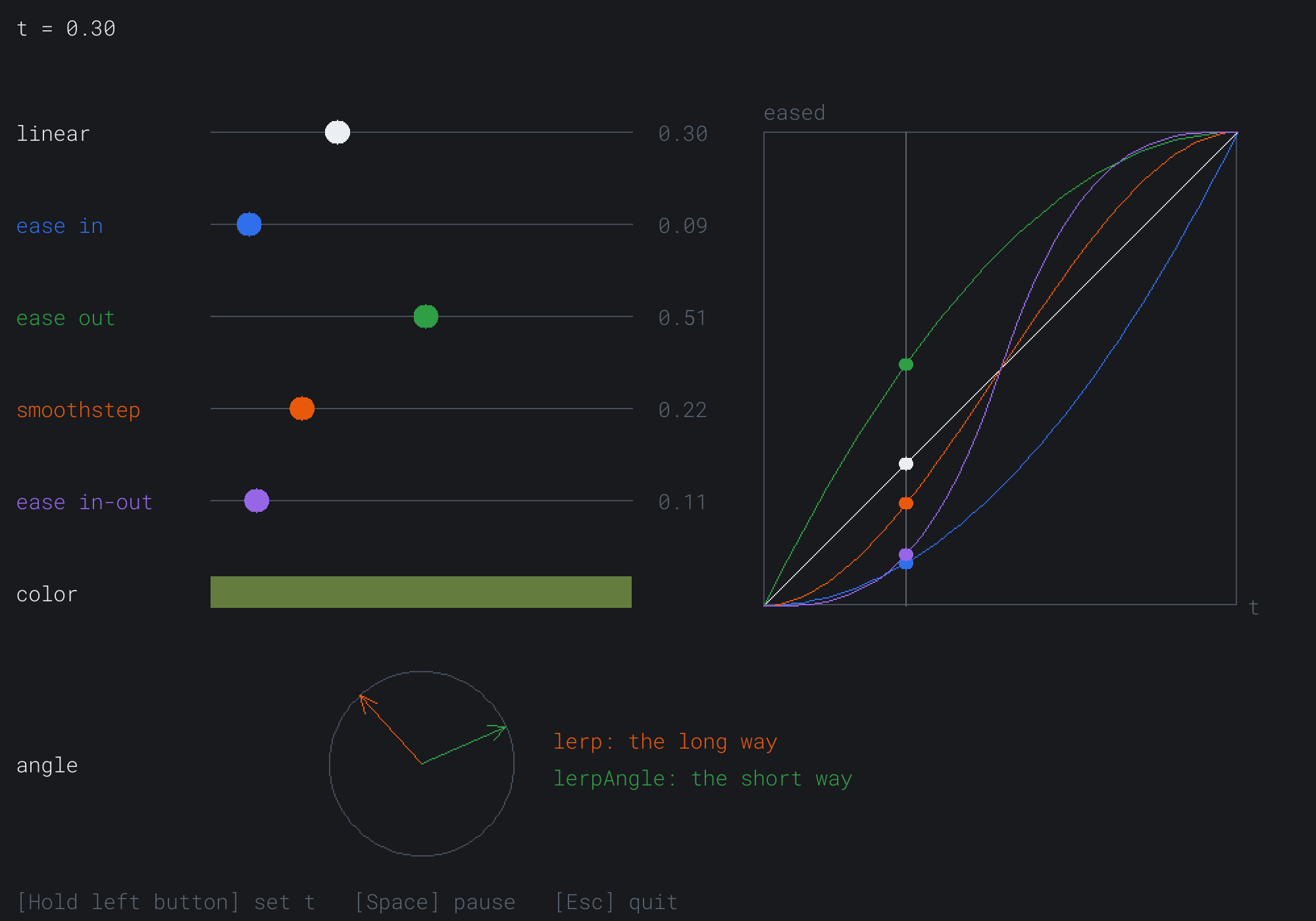
Three tenths of the way through the time, the green ease-out marker has already passed halfway, at 0.51. The blue ease-in marker has gone less than a tenth of the way, at 0.09. Smoothstep and ease-in-out, at 0.22 and 0.11, are still easing away from the start. On the graph, the grey line at 0.3 crosses each curve at those heights. The color bar is 30% of the way from green to red. The two needles have already parted, too: the amber one has turned back 72 degrees, and the green one on by 36.
Some things to try:
- Hold the left mouse button, and drag slowly across the window. Every marker follows your
t, so you can stop at any moment and compare. - Drag past the graph's left edge. The clamp holds
tat 0, and every marker waits at the start. - Watch the markers on the way back. The blue ease-in marker now starts fast and slows down, as ease-out does, which the FAQ explains.
- Watch the color bar as it passes the middle, where it turns a muddy brown.
Then pause with Space as the needles pass the middle. The amber needle points left, at 180 degrees. The green one points right, at 360 degrees, which is the same way as 0.
FAQ
Q) Should I use std::lerp instead?
A) You can, for numbers. C++20 added std::lerp, in <cmath>, and the book's projects use C++20. It's more careful at the edges than ours. It always gives exactly b when t is 1, which ours doesn't when the two ends differ hugely in size. Our lerp(1e8f, 0.1f, 1.0f) gives 0, since 0.1 - 1e8 rounds to −1e8 in a float, while std::lerp gives 0.1. For a game's positions and colors, which are never that far apart, the two agree. But std::lerp only takes numbers, so Vec2 still needs its own.
Q) I've seen the follow written with std::exp. Is it the same?
A) Yes. You'll often see the share written as 1.0f - std::exp(-rate * dt). The std::exp function raises the number e, about 2.718, to a power, and any number raised to a power can be written as e raised to a multiple of that power. So it's the half-life formula with a different knob, where the rate is 0.693 divided by the half-life. A rate of 6.3 is a half-life of 0.11 seconds. It explains Chase, too. When rate * dt is small, 1 - std::exp(-rate * dt) is very nearly rate * dt. So Chase's share was a close stand-in for the exact one, and it stays close only while rate * dt is small.
Q) Why does ease-in look like ease-out on the way back?
A) Because on the way back, t runs backward. The clock counts t down from 1 to 0. So the blue marker starts its return where ease-in is steep, and moves fast. It ends where the curve is flat, and moves slowly, which is ease-out's feel. Only a curve that's its own half turn, such as smoothstep, looks the same both ways. To ease in on every trip, run a fresh t from 0 to 1 for each one, and swap the start and the end instead.
Q) Why is the middle of the color bar so muddy?
A) Because the numbers in a color aren't in step with its brightness. Screens and image files store colors gamma-encoded, so a channel of 128 gives about a fifth of the light of 255, not half. Halfway in the numbers is much darker than halfway in light, so a blend sags in the middle. To blend in light, turn each channel into light first, by raising its fraction of 255 to the power 2.2. Then lerp, and turn the result back, with a power of 1/2.2. A cheaper fix is to blend through a third color. Green to yellow to red makes a far brighter health bar than green to red.
Q) What are easeOutBack, easeOutElastic and the rest?
A) They're a family of curves that Robert Penner published in 2001, which nearly every animation library still uses. They work like this chapter's curves: each takes a t from 0 to 1, and gives 0 at 0 and 1 at 1. Some go outside 0 to 1 on purpose, between the ends. A back curve overshoots its target and comes back, an elastic curve wobbles, and a bounce curve bounces. So clamp t, not the eased value. Clamping the result would flatten the overshoot that makes them work.
Q) When should I ease, and when should I follow?
A) Ease when you know the start, the end, and how long the move should take, as with a menu sliding in or a door opening. Follow when the target can move at any time, as with a camera tracking a player, or a health bar that may be hit again before it's finished draining. If an eased move's target changes halfway, start a new ease from where the object is now, with a fresh t. A follow needs no restart, since every frame starts from where the object is.
Exercises
The first three exercises need only a pencil. The others change Ease Lab.
- Blend and unblend (paper). Work out
lerp(10, 30, 0.25). Then go the other way: whattgives 25 in the range from 10 to 30? What's 25 remapped from the range 10 to 30 onto the range 200 to 0? - The same feel at any frame rate (paper). At 60 frames a second, a follow closes a fifth of the gap each frame. What share should one frame close at 30 frames a second, to feel the same? And at 120? (Kept shares multiply.)
- Past the end (paper). Work out
smoothstep(1.2)andsmoothstep(1.5). What would an object do if itstran past 1, with no clamp? - A cubic ease-in (code). Add
t * t * tto Ease Lab's curves, with a name and a color of its own. The tracks are 70 pixels apart, so a sixth would land on the color bar. Make them 60 apart. What's its slope at the end, and how does its marker arrive? - A health bar (code). Make the color bar a health bar: its width shrinks from full to nothing as
tgoes from 0 to 1, while its color goes from green to red. Then make it blend through amber at the middle, and compare the two. - A follower (code). Add a dot that follows the mouse, with the half-life share. Try half-lives of 0.05, 0.1 and 0.3 seconds.
For the code exercises, work on a copy of the demo's folder, so that the original stays as the chapter describes it.
AI Exercise (Optional)
Easing is the secret behind what game designers call juice: the little pops, bounces and fades that make a game feel alive when you touch it. With an AI's help, you can turn one plain click into something satisfying. If the first try is overblown, that's half the fun. Open your AI chatbot of choice, and try a prompt like this:
"I have a C++ demo using SDL3, in a 1000 by 700 window. I have lerp(a, b, t) for floats and for a struct Vec2, an SDL_Color lerpColor(a, b, t), fillCircle(renderer, center, radius), and easing functions easeIn, easeOut and smoothstep, each taking a t from 0 to 1. Each frame, I have dt in seconds. Please add a coin: a yellow circle of radius 24 at a random place. When I click it, play these at once. The coin grows to 1.6 times its size over 0.25 seconds with an easeOutBack curve, while fading out. A '+10' rises 40 pixels and fades over 0.6 seconds with easeOut. The score in the corner rolls from its old value to its new one over 0.5 seconds. Then a new coin pops in somewhere else, growing from nothing with easeOutBack. Write a small Tween struct that holds a start, an end, a duration, the time so far and a pointer to an easing function, with update(dt) and value() methods. Explain easeOutBack's constant, 1.70158, and how to fade shapes and text in SDL3."
That prompt describes the code you already have, so the AI builds on Ease Lab's functions, instead of inventing its own. It asks for one struct to run every animation. That struct is a tween, which is what animation code calls an eased move from one value to another. And it asks about the one constant that looks like magic, and about fading, which needs SDL's blend mode, as Colors found.
Then play. Tune the durations: a pop of 0.1 seconds feels snappy, and 0.5 feels lazy. Try an elastic curve for the coin, if you dare. If the coin snaps back to full size at the end of its pop, check that each tween clamps its t, not its eased value, since easeOutBack must be allowed to overshoot. And if the fades do nothing, the blend mode is the first suspect.
When it all works, click two coins in quick succession, and watch the score. A tween that starts again from where its value is now, rather than from its old start, is what keeps the count smooth.
Summary
Lerp blends from a to b by a fraction t, and inverse lerp finds the fraction a value is at, so together they remap any range onto any other, even one that runs downward. Following a target by a share of the gap each frame depends on the frame rate, unless the share is worked out from the frame's length, such as 1 - 0.5^(dt / halfLife). Easing bends t before the lerp, and a curve's slope is the speed it gives. Ease-in arrives at twice the straight line's speed, and ease-out is ease-in run backward and turned over. Smoothstep, built from four conditions, starts and ends at rest. Colors blend channel by channel, with rounding, and angles blend by the shortest turn. Ease Lab raced five curves against one clock. In Chapter 9, objects start choosing where to go: steering behaviors give them the urge to seek, flee, arrive and wander.