
Welcome to Amulets of SDL. Over the course of this book, we'll build it from an empty window into a finished traditional roguelike. Its dungeon is nine floors deep, and different every time you play. Three Amulets wait in vaults on floors 3, 6, and 9. You go after them as a Fighter, a Rogue, or a Mage, with exactly one life to bring them out.
The next image shows where we're heading: a Fighter on the fifth floor, who has just opened a door onto wolves and a cave orc. Every wall, coin, and monster is a character from a font, as roguelikes have been drawn since 1980. Chapter 8 adds a second view that draws them all as tiles. Everything in the picture, down to what the monsters are thinking, is code you'll type and understand.

This chapter lays the foundation that every later chapter builds on. By the end of it, you'll have a window that fits any screen and sleeps until something happens. You'll have a glyph cache, which turns a font into characters, ready to draw in any color. And you'll have the screen laid out as the finished game lays it out, with a test room on the map. There's no dungeon yet: carving one is Chapter 2's job.
Chapter 01 in the book's repository, whose address is in the Preface, holds this chapter's finished project, ready to open and run. Every chapter has a folder like it, so you can compare your files with mine when something won't build, or start the book at any chapter.In this chapter, we will:
- Create the project, with its code in a folder of its own
- Open a window that fits any screen, and let SDL scale one fixed-size picture to fill it
- Write a game loop that sleeps until something happens, and draws only when something has changed
- Add SDL3_ttf, and build a glyph cache that can't be copied and is destroyed before its renderer
- Center characters in their cells, and space text by the font's own measurements
- Lay out the screen: the map, the side panel, and the message log
- Draw a test room whose cells clear their backgrounds before drawing their characters
Along the way, six checkpoints let you build what you've typed and check that it works, so each piece is tested as soon as it's added. Let's build it.
Setting Up the Project
You'll need two things before you start. The first is Visual Studio 2026, with its Desktop development with C++ workload. The second is SDL 3, unpacked so that its headers are in C:\SDL3\include and its library files are in C:\SDL3\lib\x64. If you've worked through Learning C++ by Building Games, you have both already. Otherwise, Appendix A sets them up from scratch.
This book was built with SDL 3.4.4, and any later 3.x release will do. The game also needs a second library, SDL3_ttf, to draw text. We'll add it partway through the chapter, when the code first needs it. That way, each library is tested on its own, and if something goes wrong, you'll know which one to look at.
Creating the Project
If you've made an SDL project before, most of these steps will be familiar. Two things are new: the solution and the project share a folder, and the code gets a folder of its own. Here are the steps:
- Start Visual Studio, choose Create a new project, pick Empty Project (the one tagged C++, Windows, and Console), and click Next.
- Name the project
AmuletsOfSDL, check Place solution and project in the same directory, and click Create. - In Solution Explorer, right-click the AmuletsOfSDL project, and choose Open Folder in File Explorer. When the folder opens, right-click an empty spot in it, choose New > Folder, and name the new folder
src. Then copySDL3.dllfromC:\SDL3\lib\x64into this folder, besidesrc. - Back in Visual Studio, find the Show All Files button in the row of buttons along the top of Solution Explorer (hover over them, and one will say so), and click it. The
srcfolder appears under the project. - Right-click
src, choose Add > New Item, pick C++ File (.cpp) if Visual Studio shows a list of templates, name the filemain.cpp, and click Add. Then do the same again for a Header File (.h) calledCommon.h. - Right-click the project, choose Properties, set Configuration to All Configurations and Platform to All Platforms, and make these four changes:
- C/C++ > General > Additional Include Directories:
C:\SDL3\include - C/C++ > Language > C++ Language Standard: ISO C++20 Standard (/std:c++20)
- Linker > General > Additional Library Directories:
C:\SDL3\lib\x64 - Linker > Input > Additional Dependencies:
SDL3.lib
- C/C++ > General > Additional Include Directories:
Step 2 keeps the whole game in one folder, laid out like each chapter's folder in the repository.
Step 3 makes a folder for the code, called src, which is short for source. The game will have more than 40 source files by the end of the book, and they're easier to find in a folder of their own, away from Visual Studio's files and the game's other folders.
Step 4 makes Solution Explorer show the project's folders as they really are. Without it, Solution Explorer sorts a C++ project's files under headings of its own, such as Header Files and Source Files. Those headings are only labels, and they don't match the folders on disk. With Show All Files on, what you see is what's on disk, so a file that you add to src goes into the real src folder.
The folder that File Explorer opened in step 3 is the project folder. When you press F5, Visual Studio runs the game with this folder as its working directory, the folder a program treats as "here." That's why SDL3.dll goes in it, and the font will too, in a folder of its own.
Files in This Chapter
The game starts with four files of code and a font, and they're all new:
| File | Status | What it's for |
|---|---|---|
src/main.cpp |
New | Starts SDL and SDL3_ttf, opens the window, and runs the loop that waits and draws |
src/Common.h |
New | What every file will share: the size of the screen, its layout, and the colors |
src/GlyphCache.h |
New | The glyph cache: a texture for every character the game can draw |
src/GlyphCache.cpp |
New | Making those textures from the font, once, and drawing with them |
assets/RobotoMono-Light.ttf |
New | The font, with its license beside it |
The next image shows how the files fit together. Every chapter has a diagram like it, with each file always in the same place, so that you can watch the program grow. New files are filled in blue, and changed ones are outlined in blue.
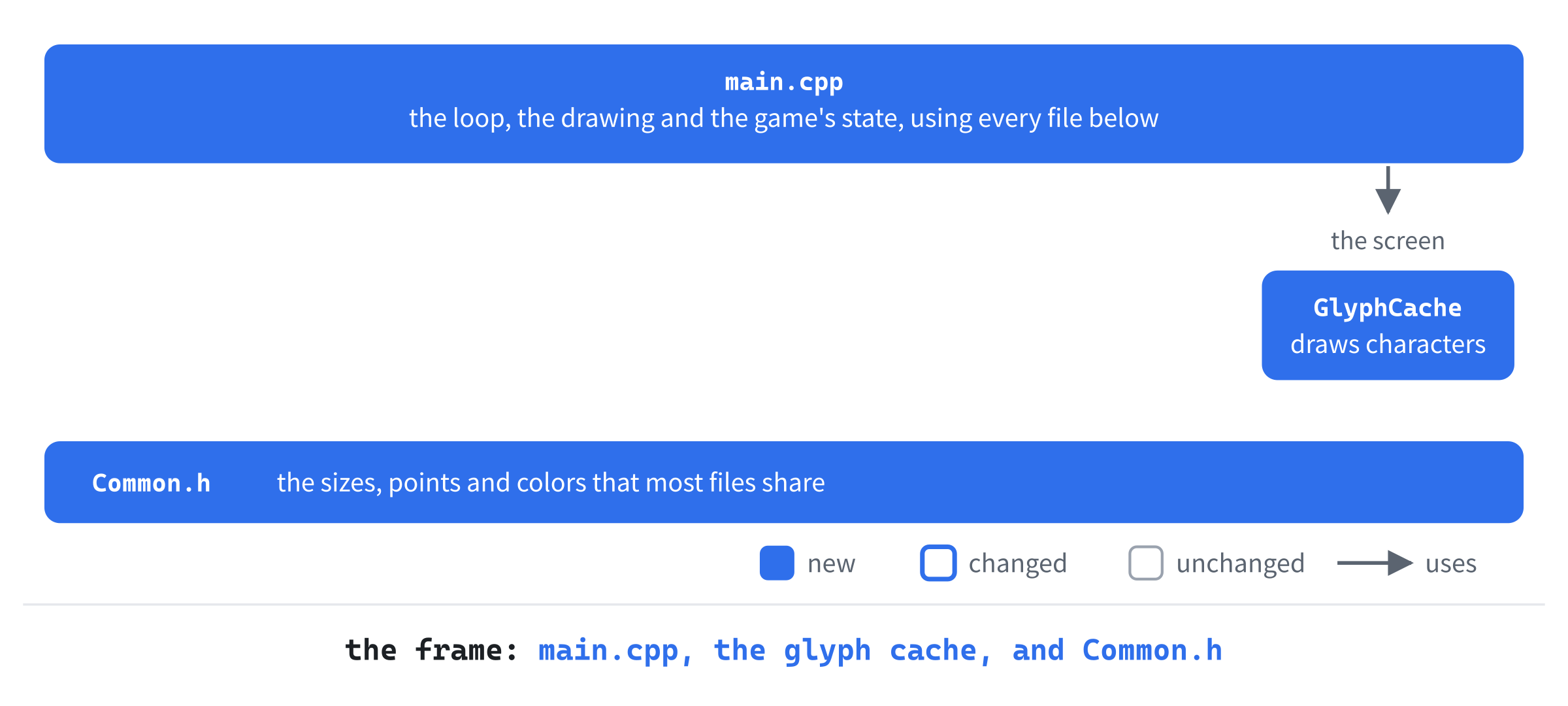
For now, there's main.cpp, which runs everything, and the glyph cache, which it uses to draw characters. There's also Common.h, with the sizes and colors. From Chapter 2 on, each chapter's table also lists the files it changes, and the ones it leaves alone.
A Window That Fits the Screen
The first checkpoint is a window: dark, empty, and better behaved than it looks. It sizes itself to fit your screen, keeps its picture's shape however you stretch it, and uses next to no processor time while it waits.
One Picture, Any Window
Screens come in every size, and a player can drag a window to any shape they like. Rather than lay the screen out again for each of them, the game always draws the same picture, 1,600 pixels wide and 900 tall. SDL then scales that picture to fit the window. So every position in the code is a position in that one picture: a map cell is always 20 pixels across, and the side panel always starts in the same place.
Every file will want to know the picture's size, so it goes in Common.h, the header they'll all share. Open it. Visual Studio has already typed its first line, #pragma once, so add the rest below it, until the file reads like this:
#pragma once
#include <SDL3/SDL.h>

// The game always draws a picture this size. SDL scales it to fit the
// window, whatever size the window is
constexpr int SCREEN_W = 1600;
constexpr int SCREEN_H = 900;

namespace Palette
{
    constexpr SDL_Color BACKGROUND = { 12, 12, 18, 255 };
}
At the top, #pragma once makes sure that each .cpp file reads the header only once, however many other headers include it too. Next, SDL.h brings in SDL_Color.
The picture's width and height are constexpr constants. The compiler knows a constexpr value while it's building the program, so the value can never change. It can go anywhere that C++ needs a fixed number, such as the size of an array. The picture's shape, 16:9, is the shape of most screens.
The colors go in a namespace called Palette, so each one's full name says what it is, as in Palette::BACKGROUND. An SDL_Color holds red, green, blue, and alpha, each from 0 to 255. So BACKGROUND is very nearly black, with a hint of blue: the dark of a dungeon, rather than the dead black of a switched-off screen.
The Top of main.cpp
Now open main.cpp, and type a comment that says what the program is, and the includes:
// Amulets of SDL: the traditional roguelike that "Using C++ to Build a
// Traditional Roguelike" builds, one checkpoint at a time
#include <SDL3/SDL.h>
#include <SDL3/SDL_main.h>
#include "Common.h"
The comment gives the game's name, and the book's. The first include brings in the whole of SDL. The second, SDL_main.h, smooths over the different ways that systems start a program, so that the same main works everywhere SDL does. It belongs only in the file that holds main. Our own header comes last, in quotation marks, which tells the compiler to look for it beside main.cpp first.
The main function will need some helpers. No other file needs them, so they'll go in an unnamed namespace: a namespace with no name. Its contents can be used anywhere in this file, but can't be seen from any other. That keeps the helpers private, so their names can never clash with names in the game's other files.
Add one below the includes, with a blank line in between. For now, it's empty apart from one constant:
namespace
{
    // The window starts as big as the picture, or smaller, so that it takes
    // up no more than this share of the screen
    constexpr float MAX_SCREEN_SHARE = 0.9f;
}
The constant MAX_SCREEN_SHARE is the most of the screen that the window may take up when it opens: 90 percent. That leaves room for the window's title bar and frame, so that the whole window fits on the screen, and its bottom edge never ends up hidden under the taskbar.
Starting SDL
The main function goes below the namespace, and its first job is to start SDL. Add this below the namespace's closing brace:
int main(int argc, char* argv[])
{
    if (!SDL_Init(SDL_INIT_VIDEO))
    {
        SDL_Log("SDL_Init failed: %s", SDL_GetError());
        return 1;
    }
First, main starts SDL's video system, which brings the keyboard and the mouse with it. If that fails, SDL_Log prints SDL's reason, from SDL_GetError, in the console window. Then main returns 1. The parameters, argc and argv, hold the command line. We won't need them until Chapter 2, where a number typed after the game's name chooses its dungeon.
One layout rule saves the book from saying the same thing at every step. A new function, struct or class gets a blank line above it, and so does any new group of lines that starts with its own comment. The exception is the first thing inside a pair of braces. Anything else goes straight below the line the book names, unless the book asks for a blank line. That's why there's a blank line between the namespace and main, and why the next block, which starts with a comment, gets one too.
Fitting the Window to the Screen
Next comes the window's size. The window opens as big as the picture, unless the screen is too small for it. Add this below the check:
// Shrink the window if the screen is too small to show it whole
float scale = 1.0f;
SDL_Rect usable;
if (SDL_GetDisplayUsableBounds(SDL_GetPrimaryDisplay(), &usable))
{
    float fitWidth = MAX_SCREEN_SHARE * usable.w / SCREEN_W;
    float fitHeight = MAX_SCREEN_SHARE * usable.h / SCREEN_H;
    scale = SDL_min(1.0f, SDL_min(fitWidth, fitHeight));
}
int windowW = static_cast<int>(SCREEN_W * scale);
int windowH = static_cast<int>(SCREEN_H * scale);
The variable scale starts at 1, which is the picture's own size. A call to SDL_GetPrimaryDisplay gets the main screen's ID. Then SDL_GetDisplayUsableBounds fills usable, an SDL_Rect, with the part of that screen a window can use. That's the whole screen, less anything Windows keeps for itself, such as the taskbar. If SDL can't tell, the call returns false, and the window opens at full size.
Inside the if, fitWidth is the biggest scale at which the picture's width fits in 90 percent of the usable width, and fitHeight does the same for the height. The SDL_min macro gives the smaller of two values. The inner one picks the tighter of the two fits. Then the outer one stops the scale going above 1, so a big screen never gets a window bigger than the picture. Last, static_cast<int> drops the fractions, since a window is a whole number of pixels.
For example, a laptop screen of 1,366 by 768 pixels, with Windows 11's 48-pixel taskbar, has a usable area of 1,366 by 720. Then fitWidth is about 0.77, and fitHeight is 0.72. So the window opens at 72 percent of the picture's size: 1,152 by 648 pixels. On a 1,920 by 1,080 monitor, both fits are above 1, and the window opens at full size.
A window smaller than the picture shows everything shrunk. Shrinking softens fine detail, such as text, a little. So if your screen is smaller than about 1,780 by 1,000 pixels, not counting the taskbar, the characters you'll draw later in this chapter will look a little soft. That's expected. Chapter 3 makes them sharp at any size.
This block sits inside main, so in your file its lines are indented by four spaces. Most blocks in this book are shown without the indentation that their lines share, so that long lines fit the page. Visual Studio indents each new line for you. When it matters where a block's lines really sit, the text says so.
Now we can make the window, and the renderer that draws in it. Add this below the size, with a blank line in between:
SDL_Window* window = nullptr;
SDL_Renderer* renderer = nullptr;
if (!SDL_CreateWindowAndRenderer("Amulets of SDL", windowW, windowH,
                                 SDL_WINDOW_RESIZABLE,
                                 &window, &renderer))
{
    SDL_Log("Couldn't create the window: %s", SDL_GetError());
    SDL_Quit();
    return 1;
}
SDL_SetRenderLogicalPresentation(renderer, SCREEN_W, SCREEN_H,
                                 SDL_LOGICAL_PRESENTATION_LETTERBOX);
One call, to SDL_CreateWindowAndRenderer, makes the window and its renderer. Its first arguments are the window's title, its width and height, and its flags. The flag SDL_WINDOW_RESIZABLE lets the player drag the window's edges, or maximize it.
The last two arguments, &window and &renderer, are the addresses of our two pointers, so that the function can store the new window and renderer in them. SDL often fills in a variable through its address like this. Here, the variables happen to be pointers themselves, so the function's parameters are pointers to pointers. If the call fails, main undoes the SDL_Init that worked, with SDL_Quit, and returns 1.
The last statement is what makes one picture fit any window. The call to SDL_SetRenderLogicalPresentation tells the renderer that we'll draw everything in a picture SCREEN_W by SCREEN_H, and that it should scale that picture to fit the window. Its last argument, SDL_LOGICAL_PRESENTATION_LETTERBOX, says how: as big as it can go without changing shape, centered, with black bars in whatever space is left over. From here on, every drawing call uses the picture's coordinates, so the game never needs to know how big the window really is.
The next image shows the finished game in two windows of the wrong shape. A window that's too wide gets bars at its sides, and one that's too tall gets them above and below. Either way, the picture, outlined in blue, keeps its shape.
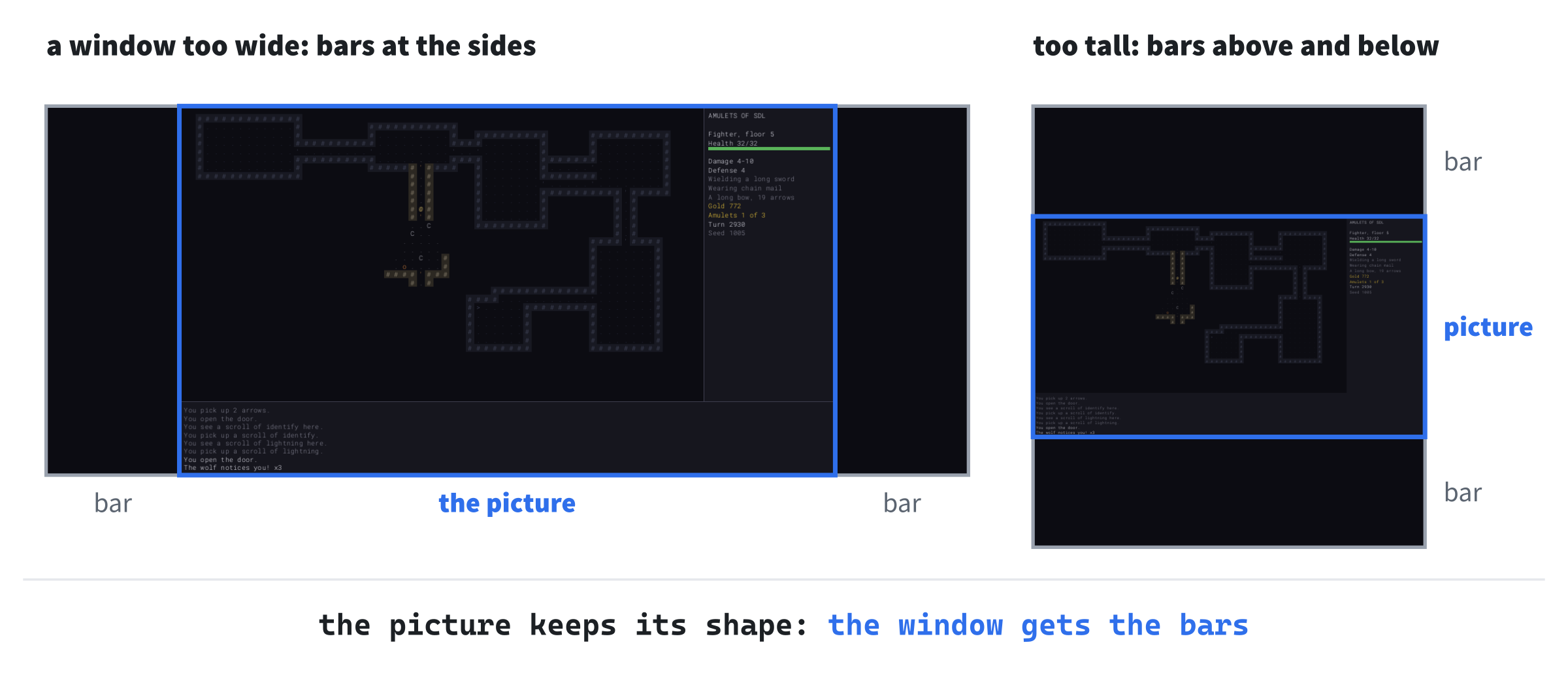
SDL has other ways to fit a picture to a window, and Experimenting tries some of them. Letterboxing is the right one for this game, since it never stretches the picture or hides any of it.
Cleaning Up
The end of main cleans up. Let's write it now, while the beginning is fresh in our minds. Add this below the call to SDL_SetRenderLogicalPresentation, with a blank line in between:
    SDL_DestroyRenderer(renderer);
    SDL_DestroyWindow(window);
    SDL_Quit();
    return 0;
}
The renderer is destroyed first, then the window it draws in, and then SDL itself: the reverse of the order they were made in. This block includes main's closing brace, so it shows its lines where they really are, four spaces in.
A Loop That Sleeps
Most game loops are busy. They go around 60 times a second, because something on the screen is always moving. In a roguelike, nothing happens between your key presses, so our loop sleeps instead. A call to SDL_WaitEvent doesn't return until something happens, such as a key press, a click, or the window being resized. While it waits, the program uses almost no processor time.
When the loop wakes, it draws the window again only if the event changed something, and then goes back to sleep. Traditional roguelikes have always worked this way: the game waits for you, however long you take to decide, and nothing moves until you do.
I measured the difference. Left alone for ten seconds, this section's program used between 30 and 60 milliseconds of processor time, which Task Manager shows as 0. I also tried a loop that checked for events and drew the window every time around, as busy loops do. That one kept more than a whole processor core busy. Even with vsync, which makes each frame wait until the monitor is ready for it, it used a quarter of one.
First, a small helper. SDL's function for setting the drawing color takes a color's four parts separately, but we'll keep our colors as whole SDL_Colors. Add the helper inside the namespace, below MAX_SCREEN_SHARE:
void setColor(SDL_Renderer* renderer, SDL_Color color)
{
    SDL_SetRenderDrawColor(renderer, color.r, color.g, color.b, color.a);
}
The helper setColor passes the four parts of an SDL_Color to SDL_SetRenderDrawColor, which sets the color for the renderer's next clear, fill, or line.
Next comes the function that draws the window. For now, there's nothing to draw but the background. Add it below setColor:
void drawFrame(SDL_Renderer* renderer)
{
    setColor(renderer, Palette::BACKGROUND);
    SDL_RenderClear(renderer);
    SDL_RenderPresent(renderer);
}
The function drawFrame fills the picture with the background color, using SDL_RenderClear, and then shows it in the window with SDL_RenderPresent. Everything else the game draws will go between those two calls, drawn out of sight and shown all at once.
Now for the loop itself. Add the first part of runGame below drawFrame:
void runGame(SDL_Renderer* renderer)
{
    bool running = true;
    bool redraw = true;
    while (running)
    {
        // Sleep until something happens. A turn-based game has nothing
        // to do while the player is thinking
        SDL_Event event;
        if (!SDL_WaitEvent(&event))
        {
            SDL_Log("SDL_WaitEvent failed: %s", SDL_GetError());
            break;
        }
Of the two flags, running stays true until it's time to quit. The redraw flag says that the window needs drawing again. It starts out true, so that the first frame gets drawn. A flag like this is often called a dirty flag: it's set when something needs doing, and cleared once it's done. The window is "dirty" until it's drawn again.
Each time around the loop, SDL_WaitEvent sleeps until an event arrives, copies it into event, and returns true. It returns false only if something went wrong while it waited. Then event holds nothing new, so instead of acting on an old event, the loop logs SDL's reason and leaves.
The rest of the loop deals with the event, and draws if it needs to. Add it below the check, with a blank line in between:
        if (event.type == SDL_EVENT_QUIT)
        {
            running = false;
        }
        else if (event.type == SDL_EVENT_KEY_DOWN &&
                 event.key.key == SDLK_ESCAPE)
        {
            running = false;
        }
        else if (event.type == SDL_EVENT_WINDOW_EXPOSED ||
                 event.type == SDL_EVENT_WINDOW_RESIZED)
        {
            redraw = true;
        }

        if (redraw)
        {
            drawFrame(renderer);
            redraw = false;
        }
    }
}
In the preceding code, the first check is for SDL_EVENT_QUIT, which SDL sends when the player clicks the window's X, or presses Alt+F4. The second is for the Escape key, whose keycode is in event.key.key. Either way, running becomes false, and the loop ends once this trip around it finishes.
The third check is for the two events that mean the window needs drawing again. SDL sends SDL_EVENT_WINDOW_EXPOSED when the system asks for the window's picture, as it does when the window first appears. It sends SDL_EVENT_WINDOW_RESIZED when the window changes size, so the picture must be scaled to fit again. Any other event, such as the mouse moving, falls through all three checks.
After the checks, drawFrame draws the window only if redraw says so, and redraw goes back to false. So an event that changed nothing sends the loop straight back to sleep. The block ends with the closing braces of the while loop and of runGame, so its lines are shown indented to match.
You might wonder how the first frame gets drawn, since the loop waits before it draws. It doesn't wait long. As soon as the window appears, SDL sends a burst of events about it. The first one wakes the loop, with redraw already true.
The next image shows five seconds of a real run, logged while a script moved the mouse, pressed a key, and resized the window. Each gray mark is an event, and each blue dot is a draw. There were 44 events, but the loop drew only three times: twice as the window appeared, and once when it was resized.
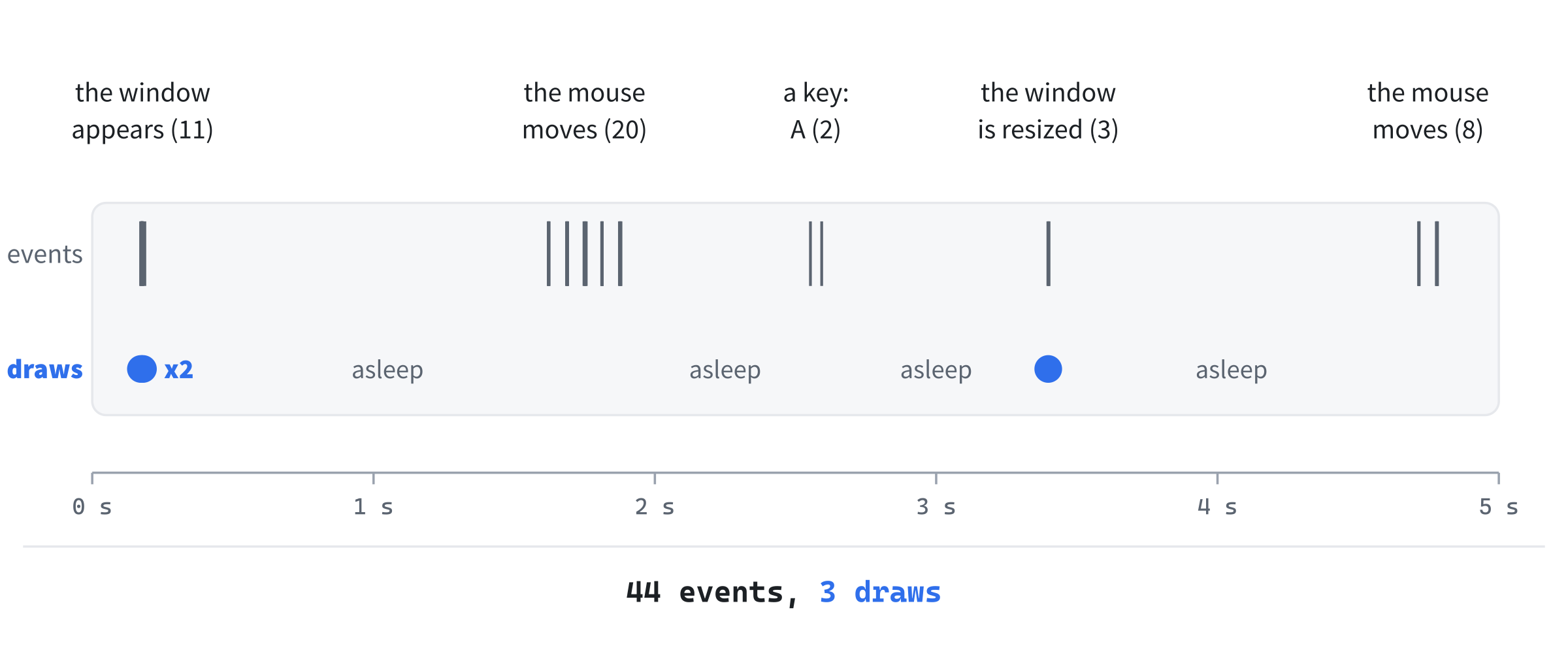
Between the bursts of events, the program was asleep. That's the loop finished, and all that's left is to call it.
Handing Over to runGame
One line connects the two halves. Add it to main, between the call to SDL_SetRenderLogicalPresentation and the cleanup, with a blank line on each side:
runGame(renderer);Now main hands the renderer to runGame, and carries on to the cleanup once the player quits.
Checkpoint: Press F5. A dark window titled Amulets of SDL opens, with the console window behind it. It's 1,600 by 900 pixels if your screen has room for it, or a little smaller if not. Drag its bottom edge down to make it tall: the picture keeps its shape, and the strips above and below it are pure black, a shade darker than the background. Press Escape, or click the window's X, to close it.
If it doesn't build, check the project's settings for SDL. Appendix A lists the message that each mistake gives. Once it runs, leave the window alone for a moment, and open Task Manager with Ctrl+Shift+Esc. Find AmuletsOfSDL in its list, and watch its CPU column: it reads 0, and it stays there until you give the window something to do.
Characters from a Font
A roguelike's dungeon is made of characters: # for a wall, . for the floor, @ for you, and a letter for every monster.
Design note: why letters? The first roguelikes had no pictures to draw. Rogue, written by Michael Toy and Glenn Wichman in 1980, ran on text terminals, using the curses library that Ken Arnold wrote. So its dungeon was made of letters and symbols:
@for you, and a capital letter for every monster. The look stuck, and not only from habit. Letters are quick to read, once you know them, cheap to draw, and they leave the rest to your imagination. Many roguelikes still offer them, beside pictures, and this one does too: glyphs now, and tiles in Chapter 8.
SDL can't read a font by itself, so this section adds SDL3_ttf, the library that can. Once we've checked that it's set up, we'll build the glyph cache, the class that turns the font into pictures. Then we'll draw the game's first characters.
Adding SDL3_ttf
SDL3_ttf is SDL's companion library for TrueType fonts. This book was built with version 3.2.2, and it installs the same way SDL did:
- Go to https://github.com/libsdl-org/SDL_ttf/releases. In the newest SDL3_ttf release, find the list of downloads, labeled Assets (click Show all if the list is cut short), and download the file whose name ends in
-VC.zip, such asSDL3_ttf-devel-3.2.2-VC.zip. - Right-click the zip, choose Extract All, change the destination to
C:\, and click Extract. Then rename the new folder, which has a name likeC:\SDL3_ttf-3.2.2, to plainSDL3_ttf. - Check that
C:\SDL3_ttfholds anincludefolder and alibfolder, with no other folder in between, and thatC:\SDL3_ttf\lib\x64holdsSDL3_ttf.libandSDL3_ttf.dll. - In the project's Properties, with both dropdowns set to All, add SDL3_ttf to three of the settings, after SDL's, with a semicolon in between:
- C/C++ > General > Additional Include Directories:
C:\SDL3\include;C:\SDL3_ttf\include - Linker > General > Additional Library Directories:
C:\SDL3\lib\x64;C:\SDL3_ttf\lib\x64 - Linker > Input > Additional Dependencies:
SDL3.lib;SDL3_ttf.lib
- C/C++ > General > Additional Include Directories:
- Copy
SDL3_ttf.dllfromC:\SDL3_ttf\lib\x64into the project folder, besideSDL3.dll.
These are the same three pieces as SDL's: a header for the compiler, a .lib file for the linker, and a DLL for Windows to load when the game starts. The DLL holds the library's code.
Most SDL_ttf examples online were written for SDL2_ttf, and several of its functions changed for SDL 3. Font sizes are a float now, TTF_Init returns true when it works, and the functions that draw text take its length. So when you look something up, check that it's for SDL3_ttf. The SDL wiki's SDL3_ttf pages describe every function as it is now.
That's the library installed. Next, let's check that the project can use it.
Starting SDL3_ttf
The check is to start SDL3_ttf and stop it again, which takes four small additions to main.cpp. From here on, most new code goes into gaps between lines you've already typed. So the next image maps out every change that the rest of this section makes to main.cpp. The blue slots are new lines, and the outlined lines are lines that will change. Each is lettered in the order we'll get to it, with the heading it comes under at its right.
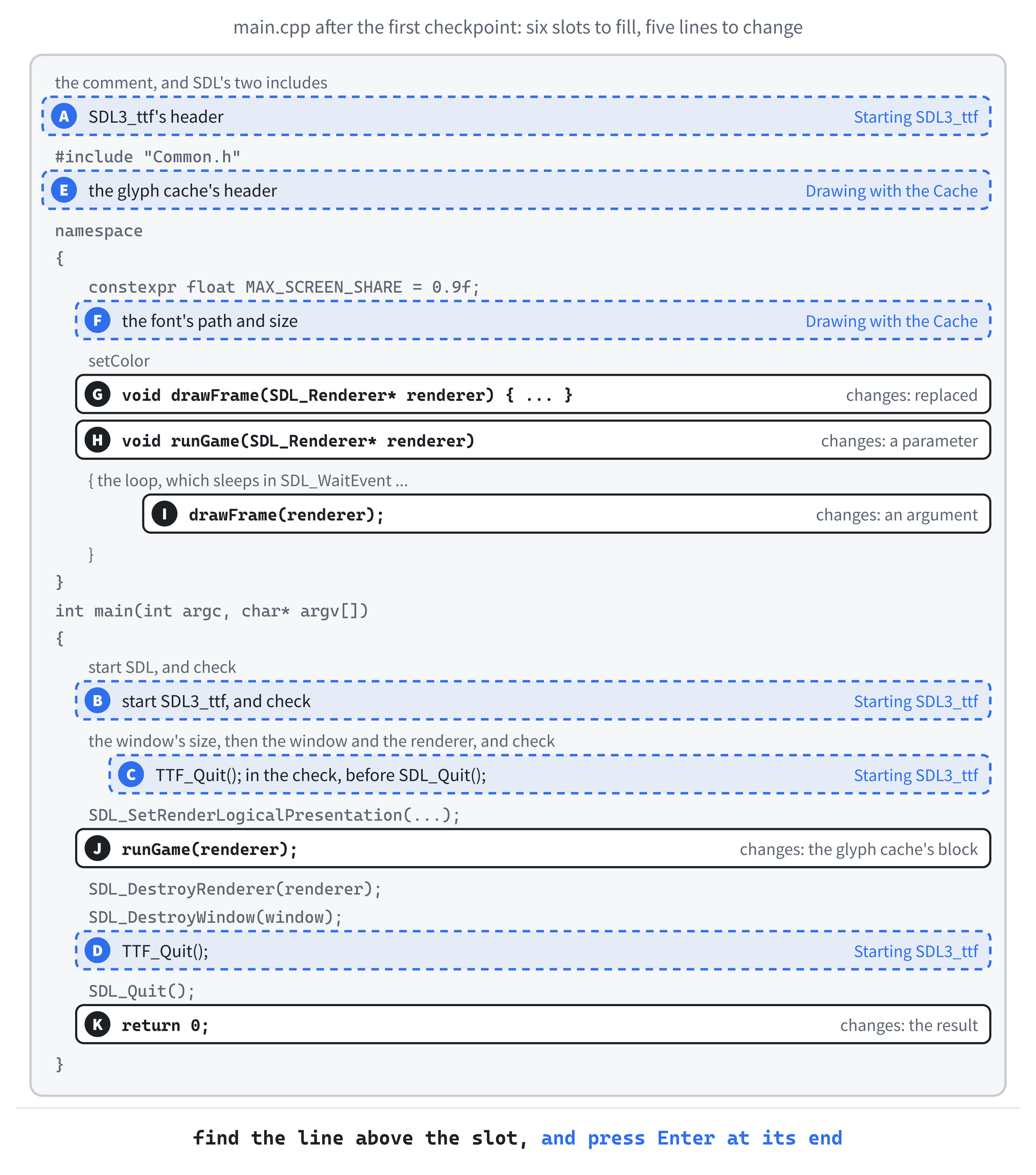
To open a gap, click at the end of the line just above it, and press Enter. Visual Studio starts a new line, indented to match. If you can't spot a line, press Ctrl+F and type part of it.
And if a slot's place still isn't clear, the code itself is the final word. The Chapter 01 folder in the book's repository on GitHub holds every file exactly as it is at the end of the chapter, so you can see where each line ends up.
Slot A is SDL3_ttf's header. Add it below #include <SDL3/SDL_main.h>:
#include <SDL3_ttf/SDL_ttf.h>The header comes from the SDL3_ttf folder inside C:\SDL3_ttf\include, just as SDL's comes from the SDL3 folder inside C:\SDL3\include.
Slot B starts the library. Add these lines directly below the closing brace of the SDL_Init check:
if (!TTF_Init())
{
    SDL_Log("TTF_Init failed: %s", SDL_GetError());
    SDL_Quit();
    return 1;
}
The call to TTF_Init starts SDL3_ttf, which must happen before any font is opened. Like SDL_Init, it returns true when it works. If it doesn't work, main undoes the SDL_Init that did, and returns 1.
Slot C is in the window's check, since SDL3_ttf has started by the time the window is made. Add this between the SDL_Log line and SDL_Quit(); in that check:
TTF_Quit();Here, TTF_Quit stops SDL3_ttf before SDL_Quit stops SDL, the reverse of the order they started in.
Slot D is the same call, in the cleanup at the end of main. Add it between SDL_DestroyWindow(window); and SDL_Quit();:
TTF_Quit();So SDL3_ttf stops once the window has gone and before SDL does, and the cleanup still undoes everything in reverse order.
Checkpoint: Press F5. The same dark window opens, and nothing about it looks any different. That's the point: the compiler found SDL3_ttf's header, the linker found SDL3_ttf.lib, and Windows found SDL3_ttf.dll. If any of the three went wrong, look in Common Errors and Fixes, near the end of the chapter. It has the message you'll see, and the fix.
The Font
The game's characters come from Roboto Mono, one of the free fonts at https://fonts.google.com. In File Explorer, make a new folder called assets in the project folder, beside src. Then copy two files into it from the Chapter 01\assets folder in the book's repository: the font, RobotoMono-Light.ttf, and its license, RobotoMono-LICENSE.txt. The license is the Apache License 2.0. It lets you ship the font with your own games, even ones you sell, as long as the license goes with it.
Roboto Mono is monospaced: every character is exactly as wide as every other, as on a typewriter. That's just what a grid of cells needs. We use its Light weight, whose fine strokes keep a screen full of walls from looking heavy. The font doesn't need adding to the Visual Studio project, since nothing builds it. The game opens it while it runs, by a path that starts from the working directory.
Double-clicking AmuletsOfSDL.exe in the x64\Debug folder starts the game with that folder as its working directory. There are no DLLs and no assets folder there, so it won't start. Run it from Visual Studio, or copy the DLLs and the assets folder beside the .exe first. Chapter 16 changes how the game finds its files, so that it doesn't matter where it's started from.
With the library set up and the font in place, the game has everything it needs to draw a character.
A Texture for Every Character
A font is a set of drawings, one for each character, and each drawing is called a glyph. SDL3_ttf can draw a glyph into a surface, which is a picture in the computer's ordinary memory. SDL can then turn the surface into a texture, a picture on the graphics card, ready to draw. That's far too much work to do for every character, every time the window is drawn.
So the game uses a cache: a store of things that are slow to make, but needed again and again. Each one is made once, kept, and reused. The game's cache of characters is called the glyph cache. When the game starts, it makes a white texture for each of 95 characters, from the space to the tilde. That covers every letter, digit, and symbol on a US keyboard.
To draw a gold @, the cache draws the @'s white texture with a color modulation. The modulation multiplies every pixel's color by a color you choose: white times gold is gold. So one texture serves every color. The next image shows the whole idea.

Making the 95 textures takes a moment as the game starts. After that, drawing a character is quick: pick its texture, set its tint, and copy it into the picture. The cache also measures the font, so that text is spaced as the font intends. And it draws any character it doesn't hold as a question mark.
GlyphCache.h
In Solution Explorer, right-click src, choose Add > New Item, and add a Header File (.h) called GlyphCache.h. Below the #pragma once that Visual Studio types for you, add the includes and the start of the class, so that the file begins like this:
#pragma once
#include <SDL3/SDL.h>
#include <array>    // std::array, for the glyphs
#include <string>   // std::string, for the font's path and for text

// Every printable character, from the space (code 32) to the tilde (126),
// drawn once from the font as a white picture, then tinted to whatever
// color it's drawn in
class GlyphCache
{
public:
    GlyphCache(SDL_Renderer* renderer, const std::string& fontPath,
               float pointSize);
    ~GlyphCache();

    GlyphCache(const GlyphCache&) = delete;
    GlyphCache& operator=(const GlyphCache&) = delete;
Each include has a comment saying what it's for, a habit that all of the game's files keep. The constructor takes the renderer that the textures are for, the font's path, and the font's size in points.
The constructor and the destructor follow a pattern called RAII, which the whole game relies on. The letters stand for "resource acquisition is initialization," a mouthful that means something simple.
A resource is anything that a program must give back when it's finished with it, such as memory, an open file, or a texture. In RAII, an object gets its resources in its constructor, and gives them back in its destructor. C++ calls the destructor automatically when the object's life ends, such as at the closing brace of the block it was made in. So the resources last exactly as long as the object does, and they can't be forgotten, even when a function returns early.
For the glyph cache, the resources are its 95 textures. The constructor will make them, and the destructor will destroy them, so no other code ever has to.
RAII has one danger, and that's copying. It's what the two lines ending in = delete are for.
Unless a class says otherwise, C++ gives it a copy constructor, which makes a new object as a copy of another, as in GlyphCache b = a;. It also gives it a copy assignment operator, which copies one object over another, as in b = a;. Both copy each member. A copy of a GlyphCache would copy its 95 texture pointers, but not the textures they point to. So the copy and the original would share the same textures, as the next image shows.
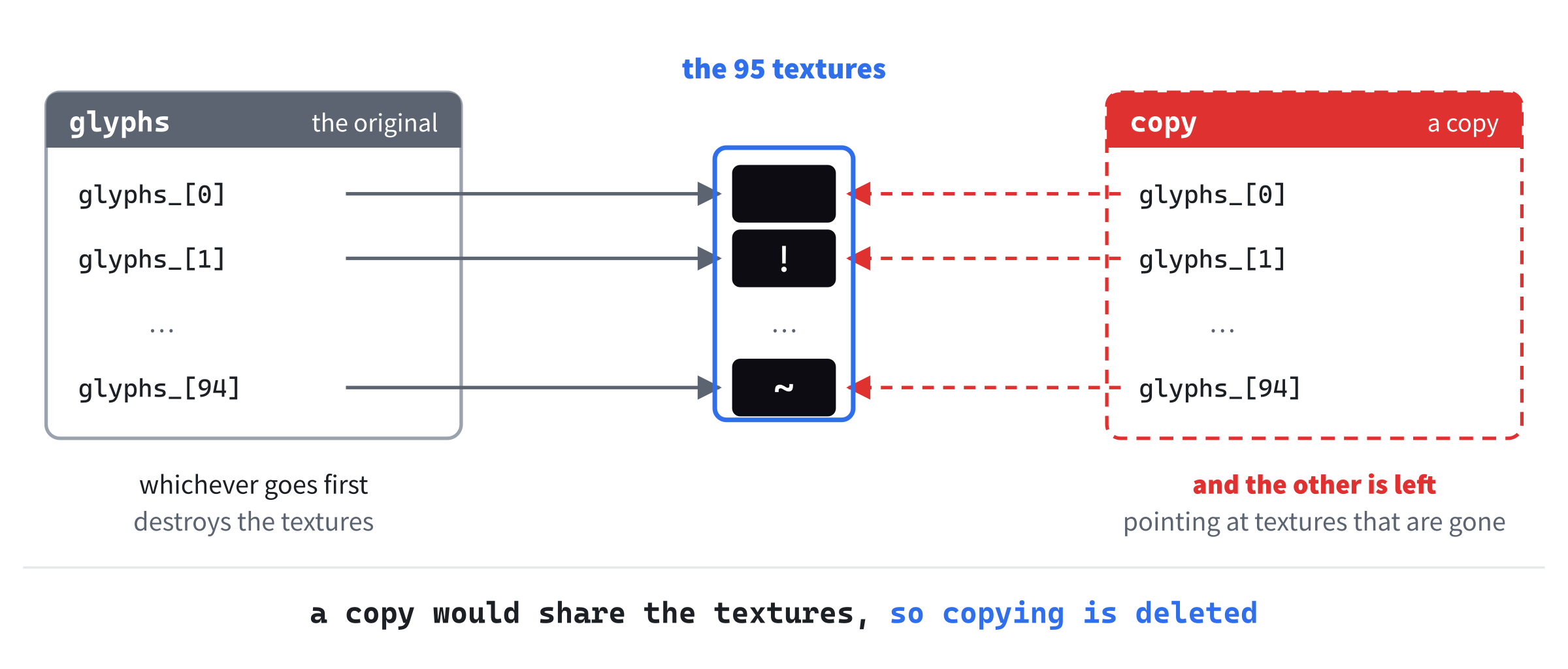
Whichever of the two was destroyed first would destroy the textures. The other would be left holding pointers to textures that no longer exist, and anything that it drew or destroyed with them would go wrong. Writing = delete after the two functions' declarations deletes them, so a GlyphCache can't be copied at all. An accidental copy, such as a parameter missing its &, becomes an error that the compiler catches, rather than a bug that you'd have to hunt for.
Next come the functions that the rest of the game will call. Add them below the two deleted functions, with a blank line in between:
bool isLoaded() const;
float charWidth() const;
float lineHeight() const;

// One character, centered in the square cell whose top-left corner is
// at (x, y)
void drawInCell(char c, float x, float y, float cellSize,
                SDL_Color color) const;

// A line of text, with its top-left corner at (x, y)
void drawText(const std::string& text, float x, float y,
              SDL_Color color) const;
First, isLoaded says whether the font loaded. Then charWidth says how far apart the characters in a line of text are, and lineHeight says how tall a line is. The function drawInCell draws a character in the middle of a square cell, and drawText draws a line of text. All five are const, so the rest of the game can hold the cache by const reference and still draw with it.
The private part finishes the class. Add it below the declaration of drawText, with a blank line in between:
private:
    static constexpr char FIRST_CHAR = ' ';
    static constexpr char LAST_CHAR = '~';

    void drawAt(char c, float x, float y, SDL_Color color) const;

    SDL_Renderer* renderer_ = nullptr;
    std::array<SDL_Texture*, LAST_CHAR - FIRST_CHAR + 1> glyphs_ = {};
    float charWidth_ = 0.0f;    // every character is this wide, since the
    float lineHeight_ = 0.0f;   // font is monospaced
    bool loaded_ = false;
};
The constants FIRST_CHAR and LAST_CHAR are the first and last characters the cache holds. They're static and constexpr: one of each for the whole class, fixed when the program is built. A char is a small number: the space is 32, and the tilde is 126.
The private helper drawAt draws a character with its top-left corner at a given point. Next come the members. The cache draws with the renderer that made its textures, but main owns the renderer. So the cache just keeps a pointer to it, and never destroys it.
The textures go in glyphs_, an array of 95 pointers: LAST_CHAR - FIRST_CHAR + 1 is 126, less 32, plus 1. The empty braces set all 95 pointers to nullptr to begin with. Last come the character width, the line height, and loaded_, which becomes true once the textures are made.
Making the Glyphs
Now add a C++ File (.cpp) called GlyphCache.cpp to src, the same way, and type its includes and the first part of the constructor:
#include "GlyphCache.h"
#include <SDL3_ttf/SDL_ttf.h>
#include <cmath>   // std::floor, to keep each character on whole pixels

GlyphCache::GlyphCache(SDL_Renderer* renderer, const std::string& fontPath,
                       float pointSize)
    : renderer_(renderer)
{
    TTF_Font* font = TTF_OpenFont(fontPath.c_str(), pointSize);
    if (font == nullptr)
    {
        SDL_Log("Couldn't open the font %s: %s", fontPath.c_str(),
                SDL_GetError());
        return;
    }
Here, GlyphCache.cpp includes its own header first, then SDL3_ttf's header, and <cmath>, for std::floor. The constructor's initializer list keeps the renderer.
Then TTF_OpenFont opens the font. It takes the font's path and the size in points. The path goes in as a const char*, which c_str gets from the std::string. If it can't open the font, it returns nullptr, and the constructor logs SDL's reason and returns early. That leaves loaded_ as false, for isLoaded to report.
The heart of the constructor makes the textures. Add this below the font's check, with a blank line in between:
const SDL_Color white = { 255, 255, 255, 255 };
for (char c = FIRST_CHAR; c <= LAST_CHAR; ++c)
{
    SDL_Surface* surface =
        TTF_RenderGlyph_Blended(font, static_cast<Uint32>(c), white);
    if (surface == nullptr)
    {
        SDL_Log("Couldn't draw '%c': %s", c, SDL_GetError());
        continue;
    }
    glyphs_[c - FIRST_CHAR] =
        SDL_CreateTextureFromSurface(renderer_, surface);
    SDL_DestroySurface(surface);
}
The loop counts through the characters from the space to the tilde, since a char is just a number. For each one, TTF_RenderGlyph_Blended draws its glyph into a new surface, in white. The function takes a Unicode code point, a Uint32. The characters from 32 to 126 have the same numbers in Unicode as in ASCII, so static_cast simply turns the char into one.
If a glyph can't be drawn, the loop logs why. Then continue moves on to the next character, leaving that pointer as nullptr. Otherwise, SDL_CreateTextureFromSurface makes the texture. It goes into the array at the character's number less the space's, so the space is at 0 and the tilde at 94. Last, SDL_DestroySurface frees the surface, which isn't needed any more.
"Blended" is the smoothest of SDL3_ttf's ways to draw text. The edges of a blended glyph are partly see-through, so its outline fades into whatever is behind it instead of stepping from pixel to pixel. The others are Solid, which is fast but jagged, and Shaded, which smooths the edges against a box of background color. There's also LCD, which smooths them for the stripes of an LCD screen.
The constructor ends by measuring the font. Add this below the loop:
    // How far each character moves the pen, and how tall a line is
    int minX = 0;
    int maxX = 0;
    int minY = 0;
    int maxY = 0;
    int advance = 0;
    TTF_GetGlyphMetrics(font, 'M', &minX, &maxX, &minY, &maxY, &advance);
    charWidth_ = static_cast<float>(advance);
    lineHeight_ = static_cast<float>(TTF_GetFontHeight(font));

    TTF_CloseFont(font);
    loaded_ = true;
}
A call to TTF_GetGlyphMetrics fills in five numbers about one character. The first four are the edges of the box that its ink fills. The fifth, advance, is how far along the next character starts, and that's the one we want. In a monospaced font, every character has the same advance, so any character would do, and M is the traditional one to measure. Then TTF_GetFontHeight gives the height of a line, from the top of the tallest character to the bottom of the deepest.
At 16 points, Roboto Mono Light's advance is 10 pixels, and a line is 22 pixels tall. Both are stored as floats, since that's how SDL measures positions. Last, the font is closed, since the textures don't need it any more, and loaded_ becomes true. This block includes the constructor's closing brace, so its lines are shown where they really are.
Checkpoint: Click in GlyphCache.cpp, and press Ctrl+F7, which compiles just this file. It compiles, even though most of the cache's functions don't exist yet. Compiling one file needs only their declarations, and those are in the header. There's no point running the game yet, since nothing uses the cache.
Drawing the Glyphs
Below the constructor, with a blank line in between, add the destructor, and the three functions that report what the cache knows:
GlyphCache::~GlyphCache()
{
    for (SDL_Texture* texture : glyphs_)
    {
        if (texture != nullptr)
        {
            SDL_DestroyTexture(texture);
        }
    }
}

bool GlyphCache::isLoaded() const
{
    return loaded_;
}

float GlyphCache::charWidth() const
{
    return charWidth_;
}

float GlyphCache::lineHeight() const
{
    return lineHeight_;
}
In the preceding code, the destructor destroys every texture that was made. It skips any pointer that's still nullptr, as they all are if the font never loaded. The other three functions just return what the constructor stored.
Next come the two functions that place characters. Add them below lineHeight:
void GlyphCache::drawInCell(char c, float x, float y, float cellSize,
                            SDL_Color color) const
{
    float left = x + (cellSize - charWidth_) / 2.0f;
    float top = y + (cellSize - lineHeight_) / 2.0f;
    drawAt(c, left, top, color);
}

void GlyphCache::drawText(const std::string& text, float x, float y,
                          SDL_Color color) const
{
    for (size_t i = 0; i < text.size(); ++i)
    {
        drawAt(text[i], x + i * charWidth_, y, color);
    }
}
The first function, drawInCell, centers a character's picture in a square cell, by adding half the difference between their sizes to the cell's left edge and to its top. A character's picture is 10 pixels wide, so in a 20-pixel cell, it starts 5 pixels in. It's 22 pixels tall, though, which is taller than the cell, so it starts 1 pixel above it. That's fine, because the picture has empty space above and below its letters.
The next image shows an @ and a g, each in its 20-pixel cell, outlined in blue. They're enlarged so that you can see every pixel. The dashed box around each is its picture. Even the tail of the g ends on the cell's last row, and all 95 characters keep their ink inside their cells like this.

The second function, drawText, draws a line of text a character at a time. It moves along by charWidth_ for each one, so the characters sit as far apart as the font intends. Its counter is a size_t, the type that text.size() returns. In i * charWidth_, the counter becomes a float.
The last function does the drawing itself. Add it below drawText:
void GlyphCache::drawAt(char c, float x, float y, SDL_Color color) const
{
    // Anything the cache doesn't hold is drawn as a question mark
    if (c < FIRST_CHAR || c > LAST_CHAR)
    {
        c = '?';
    }
    SDL_Texture* texture = glyphs_[c - FIRST_CHAR];
    if (texture == nullptr)
    {
        return;
    }

    float width = 0.0f;
    float height = 0.0f;
    SDL_GetTextureSize(texture, &width, &height);
    SDL_SetTextureColorMod(texture, color.r, color.g, color.b);
    SDL_FRect where = { std::floor(x), std::floor(y), width, height };
    SDL_RenderTexture(renderer_, texture, nullptr, &where);
}
Any character outside the 95 that the cache holds, such as a tab or an accented letter, becomes a question mark. That makes a mistake in a message easy to spot. It also means that c - FIRST_CHAR can never reach past either end of the array. A character whose texture is nullptr isn't drawn at all.
The picture is drawn at its own size, which SDL_GetTextureSize measures, because stretching it to fill a cell would blur it. Then SDL_SetTextureColorMod sets the tint, from the color's red, green, and blue. The same texture draws every @ in the game, so each call sets its own tint. That way, a color can never be left over from the last time.
The rectangle where is where the picture goes. Its corner is rounded down to whole pixels by std::floor, because a picture drawn half a pixel off the grid gets smoothed across two pixels, and looks blurred. That keeps every character sharp when the window shows the picture at its own size. When the window is bigger or smaller, SDL's scaling still softens the characters a little, until Chapter 3. Last, SDL_RenderTexture copies the texture into the picture, and its nullptr means the whole texture.
Drawing with the Cache
The cache is finished, so let's try it out. The test needs the size of a map cell, and four more colors, so it starts in Common.h. Add the cell's size below SCREEN_H:
// The map is made of square cells this many pixels across
constexpr int CELL_PX = 20;
The constant CELL_PX is the size of a map cell: 20 pixels square. Next, add four colors to the palette, below BACKGROUND:
constexpr SDL_Color TEXT = { 220, 220, 230, 255 };
constexpr SDL_Color PLAYER = { 255, 220, 120, 255 };
constexpr SDL_Color WALL = { 150, 140, 120, 255 };
constexpr SDL_Color FLOOR = { 90, 90, 100, 255 };
The new TEXT is a light gray, for writing, and the player is a warm gold, so that the @ stands out. The walls are sandstone, and the floor is a dim gray. So the floor's dots stay in the background, and whatever stands on them doesn't.
Back in main.cpp, slot E is the cache's header. Add it below #include "Common.h":
#include "GlyphCache.h"Now main.cpp includes the header that declares GlyphCache, so that it can make one.
Slot F is the font. Add these lines inside the namespace, below MAX_SCREEN_SHARE:
// The font, and its size in points. The path is relative to the working
// directory, which Visual Studio sets to the project's folder
const char* const FONT_PATH = "assets/RobotoMono-Light.ttf";
constexpr float FONT_SIZE = 16.0f;
The constant FONT_PATH is the font's path, relative to the working directory. Its type, const char* const, reads from right to left: a constant pointer to constant characters. So neither the text nor which text it points to can change. The font's size, FONT_SIZE, is 16 points.
That size is chosen to fit the cells. At 16 points, every character's ink stays inside its 20-pixel cell, even the tails of g, j, p, q, and y. That matters in a roguelike, where those letters are monsters. A tail that hung down into the next cell would be cut off whenever that cell was drawn after it, as Experimenting shows.
Slot G is drawFrame, which now needs the glyph cache. As a test, it will draw three characters and a line of text. Replace the whole of drawFrame with this:
void drawFrame(SDL_Renderer* renderer, const GlyphCache& glyphs)
{
    setColor(renderer, Palette::BACKGROUND);
    SDL_RenderClear(renderer);

    // Three characters in cells side by side, and a line of text
    float size = static_cast<float>(CELL_PX);
    glyphs.drawInCell('@', 780.0f, 420.0f, size, Palette::PLAYER);
    glyphs.drawInCell('#', 800.0f, 420.0f, size, Palette::WALL);
    glyphs.drawInCell('.', 820.0f, 420.0f, size, Palette::FLOOR);
    glyphs.drawText("Amulets of SDL", 730.0f, 460.0f, Palette::TEXT);

    SDL_RenderPresent(renderer);
}
The new drawFrame takes the glyph cache by const reference, since drawing doesn't change it. Between clearing and presenting, it draws an @, a #, and a . in three cells side by side, near the middle of the picture. Then it draws the game's name below them. The cell's size goes into size as a float, since that's what drawInCell wants.
The loop in runGame calls drawFrame, so runGame needs the cache too. At slot H, in runGame, change void runGame(SDL_Renderer* renderer) to void runGame(SDL_Renderer* renderer, const GlyphCache& glyphs), so that it takes the cache by const reference too, and can hand it on. At slot I, inside the loop, change drawFrame(renderer); to drawFrame(renderer, glyphs);, so the loop passes the cache along each time it draws.
Last, main makes the cache and gives it to runGame. At slot J, find this line:
runGame(renderer);Replace it with these lines:
int result = 0;
{
    GlyphCache glyphs(renderer, FONT_PATH, FONT_SIZE);
    if (glyphs.isLoaded())
    {
        runGame(renderer, glyphs);
    }
    else
    {
        result = 1;
    }
}   // The glyphs are destroyed here, before the renderer that made them
The variable result is what main will return: 0, unless the font fails to load. The braces after it are a block of their own, with no if or loop in front of them. That's where the glyph cache is made. If the font loaded, runGame plays with the cache. Otherwise, result becomes 1.
The braces are there so that the cache's destructor runs at the closing brace, before main destroys the renderer. A texture belongs to the renderer that made it, and destroying a renderer destroys its textures too. Without the braces, the cache would live until the end of main. Its destructor would then run after SDL_DestroyRenderer and SDL_Quit, and try to destroy 95 textures that were already gone.
The next image shows the order that the braces give. Each bar runs from the moment a thing is made to the moment it's destroyed. Made last, the glyph cache is destroyed first. The red bar shows the cache without the braces, outliving the renderer, and even SDL.

Slot K is main's last line: change return 0; to return result;, so that main returns 0 if the game ran, and 1 if the font didn't load. That's every slot filled, so it's time to see some characters.
Checkpoint: Press F5. The dark window opens with three characters in the middle, in gold, sandstone, and gray. Below them is the game's name. If the window appears and vanishes at once, the console window says why. The likeliest reason is that the font isn't in an assets folder in the project folder.
If the characters look a little soft, check the window's size. On a screen smaller than about 1,780 by 1,000 pixels, the window opened smaller than the picture. So SDL is shrinking the whole picture, characters and all, to fit it. That isn't a mistake in your code. At the picture's own size, every character is sharp, and Chapter 3 keeps them sharp at any size.
The next image shows the characters enlarged, so you can see every pixel. Each one is the same white texture it was made as, tinted as it's drawn. The softer pixels around their edges are the "blended" part.
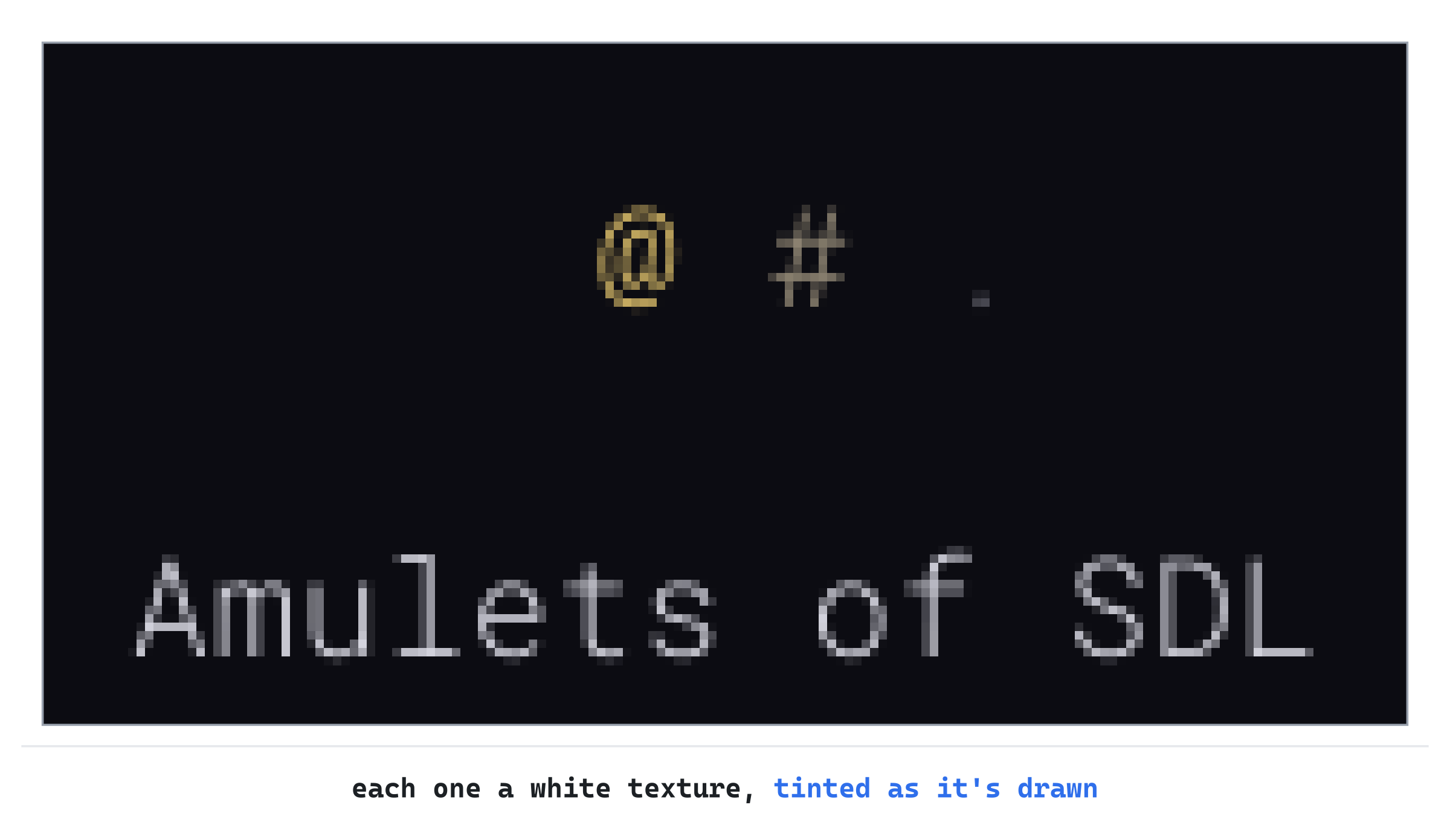
Every character the game ever shows will go through this cache, from the walls of the first floor to the last message of the run.
Laying Out the Screen
The finished game divides its picture into three areas. The map takes the top left: 64 cells across and 36 down, which at 20 pixels a cell is 1,280 by 720 pixels. The side panel takes the strip to its right, 320 pixels wide, for everything about you, such as your health and your equipment. The message log runs across the bottom, 180 pixels tall, for what has just happened. The next image shows the layout, with the constants that put each edge in its place.
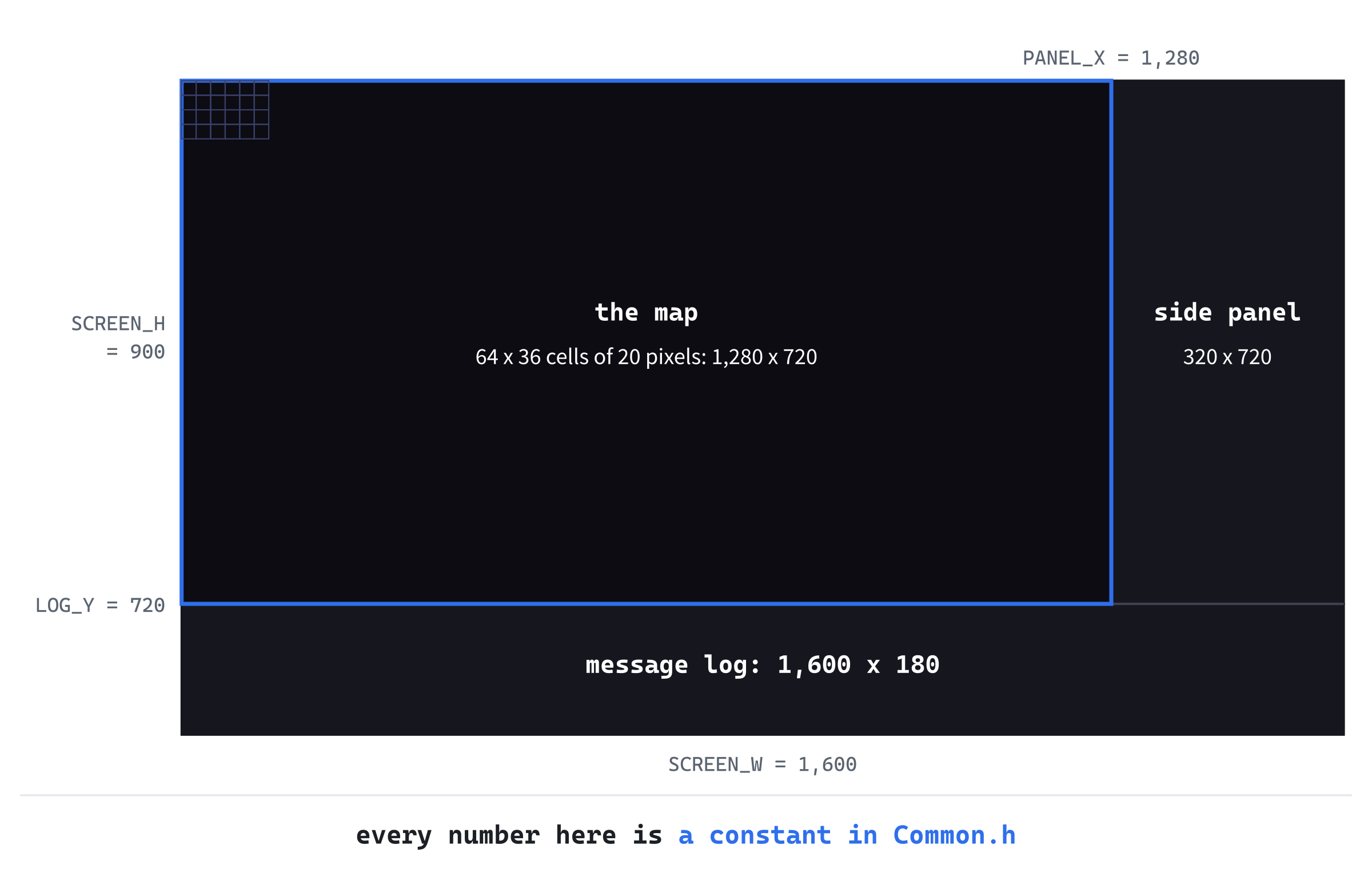
We'll draw a test room on the map first, and then the two panels.
Cells That Clear First
A map cell is often drawn more than once in a frame. The floor goes down first, and then whatever stands on it: an item, a monster, or you. If each one just drew its character on top, the floor's dot would show through any letter with a gap in the right place. So drawing a cell starts by filling it with its background color, which wipes out whatever was drawn there before. The same fill gives walls a background of their own, so that they look like blocks of stone, rather than a scatter of # signs.
Add the function that draws a cell inside the namespace, below setColor:
// One map cell: its background first, so nothing drawn there before can
// show through, then its character
void drawCell(SDL_Renderer* renderer, const GlyphCache& glyphs,
              int col, int row, char c, SDL_Color color,
              SDL_Color background = Palette::BACKGROUND)
{
    float x = static_cast<float>(col * CELL_PX);
    float y = static_cast<float>(row * CELL_PX);
    float size = static_cast<float>(CELL_PX);
    SDL_FRect cell = { x, y, size, size };
    setColor(renderer, background);
    SDL_RenderFillRect(renderer, &cell);
    glyphs.drawInCell(c, x, y, size, color);
}
Each call to drawCell draws one map cell, given its column and row, the character, its color, and its background. The cell's top-left pixel is its column times CELL_PX across, and its row times CELL_PX down. Those are ints, but SDL's rectangles and drawInCell take floats.
A value that's worked out while the game runs, as these are, needs a static_cast to become a float. Otherwise, Visual Studio warns that the conversion might lose something, since a float can't hold every int exactly. Then SDL_RenderFillRect fills the whole cell with the background color, before drawInCell draws the character on top.
The last parameter has a default argument, Palette::BACKGROUND, so most calls can leave it out. Only walls pass a background of their own. The walls' background needs a color, so in Common.h, add it to the palette, below WALL:
constexpr SDL_Color WALL_BACK = { 44, 40, 34, 255 };The new WALL_BACK is a dark brown, like stone in shadow, dark enough that a wall's # still stands out against it.
Now for the room. Back in main.cpp, add the first part of it below drawCell:
// A room to test the drawing with: walls around a floor, and the player
// in the middle
void drawTestRoom(SDL_Renderer* renderer, const GlyphCache& glyphs)
{
    const int left = 10;
    const int top = 6;
    const int right = 21;
    const int bottom = 13;
    for (int row = top; row <= bottom; ++row)
    {
        for (int col = left; col <= right; ++col)
        {
            bool edge = row == top || row == bottom ||
                        col == left || col == right;
            if (edge)
            {
                drawCell(renderer, glyphs, col, row, '#', Palette::WALL,
                         Palette::WALL_BACK);
            }
            else
            {
                drawCell(renderer, glyphs, col, row, '.', Palette::FLOOR);
            }
        }
    }
In the preceding code, the room's edges are four local constants, so it covers columns 10 to 21 and rows 6 to 13, walls included. The two loops visit every cell in it, a row at a time. For a cell on the room's border, edge is true. Border cells get a # on the wall's dark background, and the rest get a . on the ordinary one.
The room needs its @, in the middle. Add these lines below the loops, to finish drawTestRoom:
    drawCell(renderer, glyphs, (left + right) / 2, (top + bottom) / 2,
             '@', Palette::PLAYER);
}
Integer division drops any fraction, so the middle cell is column 15, row 9. That cell already has a floor dot in it, so this is where the fill earns its keep, wiping the dot before the @ is drawn. The block ends with drawTestRoom's closing brace.
Last, drawFrame draws the room in place of the test characters. Replace the whole of drawFrame with this:
void drawFrame(SDL_Renderer* renderer, const GlyphCache& glyphs)
{
    setColor(renderer, Palette::BACKGROUND);
    SDL_RenderClear(renderer);
    drawTestRoom(renderer, glyphs);
    SDL_RenderPresent(renderer);
}
This time, drawFrame draws the room between clearing and presenting. The test characters are gone, since the room does their job better.
Checkpoint: Press F5. A small room appears toward the top left of the window: a ring of # walls on dark stone, a floor of dim dots, and the gold @ in the middle.
The next image shows what the fill does. At the top is the test room, without the fill and then with it. Without it, the walls are just a scatter of # signs. At the bottom is a rat, enlarged, drawn over a floor cell. Without the fill, the floor's dot shows at the rat's foot.
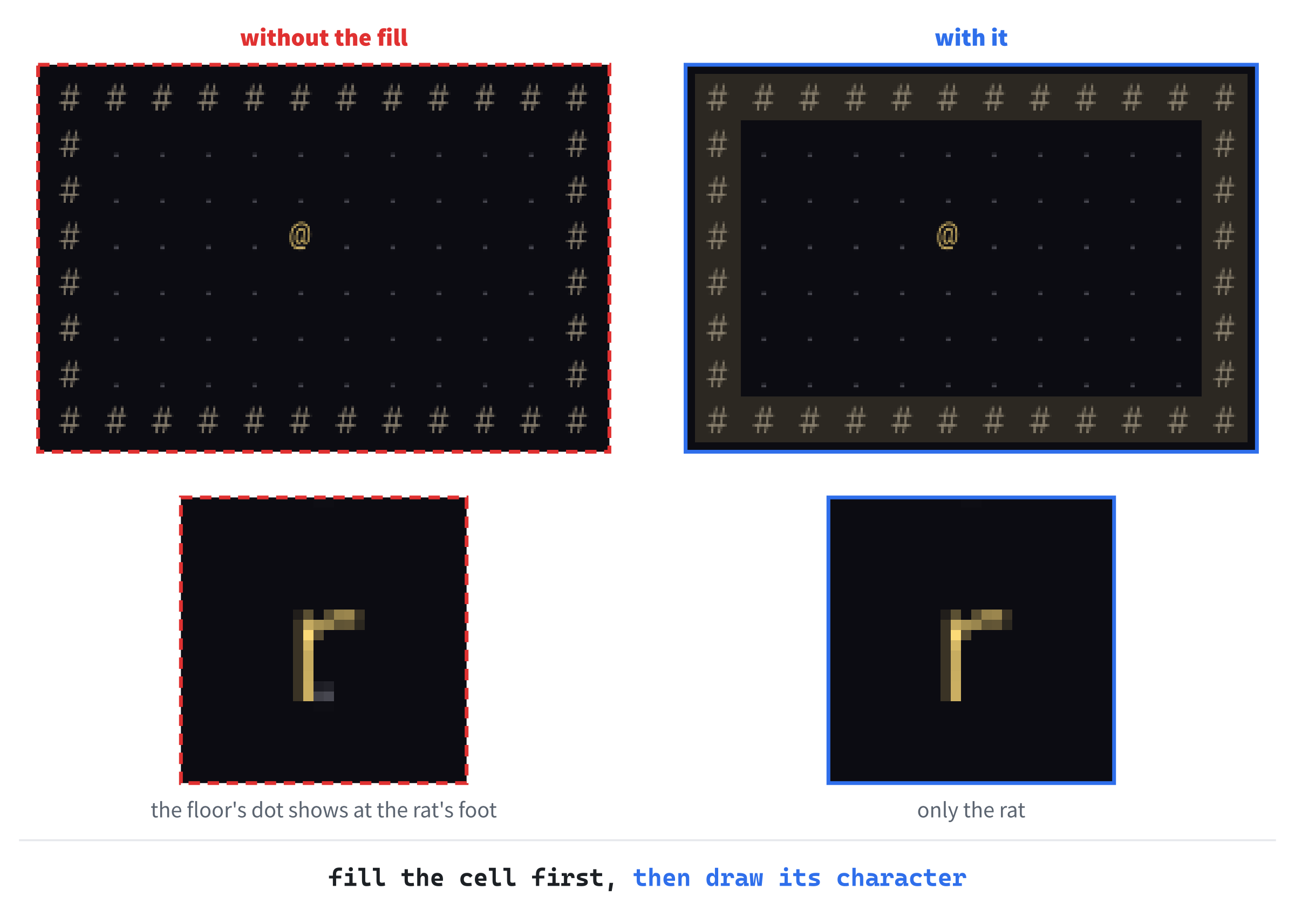
The @ happens to hide its dot under its own strokes, but a rat or a kobold doesn't. So when monsters arrive in Chapter 5, the fill will be ready for them.
The Side Panel and the Message Log
The panels need the map's size in cells, and a layout worked out from it. In Common.h, find the cell's size and the comment above it:
// The map is made of square cells this many pixels across
constexpr int CELL_PX = 20;
Replace them with these lines, which add the map's size, under a comment that covers all three:
// The map is a grid of square cells, MAP_W across and MAP_H down
constexpr int CELL_PX = 20;
constexpr int MAP_W = 64;
constexpr int MAP_H = 36;
The map is MAP_W cells across and MAP_H cells down: 64 by 36. That's 2,304 cells, room enough for a dungeon of a dozen rooms. Next comes the layout. Add these constants below MAP_H:
// The screen's three areas: the map at the top left, the side panel to its
// right, and the message log across the bottom
constexpr int MAP_VIEW_W = MAP_W * CELL_PX;
constexpr int MAP_VIEW_H = MAP_H * CELL_PX;
constexpr int PANEL_X = MAP_VIEW_W;
constexpr int PANEL_W = SCREEN_W - MAP_VIEW_W;
constexpr int LOG_Y = MAP_VIEW_H;
constexpr int LOG_H = SCREEN_H - MAP_VIEW_H;

// Space between the panels' edges and their text
constexpr int MARGIN = 12;
Every number is worked out from the ones before it. The map's view is 1,280 by 720 pixels. The side panel starts where the map ends, at PANEL_X, and takes the rest of the picture's width. The message log starts below the map, at LOG_Y, and takes the rest of its height.
Last, MARGIN keeps text 12 pixels in from a panel's edges. If you change the map's size, or the cells', the whole layout follows.
The panels need three more colors. Add two of them below BACKGROUND:
constexpr SDL_Color PANEL = { 22, 22, 30, 255 };
constexpr SDL_Color FRAME = { 64, 64, 80, 255 };
The new PANEL is a shade lighter than the background, so the panels stand apart from the map. The frame color, a muted blue-gray, is for the lines that divide the three areas. The third color goes below TEXT:
constexpr SDL_Color DIM_TEXT = { 130, 130, 145, 255 };The last color, DIM_TEXT, is for text that matters less than the rest, such as the log's placeholder.
Now for the drawing. Back in main.cpp, add the first part of drawPanels below drawTestRoom:
// The side panel and the message log, each with a line along the edge
// it shares with the map
void drawPanels(SDL_Renderer* renderer, const GlyphCache& glyphs)
{
    setColor(renderer, Palette::PANEL);
    SDL_FRect panel = { static_cast<float>(PANEL_X), 0.0f,
                        static_cast<float>(PANEL_W),
                        static_cast<float>(MAP_VIEW_H) };
    SDL_RenderFillRect(renderer, &panel);
    SDL_FRect log = { 0.0f, static_cast<float>(LOG_Y),
                      static_cast<float>(SCREEN_W),
                      static_cast<float>(LOG_H) };
    SDL_RenderFillRect(renderer, &log);
To begin with, drawPanels fills both panels with the panel color. The rectangle panel is the strip to the right of the map, as tall as the map, and log is the strip below it, as wide as the whole picture.
An SDL_FRect holds floats, and each position goes in through a static_cast, as in drawCell. These positions are constants, though. A constant converts to a float by itself, since the compiler can see that its value fits. So these casts aren't needed. They keep the code in step with drawCell, whose positions are worked out while the game runs, and do need them.
The rest of drawPanels draws the dividing lines and the text. Add it below the second fill, with a blank line in between:
    setColor(renderer, Palette::FRAME);
    SDL_RenderLine(renderer, static_cast<float>(PANEL_X), 0.0f,
                   static_cast<float>(PANEL_X),
                   static_cast<float>(MAP_VIEW_H));
    SDL_RenderLine(renderer, 0.0f, static_cast<float>(LOG_Y),
                   static_cast<float>(SCREEN_W),
                   static_cast<float>(LOG_Y));

    glyphs.drawText("AMULETS OF SDL", PANEL_X + MARGIN, MARGIN,
                    Palette::TEXT);
    glyphs.drawText("Messages will appear here.", MARGIN,
                    LOG_Y + MARGIN, Palette::DIM_TEXT);
}
Each call to SDL_RenderLine draws a line between two points, in the color set last. One line runs down the side panel's left edge, and the other along the top of the log. Then drawText writes the game's name at the top of the side panel, and a placeholder in the log, each MARGIN in from the edges. Their positions are constants too, so they go into drawText's float parameters just as they are.
Last, drawFrame draws the panels after the room. Add this below drawTestRoom(renderer, glyphs);:
drawPanels(renderer, glyphs);Now the panels are drawn after the room, between the clear and the present, like everything the game draws.
Checkpoint: Press F5. The room is joined by the side panel down the right, with AMULETS OF SDL at its top, and by the message log across the bottom, with its placeholder. A thin line divides each of them from the map, as the next image shows.
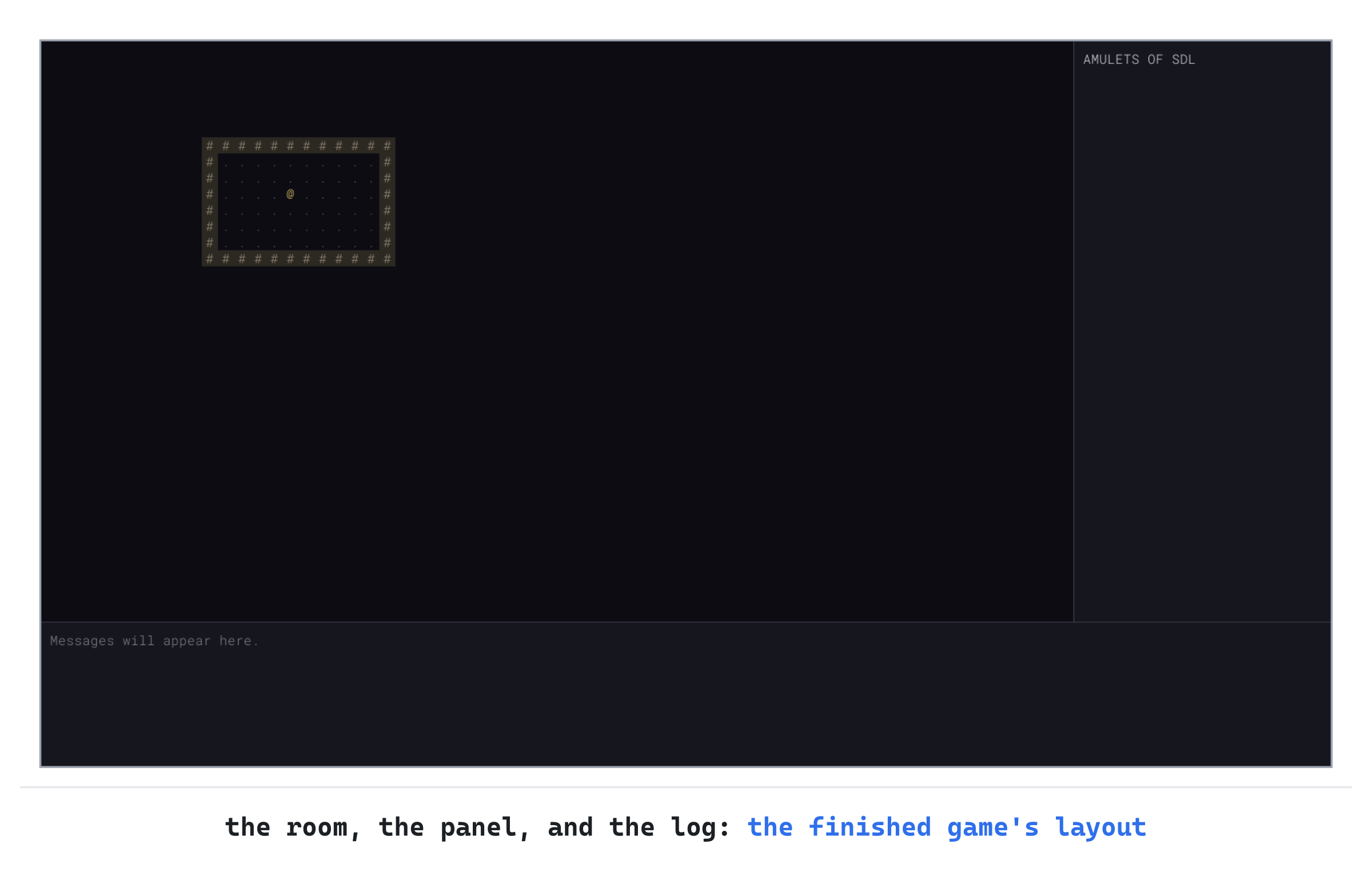
That's the screen as the finished game lays it out, and everything from here on goes into one of its three areas.
Understanding the Code
Follow the program from start to finish, and everything in it is nested, like the bars in Figure 1.9. The main function starts SDL and SDL3_ttf, and makes the window, the renderer, and then the glyph cache. It hands the renderer and the cache to runGame, and when runGame returns, it undoes everything in reverse order. So each thing lasts longer than everything that depends on it.
Inside runGame, the loop sleeps until something happens, decides whether it changed anything, and calls drawFrame only if it did. Then drawFrame paints from the back to the front: the background, then the room, and then the panels. It draws the room cell by cell, each cleared before its character is drawn. Last, it presents the picture, which SDL scales to whatever size the window is.
Four ideas from this chapter run through the whole book. First, the game draws one fixed picture, so its layout is a handful of constants, and the window's size is SDL's problem. Second, the loop sleeps, so the game costs nothing while you think. Later chapters teach it to wake on a timer, while an effect plays or a long command runs. But it still sleeps whenever nothing is moving.
Third, every cell clears before it draws, so nothing drawn before can show through. Chapter 8 relies on that when it draws tiles in the same cells. And fourth, whatever holds a resource cleans up after itself, in its destructor, as the glyph cache does with its textures. The tile view's pictures follow the same pattern in Chapter 8, and so do the sounds in Chapter 25.
This is the frame that every later chapter draws in. Chapter 2 replaces the test room with a dungeon, and Chapter 3 sets the @ walking through it and fills the panel and the log. But the screen's layout never changes again.
Experimenting
Start with the game as it is. Make the window wide and short, and then tall and narrow: the picture always keeps its shape, with the bars on whichever sides are spare. Maximize it, and the picture grows until it meets the screen's edges.
Then make the window small, and look closely at the text. It's a little soft, because SDL is shrinking the whole picture, text and all. Chapter 3 draws the characters at the window's own scale, so that they stay crisp at any size. Last, leave the game alone, and check Task Manager: the CPU column reads 0, for as long as you leave it.
Everything else in this chapter is controlled by a few numbers and a few lines, so it's a good time to play. Put each change back afterward, since Chapter 2 carries on from this code:
- A smaller window. Change
MAX_SCREEN_SHAREto0.5f. The window opens at no more than half the screen's width and height, and the picture shrinks to fit, softening the text. - Other ways to present. In the call to
SDL_SetRenderLogicalPresentation, trySDL_LOGICAL_PRESENTATION_STRETCH, and thenSDL_LOGICAL_PRESENTATION_INTEGER_SCALE. Resize the window each time, to see how each one handles a window that isn't the picture's shape. - A bigger font. Add a
gto the room, with ajin the cell below it, by adding two lines to the end ofdrawTestRoom:drawCell(renderer, glyphs, 13, 8, 'g', Palette::PLAYER);anddrawCell(renderer, glyphs, 13, 9, 'j', Palette::PLAYER);. At 16 points, both fit their cells. Now changeFONT_SIZEto20.0f. Every character grows, but its cell doesn't, and thegloses its tail. The tail now hangs into the cell below, and thej's cell, drawn after theg, paints its background over it. - Bare walls. Change
WALL_BACKto the same color asBACKGROUND, and the room's walls go back to being a scatter of#signs. Then try colors of your own for the walls, the floor, and the panels. - A different room. Change the four constants in
drawTestRoomto make the room bigger, smaller, or somewhere else. Tryrightat 63, the map's last column, and then at 66. You'll see the room run under the side panel, which is drawn after it and covers it.
If anything stops working, compare your files with the Chapter 01 folder in the repository. The difference is usually a single line.
Common Errors and Fixes
If the game didn't build, didn't start, or didn't look right, the problem is probably one of these. Each message is exactly what Visual Studio 2026 prints. The Error List shows its code, such as C1083, if you want to search for it. For the errors that SDL's own setup can give, see Appendix A.
C1083: Cannot open include file: 'SDL3_ttf/SDL_ttf.h': No such file or directory. The compiler can't find SDL3_ttf's headers. Check that Additional Include Directories has C:\SDL3_ttf\include after C:\SDL3\include, with a semicolon between them. Check, too, that both dropdowns said All when you changed it. Then look in the folder itself: it should hold a folder called SDL3_ttf, with SDL_ttf.h inside, not a folder with a version number in its name.
LNK2019: unresolved external symbol TTF_Init referenced in function SDL_main, with another for TTF_Quit, and then LNK1120: 2 unresolved externals. The linker can't find SDL3_ttf's code. Check that Additional Dependencies has SDL3_ttf.lib. Once the glyph cache uses SDL3_ttf too, there's one of these for every SDL3_ttf function the game calls. The SDL_main in the message is main, renamed behind the scenes by SDL_main.h.
LNK1104: cannot open file 'SDL3_ttf.lib'. The linker knows which file it wants, but not where to find it. Check that Additional Library Directories has C:\SDL3_ttf\lib\x64.
A message box says "The code execution cannot proceed because SDL3_ttf.dll was not found." The game built, but Windows couldn't find the DLL it needs to start it. Copy SDL3_ttf.dll from C:\SDL3_ttf\lib\x64 into the project folder, beside SDL3.dll. The Output window reports the same problem as a program that "exited with code -1073741515 (0xc0000135)."
The window appears and vanishes at once, and the console says: Couldn't open the font assets/RobotoMono-Light.ttf: Couldn't open assets/RobotoMono-Light.ttf: The system cannot find the path specified. The font isn't where the game looks for it. Check that the assets folder is in the project folder, beside src, and that the font's name is spelled exactly as it is in FONT_PATH. A misspelled name gives the same message, ending in "file" instead of "path."
The console says: Couldn't open the font assets/RobotoMono-Light.ttf: Library not initialized. The font is there, but SDL3_ttf was never started. Check slot B: main must call TTF_Init before it makes the glyph cache.
C2280: 'GlyphCache::GlyphCache(const GlyphCache &)': attempting to reference a deleted function. Something is copying the glyph cache, which its deleted copy constructor forbids. The usual cause is a parameter missing its &, such as GlyphCache glyphs instead of const GlyphCache& glyphs. The error points at the call, but the fix is in the parameter list of the function being called.
C2270: 'charWidth': modifiers not allowed on nonmember functions, followed by C2065: 'charWidth_': undeclared identifier. One of the definitions in GlyphCache.cpp is missing the GlyphCache:: in front of its name. The compiler takes it for an ordinary function, which can't be const and can't see the class's members. It should read float GlyphCache::charWidth() const.
C4430: missing type specifier - int assumed. Note: C++ does not support default-int, along with C2143 and a string of C2065 errors for glyphs. The compiler has never heard of GlyphCache in main.cpp, so check slot E, #include "GlyphCache.h". When one mistake causes a string of errors, fix the first and build again, and the rest usually go with it.
Every character is white. The glyphs are drawn, but never tinted. Check that drawAt calls SDL_SetTextureColorMod before SDL_RenderTexture.
The walls are a scatter of # signs, with no stone behind them. The cells aren't being filled before their characters are drawn. Check that drawCell calls setColor and SDL_RenderFillRect before drawInCell, and that the walls in drawTestRoom pass Palette::WALL_BACK.
FAQ
Q) Why does each character get a texture of its own? Wouldn't one texture holding all 95 be faster?
A) One texture holding many pictures is called an atlas. It's the standard answer for a game that draws thousands of sprites a frame, since a graphics card is happiest drawing from one texture. Our game draws a few thousand characters only when something changes, and 95 small textures are plenty fast for that. They keep the cache simple, too, since a character's texture is just its number less 32. Chapter 8 builds an atlas for the tiles, and the same idea would work for glyphs if you ever needed it.
Q) My text looks a little soft. Is something wrong?
A) No. Your window isn't 1,600 by 900, so SDL scales the whole picture to fit it, characters and all. Scaling smooths the pixels. At the picture's own size, every character is sharp. Chapter 3 draws the characters at the window's own scale, so they stay crisp at any size.
Q) Most SDL games turn on vsync. Why doesn't this one?
A) Vsync, short for vertical sync, makes the renderer wait for the monitor before it shows each new frame. That paces a loop that draws a new frame every time around, so that it draws no faster than the monitor can show. Our loop draws only when something has changed, and sleeps until the next event in between. So there's nothing to pace.
Q) If the loop sleeps until something happens, how will the game animate anything?
A) By waking up on a timer while there's something to animate. In Chapter 24, flashes, flying arrows, and screen shake play for a moment after a turn. While they do, the loop waits with SDL_WaitEventTimeout, which returns after a few milliseconds even if nothing has happened. When the last effect ends, the loop goes back to sleeping. Chapter 23's commands that take many turns, such as walking across the map, work the same way.
Q) Every file that includes Common.h gets its own copy of the constants. Why doesn't the linker complain that they're defined twice?
A) Because a constexpr variable is also const. A const variable outside any function or class is private to each .cpp file that includes it, unless it's declared extern. So every file gets its own SCREEN_W, and the linker never sees them clash. Since the value is known while building, the copies usually vanish into the code that uses them anyway. C++17's inline variables are another way to share a constant, as a single copy for the whole program.
Q) What happens if I put an é, or a curly quote, in a message?
A) It shows up as a question mark, or as several. The cache holds only the 95 printable ASCII characters, and drawAt turns anything else into ?. A character like that may be stored as one byte or as several, depending on how the file is saved. Each byte gets a question mark of its own. So the game's messages stick to plain ASCII: straight quotes, not curly ones, and a hyphen or a comma where you might use a dash.
Q) What if I leave out the braces around the glyph cache in main?
A) The game still runs, and still looks right. But the cache's destructor then runs after main has destroyed the renderer and quit SDL, so its 95 calls to SDL_DestroyTexture are for textures that no longer exist. SDL 3 checks what it's given, so each call quietly fails, setting SDL's error message to "Parameter 'texture' is invalid," and nothing crashes. Not every library is so forgiving, though. A bug that hides like that is the worst kind, which is why the braces are there.
AI Exercise (Optional)
If you'd like to take the window somewhere of your own with an AI's help, here's a small challenge. As always, it's optional. Open your AI chatbot of choice, and try a prompt like this:
"I'm writing a roguelike in C++ with SDL 3 and SDL3_ttf. The game draws a fixed 1600 by 900 picture, using SDL_SetRenderLogicalPresentation in letterbox mode, in a resizable window. Its loop, runGame, sleeps in SDL_WaitEvent, sets a bool called redraw to true only for the events that change what's shown (SDL_EVENT_WINDOW_EXPOSED and SDL_EVENT_WINDOW_RESIZED), and calls drawFrame(renderer, glyphs) when redraw is true. A GlyphCache class draws text with glyphs.drawText(const std::string& text, float x, float y, SDL_Color color), in the picture's coordinates. The bottom of the picture is a message log, whose top edge is at the constant LOG_Y, and text there is drawn MARGIN (12) pixels in from its edges. I'd like the log to show the window's current size in pixels, such as 'Window: 1152 x 648', kept up to date as the window is resized. Show me the changes, with each curly brace on its own line. Keep the loop sleeping in SDL_WaitEvent, and explain where the size is stored and why."
Notice what the preceding prompt does. It describes the loop and the functions that the answer has to fit into, so that the AI builds on your code rather than writing its own. The prompt also says what "kept up to date" means in this program, which is the redraw flag. And it asks for the loop to keep sleeping, which an AI might otherwise trade away for an easy answer.
When the answer comes back, check it against your code. Does it get the size from the window, with SDL_GetWindowSize, or from the renderer, with SDL_GetRenderOutputSize, and does it say why? On a high-density screen, the two can differ. And does it update the size only when a resize event arrives, leaving drawing to the redraw flag? If the AI calls drawFrame straight from the event, or switches to SDL_PollEvent, tell it so, and ask it to keep the loop's shape.
Summary
You've built the frame that every later chapter draws in: a window that fits any screen, a loop that sleeps until something happens, and a glyph cache that draws any character, in any color, with nothing drawn earlier showing through. In Chapter 2, the test room makes way for a real dungeon. We'll split the map into pieces, again and again, put a room in each, and join the rooms with corridors that are certain to connect them all. Then a press of the Space bar will carve a new dungeon whenever you like.