
Every game we have built so far has been made of colored shapes—rectangles, circles, the occasional rounded paddle. That was deliberate: it let us focus on programming without the distraction of art assets. But games are not made of plain circles, and now that we have a real engine to draw on, it is time to bring in proper graphics and sound.
In this chapter we learn to load an image, to cut individual sprites out of a single packed image called a texture atlas, to animate a character by flipping through a strip of frames, and to fire off sound effects with almost no delay. By the end you will have an animated character running on a grassy field, chirping a sound when you tap—and, more importantly, you will have the techniques that turn shapes into a real game. We put them all together in the Act 3 capstone next chapter.
Code for this chapter: the complete project is in the
Chapter 22folder of the accompanying repository at github.com/EliteIntegrity/Learning-Kotlin-by-Building-Android-Games.
In this chapter, we will:
- Load an image into memory as a
Bitmap. - Add image and sound assets to an Android project.
- Understand what a texture atlas is and why games use one.
- Load and read our atlas file.
- Use
RectandRectFto draw one sprite out of the packed texture. - Animate a character by cycling through frames with a timer.
- Play low-latency sound effects with
SoundPool. - Build a small sprite demo on our game-loop engine.
- Try an optional AI exercise on sprites.
Let's bring the games to life.
Bitmaps: Loading an Image
A photograph or drawing, in code, is a Bitmap: a grid of colored pixels held in memory. Android can load an image file into a Bitmap for us with a helper called BitmapFactory. The most flexible place to keep game images is the project's assets folder—a place for raw files we load ourselves—and we read one like this:
val texture = BitmapFactory.decodeStream(context.assets.open("lkbbag_texture.png"))In the preceding line, context.assets.open("lkbbag_texture.png") opens the file from our assets folder, and BitmapFactory.decodeStream(...) decodes its pixels into a Bitmap. Once loaded, that Bitmap lives in memory and we can draw it onto a canvas as many times as we like.
Loading an image is not free—it takes time and memory—so we do it once, when our game starts, and keep the Bitmap around. Loading an image inside the game loop, sixty times a second, would be a disaster. Load once, draw many times.
Adding Assets to Your Project
Before any of this works, the files have to actually be in the project. Android keeps different kinds of asset in different places, and we will use two.
Images and our atlas file go in the assets folder. A fresh project doesn't have one, so we create it: in Android Studio's Project window, right-click the app module and choose New > Folder > Assets Folder, then click Finish. This makes a folder at app/src/main/assets. Drag lkbbag_texture.png and lkbbag_atlas.txt into it. Anything in assets is bundled with your app exactly as-is, and we open it by name with context.assets.open(...).
Sound files go in the res/raw folder. Right-click the res folder and choose New > Android Resource Directory, set the Resource type to raw, and click OK. Drop your .wav files in there. Files in res/raw get an automatic ID we refer to in code as R.raw.filename (without the extension)—so sfx_jump.wav becomes R.raw.sfx_jump. Resource names must be lowercase, with no spaces.
That is the whole setup. Two folders, created once. From here on, adding a new sprite means dropping it into the texture, and adding a new sound means dropping a .wav into res/raw.
Texture Atlases: Why One Big Image
Here is a question worth asking: we have a player, grass, walls, and more to draw—why pack them all into one image, lkbbag_texture.png, instead of keeping a separate file for each?
The answer is performance, and it is the reason nearly every real game does this. An image packed with many sprites is called a texture atlas (or sprite sheet). Loading one image is far faster than loading dozens of little ones, and—more importantly—when the device draws, switching between different images has a real cost. If every sprite lives in the same texture, the graphics hardware can draw all of them without ever switching, which is dramatically more efficient. For a game drawing hundreds of sprites every frame, keeping them in one atlas is the difference between smooth and sluggish.
The catch is that we now need to know where each sprite sits inside that one big image. That is what our atlas file is for. Open lkbbag_atlas.txt and you will see lines like this:
grass, 0, 16, 16, 16
player_0, 0, 32, 16, 16
player_1, 16, 32, 16, 16
Each line names a sprite and gives its rectangle inside the texture: name, x, y, width, height. So grass is the 16×16 square whose top-left corner is at pixel (0, 16) in the texture; player_0 is the 16×16 square at (0, 32), player_1 is right next to it at (16, 32), and so on. The six player_ frames sit in a row—they are the six steps of our character's run animation. Knowing these coordinates is all we need to cut any single sprite out of the packed image.
Loading the Atlas
Reading that file into something useful is a perfect job for the tools we already have: file reading, string splitting, and a Map (Chapter 12) from a sprite's name to its rectangle. We will wrap it all in a small, reusable Atlas class. Create a file Atlas.kt:
package com.example.spritedemo

import android.content.Context
import android.graphics.Bitmap
import android.graphics.BitmapFactory
import android.graphics.Canvas
import android.graphics.Paint
import android.graphics.Rect
import android.graphics.RectF

// Loads lkbbag_texture.png and lkbbag_atlas.txt from the assets folder, then draws
// named sprites cut out of the texture. Reused across the rest of the book.
class Atlas(context: Context) {

    // The whole texture, loaded once into memory
    private val texture: Bitmap =
        BitmapFactory.decodeStream(context.assets.open("lkbbag_texture.png"))!!

    // Maps a sprite name to the source rectangle (in pixels) inside the texture
    private val frames = mutableMapOf<String, Rect>()

    // Reused on every draw so we don't create a new object each frame
    private val dst = RectF()

    init {
        // Read the atlas file, one sprite per line: name, x, y, width, height
        context.assets.open("lkbbag_atlas.txt").bufferedReader().forEachLine { raw ->
            val line = raw.trim()
            if (line.isNotEmpty() && !line.startsWith("#")) {
                val parts = line.split(",")
                val name = parts[0].trim()
                val x = parts[1].trim().toInt()
                val y = parts[2].trim().toInt()
                val w = parts[3].trim().toInt()
                val h = parts[4].trim().toInt()
                frames[name] = Rect(x, y, x + w, y + h)
            }
        }
    }

    // Draw the named sprite into the screen rectangle (left, top, width, height)
    fun draw(canvas: Canvas, paint: Paint, name: String, left: Float, top: Float, width: Float, height: Float) {
        val src = frames[name] ?: return    // unknown name? draw nothing
        dst.set(left, top, left + width, top + height)
        canvas.drawBitmap(texture, src, dst, paint)
    }
}
Let's read this carefully, because it ties together a lot of the book. The texture property loads the image once, in the constructor, with the BitmapFactory call we met earlier. (The !! at the end is the non-null assertion from Chapter 14: decoding can in theory return null, but if our texture won't load there is no game anyway, so we assert it is there.)
The frames property is a MutableMap from a sprite's name to a Rect—Android's class for a rectangle of whole-number pixels. The init block fills it by reading the atlas file. context.assets.open(...).bufferedReader().forEachLine { ... } opens the file and runs our lambda (Chapter 14) once per line. For each line that isn't blank or a comment, we split it on commas (Chapter 12's string tools), trim the pieces, convert the four numbers with .toInt() (Chapter 2), and store a Rect under the sprite's name. A Rect is built from its left, top, right, and bottom edges—so Rect(x, y, x + w, y + h) describes exactly the sprite's box inside the texture.
After this runs, frames["grass"] gives us the grass rectangle, frames["player_3"] gives us the fourth run frame, and so on. We have turned a text file into an instant lookup table of sprite locations.
Rect and RectF: Drawing Part of a Bitmap
Drawing a sprite from an atlas means answering two questions: which part of the texture do we copy, and where on the screen do we put it? Android's drawBitmap answers both at once, using two rectangles:
- A source
Rect—the region of the texture to copy, in whole pixels. This is the value we stored in ourframesmap. - A destination
RectF—where on the screen to draw it, and how big. This usesRectF(theFis for float) because screen positions are floats, and because we will usually draw our tiny 16×16 sprite much larger than its real size.
That second point is the quiet magic here. Our sprites are only 16×16 pixels—far too small to see on a modern phone. But because the destination is a separate rectangle, we can draw that 16×16 source into, say, a 150×150 destination, and drawBitmap scales it up for us. Tiny art, big on screen.
We look up the source rectangle by name—frames[name]. Since a map lookup can return null (Chapter 12 again), we use the Elvis operator ?: (Chapter 14) to bail out and draw nothing if the name is unknown. Then we set our reusable destination rectangle dst to the requested position and size, and call canvas.drawBitmap(texture, src, dst, paint). That one call copies the src region of the texture into the dst region of the screen, scaling as needed.
One small but important detail: pixel art like ours should be scaled up crisply, not blurred. By default Android smooths scaled bitmaps, which turns sharp pixel art into mush. We turn that off with paint.isFilterBitmap = false, and our 16×16 sprites blow up into clean, chunky pixels exactly as drawn.
Sprite Sheet Animation
A character that runs is not one picture—it is several, shown in quick succession, exactly like a flip-book. Our atlas holds six of them, player_0 through player_5. To animate, we simply draw a different frame every fraction of a second, cycling back to the start after the last one. The trick is a small timer driven by our old friend delta time.
Let's put this in a Player class. Create Player.kt:
package com.example.spritedemo

import android.graphics.Canvas
import android.graphics.Paint

class Player(var x: Float, var y: Float, private val size: Float) {

    // The run animation is six frames named player_0 .. player_5 in the atlas
    private val frameCount = 6
    private var currentFrame = 0

    // A small timer that advances the animation
    private var frameTimer = 0f
    private val frameDuration = 0.1f   // show each frame for 0.1 seconds

    fun update(deltaSeconds: Float) {
        frameTimer += deltaSeconds
        if (frameTimer >= frameDuration) {
            frameTimer = 0f
            // Step to the next frame, wrapping back to 0 after the last one
            currentFrame = (currentFrame + 1) % frameCount
        }
    }

    fun draw(canvas: Canvas, paint: Paint, atlas: Atlas) {
        // Build the current frame's name, e.g. "player_3", and draw it
        atlas.draw(canvas, paint, "player_$currentFrame", x, y, size, size)
    }
}
The animation is just a counter and a timer. Each update, we add the elapsed time to frameTimer. Once it reaches frameDuration—a tenth of a second—we reset the timer and advance currentFrame to the next frame. The expression (currentFrame + 1) % frameCount uses the modulo operator from Chapter 2 to wrap around: after frame 5 it gives 6 % 6 = 0, looping smoothly back to the start. Because the timer is driven by delta time, the animation plays at the same real speed on any device.
The draw method is where the string template (Chapter 6) earns its keep. "player_$currentFrame" builds the name of the current frame—"player_0", then "player_1", and so on—and hands it straight to the atlas to draw. Six sprites, one growing counter, and our character runs.
Audio with SoundPool
Graphics are half of bringing a game to life; sound is the other half. For short, snappy game sound effects—a jump, a coin, a crash—Android gives us SoundPool. It is built for exactly this: it loads short clips into memory and plays them back instantly, with none of the delay that would ruin the feel of a game.
Setting it up takes two steps. First, create the pool and load each sound (this happens once, at startup):
private val soundPool = SoundPool.Builder().setMaxStreams(4).build()
private val jumpSound = soundPool.load(context, R.raw.sfx_jump, 1)
SoundPool.Builder().setMaxStreams(4).build() creates a pool that can play up to four sounds at once—plenty for our games. Then soundPool.load(context, R.raw.sfx_jump, 1) loads our sfx_jump.wav file and hands back an Int id, which we keep in jumpSound so we can refer to that sound later.
Playing it, whenever we want, is a single call:
soundPool.play(jumpSound, 1f, 1f, 1, 0, 1f)The arguments, in order, are: the sound id, the left volume, the right volume (both 1f for full), a priority, a loop count (0 means play once), and a playback rate (1f for normal speed). For nearly every effect, the only argument you will change is the first one—which sound to play.
The Sprite Demo
As always, when I reach this stage in my books there is an important warning! This is not a lesson in video game art. I cannot draw, the demo assets are modest and you are invited to improve upon them yourself. Just replace them in the .png file and if you need to move them around or change the size, modify the atlas text file accordingly.
Time to assemble everything on the engine we built in Chapter 21. Our demo will show the animated player running on a grassy field, and play the jump sound when you tap. Create the project (an Empty Views Activity named SpriteDemo), add the assets as described earlier, and create GameView.kt:
package com.example.spritedemo

import android.content.Context
import android.graphics.Canvas
import android.graphics.Color
import android.graphics.Paint
import android.media.SoundPool
import android.view.MotionEvent
import android.view.SurfaceView

// The Chapter 21 game-loop engine, now drawing real sprites and playing a sound.
class GameView(context: Context) : SurfaceView(context), Runnable {

    private var gameThread: Thread? = null
    @Volatile private var playing = false
    private var deltaTime = 0f
    private val targetFrameMs = 16L

    private val paint = Paint()
    private val atlas = Atlas(context)

    private val tileSize = 150f
    private val playerSize = 220f
    private val player = Player(300f, 0f, playerSize)

    // Low-latency sound effects
    private val soundPool = SoundPool.Builder().setMaxStreams(4).build()
    private val jumpSound = soundPool.load(context, R.raw.sfx_jump, 1)

    init {
        // Keep our 16x16 pixel art crisp when we scale it up on screen
        paint.isFilterBitmap = false
    }

    override fun run() {
        while (playing) {
            val frameStart = System.currentTimeMillis()
            if (holder.surface.isValid) {
                update()
                draw()
            }
            val frameMs = System.currentTimeMillis() - frameStart
            if (frameMs < targetFrameMs) {
                Thread.sleep(targetFrameMs - frameMs)
            }
            deltaTime = (System.currentTimeMillis() - frameStart) / 1000f
        }
    }

    private fun update() {
        player.update(deltaTime)
        // Stand the player on top of the grass row
        player.y = height - tileSize - playerSize
    }

    private fun draw() {
        val canvas = holder.lockCanvas()

        // Sky-blue background
        canvas.drawColor(Color.rgb(120, 190, 255))

        // A row of grass tiles across the bottom of the screen
        val groundTop = height - tileSize
        var x = 0f
        while (x < width) {
            atlas.draw(canvas, paint, "grass", x, groundTop, tileSize, tileSize)
            x += tileSize
        }

        // The animated player
        player.draw(canvas, paint, atlas)

        holder.unlockCanvasAndPost(canvas)
    }

    override fun onTouchEvent(event: MotionEvent): Boolean {
        if (event.action == MotionEvent.ACTION_DOWN) {
            soundPool.play(jumpSound, 1f, 1f, 1, 0, 1f)
        }
        return true
    }

    fun resume() {
        playing = true
        gameThread = Thread(this)
        gameThread?.start()
    }

    fun pause() {
        playing = false
        gameThread?.join()
    }
}
Almost all of this is the Chapter 21 engine, unchanged—the thread, the loop, the pacing, the delta time, resume/pause. What is new is the payoff of this whole chapter. We create an Atlas and a Player. We set paint.isFilterBitmap = false for crisp pixels. In update, we advance the player's animation and stand it on the grass. In draw, we fill the sky, tile a row of grass sprites across the bottom with a while loop (Chapter 6), and draw the player. And in onTouchEvent, we play the jump sound. The MainActivity.kt is exactly the lifecycle wiring from Chapter 21.
Notice how cleanly the pieces stack. The Atlas hides all the bitmap-and-rectangle detail behind a simple draw(...name...). The Player hides the animation timing behind update and draw. The GameView just orchestrates them on the engine. Each class minds its own business—exactly the OOP discipline from Act 3.
Running It
Create the project, add lkbbag_texture.png and lkbbag_atlas.txt to assets, add sfx_jump.wav to res/raw, type in the four files, and hit Play.
A little character runs on the spot on a strip of grass against a blue sky, its legs cycling through all six frames. Tap the screen and it chirps the jump sound. The character doesn't actually jump but we will go way beyond jumping in the next game.
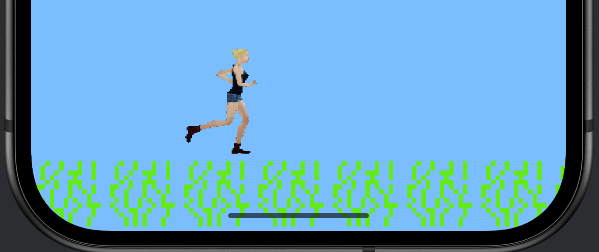
It is a small thing, but it is the first time the book has looked and sounded like a game rather than a geometry lesson—and every technique on screen is one we will lean on in the capstone.
Understanding the Code
Step back and you can see four reusable techniques, each of which you will use in every graphical game from now on. Loading a bitmap once, at startup, with BitmapFactory. The texture atlas—one packed image plus a file of coordinates—loaded into a name-to-Rect map, so any sprite is a quick lookup. drawBitmap with a source Rect and a destination RectF, which copies one sprite out of the atlas and scales it onto the screen (with isFilterBitmap = false keeping pixel art crisp). And SoundPool, which plays short effects instantly.
On top of those, sprite-sheet animation turned out to be almost trivial: a timer, a frame counter, and the modulo operator cycling through player_0 to player_5. That is genuinely all animation is—the right picture at the right moment, fast enough to fool the eye.
Crucially, none of this disturbed the engine. We dropped real graphics and sound onto the exact game loop from Chapter 21, and it absorbed them without complaint. That is the reward for building a clean foundation: new capabilities slot in on top.
Experimenting
Try these—each is a small change:
- Faster or slower running. In
Player.kt, changeframeDurationfrom0.1fto0.04ffor a frantic sprint, or0.25ffor a lazy amble. - A bigger hero. Change
playerSizeinGameView.ktto350f. - Smaller or larger grass. Change
tileSize. Notice thewhileloop tiles however many are needed to fill the width. - Turn smoothing on. Temporarily set
paint.isFilterBitmap = trueand run it. See how blurry the pixel art becomes—then turn it back off. Now you know exactly what that one line does.
Summary
You brought real art and sound into the book. You learned to load an image into a Bitmap once at startup, to add assets to the assets and res/raw folders, and why games pack their art into a single texture atlas. You built a reusable Atlas class that reads the atlas file into a name-to-Rect map and draws any named sprite with drawBitmap, copying a source Rect from the texture into a destination RectF on screen—scaling tiny pixel art up crisply. You animated a character by cycling frames with a delta-time timer and the modulo operator, and you played instant sound effects with SoundPool. And you dropped all of it onto the Chapter 21 engine with barely a ripple.
You now have every ingredient of a real 2D game: a threaded loop, frame-rate-independent movement, object-oriented design, sprites from an atlas, animation, and sound. In the next chapter we combine the whole lot into the Act 3 capstone—an endless runner where our animated hero sprints across a scrolling world, leaps over walls at your command, and crashes (with feeling) when you mistime a jump.
AI Exercise (Optional)
Sprites and animation are a great topic to explore with an AI, especially the atlas idea. Optional as always.
Open your AI chatbot and paste in this prompt:
"I am learning Kotlin game programming on Android with a custom SurfaceView (no game engine). I load a single texture atlas image (a Bitmap) plus a text file mapping sprite names to source rectangles, stored in a Map<String, Rect>. I draw a sprite with canvas.drawBitmap(texture, srcRect, dstRectF, paint), where srcRect is the sprite's rectangle in the texture and dstRectF is where it goes on screen (often scaled larger). I animate by cycling a frame counter through names player_0..player_5 on a delta-time timer, using modulo to wrap. I understand classes, maps, lambdas, and delta time. Please explain, in plain language, two things: (1) why drawing all sprites from ONE atlas image is more efficient than loading a separate image per sprite, and (2) why I scale a 16x16 source rectangle up to a larger destination rectangle, and what isFilterBitmap = false does when I do. Keep it beginner-friendly."
When the answer comes back, check it against this chapter. Does the atlas explanation mention the cost of switching textures while drawing, not just the convenience of one file? Does it correctly say isFilterBitmap = false turns off smoothing so scaled-up pixel art stays sharp instead of blurry?