
This is the most important project in the book. Not the flashiest—there is just a ball bouncing around the screen—but the most important, because we are going to build the engine that every game from here on runs on. A real game loop, on its own thread, drawing to a SurfaceView, paced to a steady frame rate, moving things by time instead of by frame.
We are finally cashing a cheque we wrote back in Chapter 3. When we built the bouncing ball, I admitted that moving it a fixed amount per frame tied its speed to the device's frame rate—faster phones, faster ball—and promised we would fix it properly in Act 3 with a real game loop on a thread. This is that fix. By the end of this chapter, the ball will travel at exactly the same real-world speed on a flagship phone and a budget one, because its movement will be governed by the clock, not by how fast the loop happens to spin.
Everything you learned in Chapter 20 comes together here: a class that extends SurfaceView and implements Runnable, with its game loop in run(), started and stopped on a background thread in time with the app's lifecycle.
Code for this chapter: the complete three-file project is in the
Chapter 21folder of the accompanying repository at github.com/EliteIntegrity/Learning-Kotlin-by-Building-Android-Games.
In this chapter, we will:
- Set up a new project called Game Loop, organized across multiple files.
- Write a simple
Ballclass whose speed is measured per second. - Build a
GameViewthat extendsSurfaceViewand implementsRunnable. - Run the game loop on its own thread, locking and posting the canvas.
- Pace the loop to about 60 frames per second.
- Move the ball by delta time so it is frame-rate independent.
- Start and stop the thread cleanly from the activity's lifecycle.
- Run it, and try an optional AI exercise.
Let's build the engine.
Setting Up the Project
The usual steps. This project uses three files, so we will follow the one-class-per-file approach from Chapter 19.
- Create a New Project, choosing Empty Views Activity.
- Name the application GameLoop.
- Make sure the Language is Kotlin, and click Finish.
- Open
app > java > com.example.gameloop > MainActivity.ktand delete the generated code.
We will create three files in the com.example.gameloop package: Ball.kt, GameView.kt, and MainActivity.kt.
Coding the Game
We will write the Ball first (it is the simplest), then the GameView engine, then wire it up in MainActivity.
The Ball
Create a new file, Ball (right-click the package, New > Kotlin Class/File, name it Ball, choose Class), and fill it in:
package com.example.gameloop

import android.graphics.Canvas
import android.graphics.Color
import android.graphics.Paint

class Ball(var x: Float, var y: Float) {

    private val radius = 60f

    // Velocity in pixels PER SECOND (not per frame!). This is the key to
    // frame-rate independence: we multiply by delta time when we move.
    private var velX = 400f
    private var velY = 360f

    fun update(deltaSeconds: Float, screenWidth: Int, screenHeight: Int) {
        // Distance = speed x time. Move by the speed scaled by how much time
        // actually passed this frame, so the ball travels the same real distance
        // each second no matter how fast or slow the device runs the loop.
        x += velX * deltaSeconds
        y += velY * deltaSeconds

        // Bounce off the four edges
        if (x - radius < 0f) {
            x = radius
            velX = -velX
        }
        if (x + radius > screenWidth) {
            x = screenWidth - radius
            velX = -velX
        }
        if (y - radius < 0f) {
            y = radius
            velY = -velY
        }
        if (y + radius > screenHeight) {
            y = screenHeight - radius
            velY = -velY
        }
    }

    fun draw(canvas: Canvas, paint: Paint) {
        paint.color = Color.rgb(255, 120, 40)
        canvas.drawCircle(x, y, radius, paint)
    }
}
Most of this is the bouncing logic from Chapter 3, now wrapped in a tidy class. But one thing has changed in a way that matters enormously. Back in Chapter 3, velX was "pixels per frame"—we just added it to x each time onDraw ran. Here, velX is pixels per second: 400f means the ball should cross 400 pixels every second of real time. And look at how we move it: x += velX * deltaSeconds. We multiply the speed by deltaSeconds—the fraction of a second that actually passed since the last frame. This is the schoolroom formula distance = speed × time, and it is the single most important idea in real-time game programming.
Why does this fix the Chapter 3 problem? Suppose one device runs the loop 60 times a second; each frame, deltaSeconds is about 1/60 = 0.0167, so the ball moves 400 × 0.0167 ≈ 6.7 pixels per frame, sixty times—about 400 pixels in that second. Now suppose a slower device manages only 30 frames a second; each frame deltaSeconds is about 0.033, so the ball moves 400 × 0.033 ≈ 13.3 pixels per frame, thirty times—still about 400 pixels in that second. Bigger steps, fewer of them; same real distance. The ball moves at the same speed on both devices. That is frame-rate independence, and deltaSeconds is how we get it.
The GameView: The Engine
Now the heart of everything. Create a file GameView and build it up. Start with the top:
package com.example.gameloop

import android.content.Context
import android.graphics.Canvas
import android.graphics.Color
import android.graphics.Paint
import android.view.SurfaceView

// A SurfaceView (so a background thread can draw to it) that is also a Runnable
// (so it can BE the body of that thread). Its run() holds the game loop.
class GameView(context: Context) : SurfaceView(context), Runnable {

    private var gameThread: Thread? = null

    // 'playing' is read by the game thread and written by the UI thread, so we
    // mark it @Volatile to be sure both threads always see the latest value.
    @Volatile private var playing = false

    private val paint = Paint()
    private val ball = Ball(300f, 300f)

    // How long the previous frame took, in seconds. Movement is scaled by this.
    private var deltaTime = 0f

    // Aim for about 60 frames per second (1000ms / 60 is roughly 16ms per frame)
    private val targetFrameMs = 16L

    init {
        paint.isAntiAlias = true
    }
Look at the class declaration—it is Chapter 20 made real:
class GameView(context: Context) : SurfaceView(context), Runnable {GameView extends SurfaceView (a view a background thread can draw to) and implements Runnable (so it can be the body of a thread). One parent class, one interface, exactly as Chapter 20 described. This single line is the architectural keystone of every game in the rest of the book.
The properties set up the engine. gameThread will hold our background thread; it is nullable (Thread?) because there is no thread until we start one. playing is the flag that keeps the loop running—and notice it is marked @Volatile. That keyword matters here precisely because two threads touch this variable: the UI thread sets it (when pausing), and the game thread reads it (every loop). @Volatile guarantees that when one thread changes it, the other sees the change immediately, with no stale cached copy. It is a small annotation with an important job in threaded code.
Now the game loop itself—the run() method that Runnable requires:
    // The Runnable's run() — our game loop, running on its own thread.
    override fun run() {
        while (playing) {
            val frameStart = System.currentTimeMillis()

            // Only touch the surface while it is valid (not during pause/destroy)
            if (holder.surface.isValid) {
                update()
                draw()
            }

            // Pace the loop: if the frame finished early, sleep the rest of the budget
            val frameMs = System.currentTimeMillis() - frameStart
            if (frameMs < targetFrameMs) {
                Thread.sleep(targetFrameMs - frameMs)
            }

            // Delta time for the next frame: how long this whole frame really took
            deltaTime = (System.currentTimeMillis() - frameStart) / 1000f
        }
    }
This is the loop we have been building toward for twenty chapters, and here it finally is—a real while loop, that we wrote, running on our own thread.
It begins by noting the time the frame started, with System.currentTimeMillis() (a built-in that returns the current time in milliseconds). Then, only if the surface is valid—a safety check, since the surface does not exist while the app is paused or shutting down—it calls update() and draw(). That is the classic two-step of every game loop: move the world forward, then paint it.
Next comes the pacing. We work out how many milliseconds the frame took (frameMs). If that is less than our 16-millisecond budget, we Thread.sleep for the remainder, so the loop does not spin wildly fast and peg the processor. Sleeping the leftover time holds us near a steady sixty frames a second.
Finally, we compute deltaTime: the time the whole frame took, including the sleep, converted from milliseconds to seconds by dividing by 1000. That is the value Ball.update multiplies by, and computing it from the real elapsed time is what keeps movement honest no matter how long a frame actually took.
Now update and draw, the two halves of each frame:
    private fun update() {
        ball.update(deltaTime, width, height)
    }

    private fun draw() {
        // Lock the canvas, paint the frame, then post it to the screen
        val canvas = holder.lockCanvas()
        canvas.drawColor(Color.rgb(20, 20, 30))
        ball.draw(canvas, paint)
        holder.unlockCanvasAndPost(canvas)
    }
update simply asks the ball to update itself, handing it the delta time and the view's width and height. draw performs the lock–draw–post ritual from Chapter 20. holder is the SurfaceHolder that every SurfaceView provides. We lockCanvas() to get exclusive use of the drawing surface, clear it to a dark color, ask the ball to draw itself, and then unlockCanvasAndPost(canvas) to hand the finished frame to the screen.
Finally, the two methods that start and stop the engine:
    // Called from the activity's onResume: start the loop on a fresh thread
    fun resume() {
        playing = true
        gameThread = Thread(this)
        gameThread?.start()
    }

    // Called from the activity's onPause: stop the loop and wait for the thread to end
    fun pause() {
        playing = false
        gameThread?.join()
    }
}
resume sets playing to true, creates a new Thread whose job is this (our GameView, which is a Runnable), and start()s it. Note Thread(this): we hand the thread our own object as its Runnable, because GameView implements Runnable. And note .start(), not .run()—as Chapter 20 warned, start() is what creates the new thread.
pause stops it cleanly. It sets playing to false, which makes the while (playing) loop finish its current pass and end. Then gameThread?.join() waits for that to actually happen—join() means "block here until the thread has finished"—so we know the loop has truly stopped before we move on.
Wiring It Up in MainActivity
The last file is MainActivity.kt, which connects our engine to the app's lifecycle:
package com.example.gameloop

import android.os.Bundle
import androidx.appcompat.app.AppCompatActivity

class MainActivity : AppCompatActivity() {

    // We keep a reference so we can start and stop the loop with the app's lifecycle
    private var gameView: GameView? = null

    override fun onCreate(savedInstanceState: Bundle?) {
        super.onCreate(savedInstanceState)
        val view = GameView(this)
        gameView = view
        setContentView(view)
    }

    // When the app comes to the foreground, start the game loop
    override fun onResume() {
        super.onResume()
        gameView?.resume()
    }

    // When the app goes to the background, stop the loop so it isn't running unseen
    override fun onPause() {
        super.onPause()
        gameView?.pause()
    }
}
We create our GameView in onCreate and set it as the screen, keeping a reference to it in the gameView property (which is nullable, so we reach it with the safe call ?. from Chapter 14). The important part is the two new lifecycle methods. Android calls onResume whenever your app comes to the foreground—when it first launches, or when the user returns to it—and onPause whenever it goes to the background—when the user switches apps or the screen turns off. These are the natural moments to start and stop our game loop. The result is a game that runs only while you are actually looking at it, and stops politely the moment you leave.
Running It
Hit the green Play button.
An orange ball drifts out and bounces around the screen, edge to edge, smoothly and endlessly. It looks, honestly, a lot like the Chapter 3 bouncing ball.
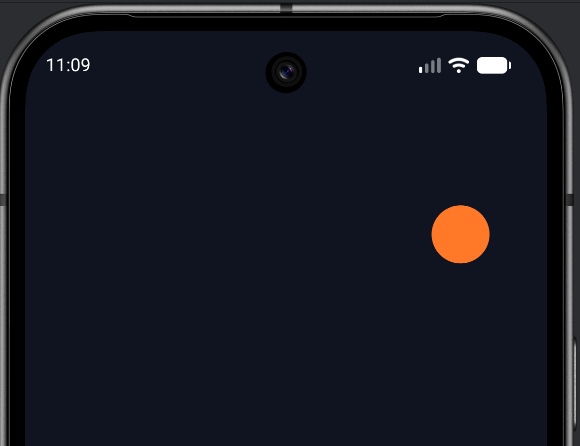
But what is underneath could not be more different—and you can prove it. Press the device's Home button to send the app to the background, then return to it. The ball carries on without a hitch: onPause cleanly stopped the thread, and onResume started a fresh one. The loop you wrote is running on its own thread, pacing itself, measuring time, and the ball is moving by the clock rather than by the frame. This modest-looking ball is sitting on a real game engine.
It isn't pretty, but it is clever!
Understanding the Code
It is worth stepping back to see the whole machine, because you will build every remaining game on this exact shape.
MainActivity is now tiny: create the GameView, and start and stop it in step with onResume and onPause. All the real work lives in GameView, which is both a SurfaceView (a drawable surface for a background thread) and a Runnable (the body of that thread). Its run() method is the game loop: while playing, update the world, lock-draw-post a frame, sleep any spare time to hold sixty frames a second, and measure how long the frame took so the next update can scale its movement by that delta time. resume() starts the thread; pause() stops it and waits for it to finish. And the Ball is a self-contained object that knows how to move itself (by time, not by frame) and draw itself—exactly the OOP design from Chapter 17, now living on the new engine.
Three ideas did the heavy lifting, and all three are reusable forever. Threading, so the loop runs independently of the UI thread. The SurfaceView lock-draw-post cycle, so that thread can draw safely. And delta time, so motion is governed by real elapsed time and looks the same on every device. From here on, building a new game means adding objects to this engine—a player, enemies, particles—and the loop, the threading, and the timing just work.
Experimenting
The engine invites tinkering. A few things to try:
- Change the ball's speed. In
Ball.kt, setvelXandvelYto800f. The ball now crosses 800 pixels every second—visibly faster, but still perfectly steady. - Change the frame rate target. In
GameView.kt, settargetFrameMsto33L(about 30 frames a second). Watch closely: the ball updates less often, in bigger jumps—but thanks to delta time, it moves across the screen at the same speed as before. This is the whole point of frame-rate independence, and seeing it with your own eyes makes it click. - Add a second ball. Create another
Ballat a different position inGameView, and update and draw it alongside the first. Notice how little has to change—the engine does not care how many objects it drives. - Prove the lifecycle works. Add a log line (the
Log.dfrom Chapter 1) insideresume()andpause(), then watch Logcat as you send the app to the background and bring it back. You will see the thread stopping and starting on cue.
Summary
You built the engine. A GameView that extends SurfaceView and implements Runnable runs a real game loop on its own thread—locking, drawing, and posting each frame through the SurfaceHolder, pacing itself to roughly sixty frames a second, and stopping cleanly when the app is paused. A Ball object moves itself by delta time, so it travels at the same real speed regardless of frame rate, finally fixing the issue we flagged way back in Chapter 3. And MainActivity ties the engine to the app's lifecycle through onResume and onPause. Every interface, thread, and SurfaceView idea from Chapter 20 is now running on screen.
This little bouncing ball is the foundation for everything that follows. In the next chapter we give the engine something far richer to draw: real graphics and audio. We will load images, learn to cut individual sprites out of a packed texture atlas, animate a character through a strip of frames, and fire off sound effects—the moment our games stop being colored shapes and start looking and sounding like games.
AI Exercise (Optional)
The game loop is a perfect thing to deepen your understanding of with an AI, because the threading details reward a careful second explanation. Optional as always.
Open your AI chatbot and paste in this prompt:
"I am learning Kotlin game programming on Android with a custom SurfaceView (no game engine). My GameView extends SurfaceView and implements Runnable. Its run() method is a
while (playing)loop that, each frame, calls update() and draw(), then sleeps any leftover time to target about 60 FPS, and computes deltaTime as the frame's duration in seconds. Objects move usingposition += speed * deltaTime, where speed is in pixels per second. The activity calls resume() (which starts a Thread) in onResume and pause() (which sets playing=false and calls thread.join()) in onPause. The playing flag is @Volatile. Please explain, in plain language, three things: (1) why we use delta time instead of just moving a fixed amount each frame, (2) why the loop runs on a separate thread instead of the UI thread, and (3) what @Volatile does and why the playing flag needs it. Keep it beginner-friendly."
This asks the AI to re-explain the three pillars of the chapter in its own words. When the answer comes back, read each explanation critically. Does the delta-time answer mention that different devices run at different frame rates? Does the threading answer mention not freezing the UI thread? Does it correctly explain that @Volatile ensures both threads see the latest value of the flag? Getting these three ideas rock-solid will serve you for every game you ever build.