
Almost every 2D game you have ever played is built on a grid. The maze in Pac-Man, the bricks in Breakout, the rooms in a dungeon crawler, the platforms in a side-scroller — underneath, they are nearly always a grid of tiles, where each square is a wall, or a floor, or a door, or a goal. Build a grid, and you have built the skeleton of a real game world.
In this chapter we are going to build exactly that: a tile map. We will store a small level as a 2D grid of numbers, use a map to translate those numbers into colors, and draw the whole thing with the nested loops we have known since Chapter 6. Then, because a static picture is no fun, we will make it interactive — tap any tile and it flips between wall and floor, so you can redraw the level live with your finger.
This project brings together more of the book than any so far: 2D arrays from Chapter 10, maps from Chapter 12, nested loops from Chapter 6, touch handling from Chapter 5, and functions from Chapter 8. It is the most "real game engine" thing we have built yet.
In this chapter, we will:
- Set up a new project called Level Grid.
- Store a level as a 2D array of tile codes.
- Use a map to turn tile codes into colors.
- Draw the whole grid with nested loops, scaled to fit the screen.
- Convert a finger tap into a grid row and column.
- Edit the level live by tapping tiles.
- Run it and experiment with the layout.
- Try an optional AI exercise to extend the grid.
Let's build a world.
Code for this chapter: the complete project lives in the
Chapter 13folder of the accompanying code at github.com/EliteIntegrity/Learning-Kotlin-by-Building-Android-Games.
Setting Up the Project
The usual steps:
- Create a New Project, choosing Empty Views Activity.
- Name the application LevelGrid.
- Make sure the Language is Kotlin, and click Finish.
- Open
app > java > com.example.levelgrid > MainActivity.ktand delete the generated code.
Coding the Game
We will build the level data first, then the drawing, then the touch handling.
Representing the Level
Type in the imports, MainActivity, and the top of our view, where the whole level lives:
package com.example.levelgrid

import android.content.Context
import android.graphics.Canvas
import android.graphics.Color
import android.graphics.Paint
import android.os.Bundle
import android.view.MotionEvent
import android.view.View
import androidx.appcompat.app.AppCompatActivity

class MainActivity : AppCompatActivity() {
    override fun onCreate(savedInstanceState: Bundle?) {
        super.onCreate(savedInstanceState)
        setContentView(LevelGridView(this))
    }
}

class LevelGridView(context: Context) : View(context) {

    private val paint = Paint()

    // Tile codes: 0 = floor, 1 = wall, 2 = goal

    // The level is a 2D grid. Each inner array is one row of tile codes.
    private val level = arrayOf(
        intArrayOf(1, 1, 1, 1, 1, 1, 1, 1),
        intArrayOf(1, 0, 0, 0, 0, 0, 2, 1),
        intArrayOf(1, 0, 1, 1, 0, 1, 1, 1),
        intArrayOf(1, 0, 1, 0, 0, 0, 0, 1),
        intArrayOf(1, 0, 0, 0, 1, 1, 0, 1),
        intArrayOf(1, 1, 1, 0, 1, 0, 0, 1),
        intArrayOf(1, 0, 0, 0, 0, 0, 1, 1),
        intArrayOf(1, 1, 1, 1, 1, 1, 1, 1)
    )

    // A map from tile code to the color we draw it with
    private val tileColors = mapOf(
        0 to Color.rgb(40, 44, 60),     // floor
        1 to Color.rgb(120, 80, 40),    // wall
        2 to Color.rgb(240, 200, 40)    // goal
    )

    init {
        paint.isAntiAlias = true
    }
This top section is the heart of the project, so let's go slowly.
First, the tile codes. We have decided that 0 means floor, 1 means wall, and 2 means goal. These are just numbers we have given meaning to — a tiny language for describing a level. The comment reminds us what each one stands for.
Next, the level itself. level is a 2D array — an array of arrays. The outer arrayOf(...) holds eight inner intArrayOf(...) rows, and each row holds eight tile codes. Lay it out neatly, as we have, and you can actually see the level in the code: the 1s form a wall around the edge and some obstacles inside, the 0s are the open floor you could walk on, and the single 2 near the top right is the goal. Reading the grid of numbers is like looking at a blueprint of the level.
To reach a single tile, we use two indices: level[row][col]. The first picks a row (an inner array), the second picks a column within that row. So level[1][6] is row 1, column 6 — our goal tile, the 2. As always, both indices count from zero.
Finally, tileColors is a map, straight from Chapter 12. It pairs each tile code with the color we want to draw it: floor is a dark blue-gray, walls are brown, the goal is bright gold. Instead of scattering if (code == 1) ... checks through our drawing code, we just look the color up by its code. This is exactly the kind of "look up a value by a key" job maps were made for.
Drawing the Grid
Now onDraw, where the nested loops turn that grid of numbers into a grid of colored squares:
    override fun onDraw(canvas: Canvas) {
        super.onDraw(canvas)
        canvas.drawColor(Color.BLACK)

        val cellSize = cellSize()

        // Nested loops walk every cell of the grid: outer = rows, inner = columns
        for (row in level.indices) {
            for (col in level[row].indices) {
                val code = level[row][col]
                paint.color = tileColors.getValue(code)

                val left = col * cellSize
                val top = row * cellSize
                // The small gaps (the +2 / -2) let the black background show as grid lines
                canvas.drawRect(left + 2f, top + 2f, left + cellSize - 2f, top + cellSize - 2f, paint)
            }
        }

        drawHint(canvas)
    }
This is the Pattern Drawer technique from Chapter 7, now driven by real data. The outer loop walks the rows using level.indices — the valid row numbers, 0 to 7. For each row, the inner loop walks its columns using level[row].indices. Together they visit every single cell exactly once.
For each cell, we read its tile code with level[row][col], then look up the matching color with tileColors.getValue(code). Remember from Chapter 12 that plain [ ] access on a map can return null, but getValue hands back the color directly — and since every tile code in our level (0, 1, and 2) is a key in the map, we know the lookup will always succeed.
Then we turn the grid position into pixels, exactly as in the Pattern Drawer: a tile in column col sits col * cellSize from the left, and row * cellSize from the top. We draw the square a couple of pixels inside its cell (the + 2f and - 2f), which leaves a thin black gap between tiles so the grid lines show. A small touch, but it makes the map far easier to read.
Sizing the Grid to the Screen
Notice we called a function, cellSize(), to decide how big each square should be. Let's write it:
    // How big each square must be so the grid fills the screen's width
    fun cellSize(): Float {
        val columns = level[0].size
        return width.toFloat() / columns
    }

    fun drawHint(canvas: Canvas) {
        paint.color = Color.WHITE
        paint.textSize = 50f
        canvas.drawText("Tap a tile to toggle wall / floor", 20f, height - 40f, paint)
    }
cellSize works out how wide each tile should be so that a full row of them exactly fills the screen. It asks how many columns there are — level[0].size, the length of the first row — and divides the screen width by that. With eight columns on a 1080-pixel-wide screen, each cell comes out 135 pixels. Returning this from a function (a Float, as the : Float declares) means both onDraw and our touch code can ask for the same value without repeating the calculation — a small but real payoff from Chapter 8.
drawHint just prints a line of instructions near the bottom of the screen so the player knows they can tap.
Editing the Level by Tapping
The final piece is what makes this fun. We will let a tap flip a tile between wall and floor. Add onTouchEvent:
    override fun onTouchEvent(event: MotionEvent): Boolean {
        if (event.action == MotionEvent.ACTION_DOWN) {
            val cellSize = cellSize()

            // Turn the tap's pixel position into a grid column and row
            val col = (event.x / cellSize).toInt()
            val row = (event.y / cellSize).toInt()

            // Only act if the tap landed inside the grid
            if (row >= 0 && row < level.size && col >= 0 && col < level[row].size) {
                val code = level[row][col]
                // Toggle floor <-> wall, but leave the goal tile alone
                if (code == 0) {
                    level[row][col] = 1
                } else if (code == 1) {
                    level[row][col] = 0
                }
                invalidate()   // redraw so the change shows immediately
            }
        }
        return true
    }
}
The clever part here is converting a tap — which arrives as pixel coordinates — back into a grid position. If each cell is cellSize pixels wide, then a tap at horizontal pixel event.x falls in column event.x / cellSize, rounded down to a whole number with .toInt(). The same division on event.y gives the row. This is the reverse of the multiplication we did when drawing, and the pairing of the two is worth pausing on: to draw, we turn a grid position into pixels by multiplying; to read a tap, we turn pixels back into a grid position by dividing.
Before we touch the grid, we check that the tap actually landed on a tile, with a Boolean test joined by && (Chapter 4). This matters because the hint text sits below the grid, and a tap down there would otherwise produce a row number that doesn't exist — and reaching for a row that isn't in the array would crash the app. The bounds check quietly protects us. Notice it tests row before it uses level[row], so the short-circuiting && never reaches into a row that doesn't exist.
If the tap is valid, we read the tile's current code and flip it: floor becomes wall, wall becomes floor, using if/else if. We deliberately leave the goal tile (2) untouched. Then invalidate() triggers a redraw so the change appears at once.
Note that there is no continuous game loop here. Unlike the bouncing ball or the particle swarm, this screen only needs to redraw when something actually changes — when you tap. So we call invalidate() from onTouchEvent, not from onDraw. It is a good reminder that invalidate() is simply "please redraw," and you call it whenever, and only when, the picture needs updating. The complete file is in this chapter's code folder.
Playing the Game
Hit the green Play button.
You will see your level laid out as a grid: a brown wall border, brown obstacles inside, dark floor between them, and one gold goal tile near the top right. Now start tapping. Each tap on a floor tile drops a wall there; each tap on a wall opens it back up to floor. Carve out a new path, wall off a section, draw your initials — the level reshapes under your finger in real time.
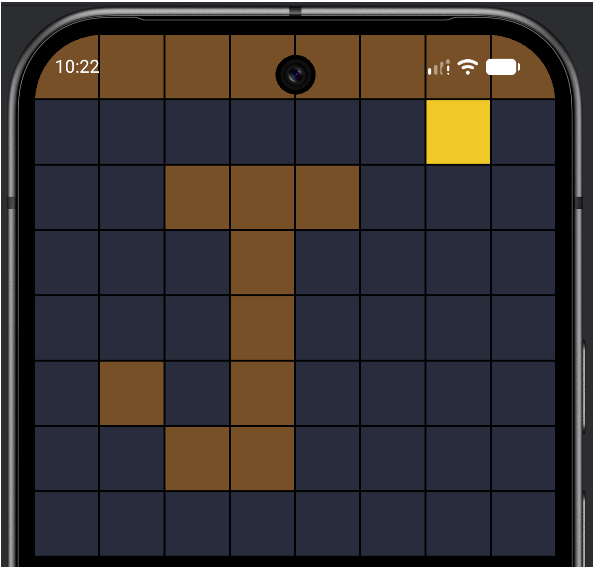
You have just written a tile map renderer and a basic level editor.
Understanding the Code
Look at how cleanly the responsibilities split. The level is pure data — a grid of numbers that anyone could read and edit, with no drawing logic mixed in. The tileColors map translates that data into appearance. The nested loops in onDraw turn data into pixels. And onTouchEvent turns pixels back into data. Data in the middle, drawing on one side, input on the other. That separation — keeping what the world is apart from how it looks and how you change it — is one of the most important ideas in all of game architecture, and you have just built it without fanfare.
The two new techniques were the 2D array (level[row][col], an array of arrays, indexed twice) and using a map as a lookup table (tileColors, turning codes into colors). Everything else you already had: nested loops, touch handling, the multiply-to-draw and divide-to-read coordinate trick, functions, and a bounds check built from &&.
Experimenting
This level is yours to redesign. Each of these is a quick change.
- Redraw the level. The
levelarray is just numbers laid out in a grid. Edit them directly — carve a spiral, build a maze, open up a big room. Because the array literally looks like the map, designing a level is as easy as typing. - Add a new tile type. Invent code
3for "water." Add a3 to Color.rgb(40, 120, 200)entry to thetileColorsmap, drop a few3s into the level, and run it. Notice you did not have to touch the drawing loop at all — the map handles the new color automatically. That is the power of a lookup table. - Change the grid size. Make the level wider or taller by editing the rows. As long as every row has the same number of columns,
cellSize()adapts and it all still works. - Recolor the world. Tweak the
Color.rgb(...)values in the map for a totally different mood — an icy palette, a lava palette, a neon palette.
Summary
You have built the backbone of a 2D game: a tile map. You stored a level as a 2D array of tile codes, translated those codes into colors with a map, and drew the whole world with nested loops scaled to fit any screen. Then you made it live, converting finger taps back into grid positions to edit the level on the fly. Along the way you saw the deep idea that data, drawing, and input are three separate concerns, and that keeping them apart makes a game far easier to build and change.
That brings us to the edge of Act 2's final theory chapter. We have one important gap left to fill. Twice now — with map lookups in Chapter 12, and with the filter and map operations we only glimpsed — we have bumped into two features we deferred: how to handle null gracefully, and what those little { } lambdas really are. The next chapter tackles both head-on. They are the last pieces of core Kotlin, and they set up our final Act 2 project: a spawner that uses lambdas for callbacks and nullability to handle objects that come and go.
AI Exercise (Optional)
A tile map is a great thing to extend with an AI assistant. As always, this is optional and low-stakes — a vibe-coding experiment, not a test.
Open your AI chatbot and try a prompt like this:
"I have a Kotlin Android tile-map app built with a custom Canvas View (no game engine). The level is a 2D array (arrayOf of intArrayOf) of tile codes where 0=floor, 1=wall, 2=goal, and I look up each tile's color in a Map<Int, Int> using getValue. I draw the grid with nested for loops scaled to the screen width, and tapping a tile toggles it between floor and wall. I'm a beginner: I know variables, if/when, loops, functions, arrays, lists, sets, and maps, but I have NOT learned lambdas, classes of my own, or null-handling tricks yet. Without using any of those, show me how to add a simple player marker — a single circle stored as a playerRow and playerCol — that moves one tile at a time when I tap an adjacent floor tile (but not into a wall). Paste the full View so I can compare, and comment the new lines."
Notice that this asks for a real little game mechanic — a player that moves around the grid and is blocked by walls — built only from the tools you already have. The interesting part is the rule: a tap should move the player only if the target tile is next to them and is not a wall. That is a nice combination of the && logic from Chapter 4 and the grid reading from this chapter.
When the code comes back, trace the movement rule carefully. How does the AI decide whether the tapped tile is adjacent to the player? How does it check the tile isn't a wall before moving? Try to predict whether a given tap will move the player before you run it. If the adjacency check is hard to follow, ask the AI to explain it with a specific example, like "what happens if the player is at row 3, column 4, and I tap row 3, column 5?" Make it show its working.