
This is it — the payoff for Act 1. Over the last eight chapters you have learned variables, types, operators, flow control, loops, and functions. That is the complete core of programming. In this chapter we are going to use all of it, together, to build a real, playable game from scratch.
The game is Fruit Catcher. A basket sits at the bottom of the screen, and you slide it left and right with your finger. Apples fall from the top, one after another. Catch one and your score goes up. Miss one and you lose a life. Lose all three lives and it is game over — at which point a tap starts a fresh game. The apples fall a little faster with every catch, so it gets harder the better you do.
It is a simple game, but it is a complete one. It has a goal, a way to win points, a way to lose, increasing difficulty, and a game over screen. And crucially, we are going to build it the way real games are built: not as one giant tangle of code, but as a clean set of functions, each doing one job, exactly as we learned in Chapter 8.
Notice what we are not using. No classes of our own. No lists or arrays — we have not covered those yet, so the game tracks a single falling apple at a time. No images, no sound. Everything is drawn with the Canvas and Paint tools you have known since Chapter 1. This is pure Act 1, and it proves how much you can build with the fundamentals alone.
In this chapter, we will:
- Set up a new project called Fruit Catcher.
- Lay out the game's state in a clear set of variables.
- Structure the whole game around small, well-named functions.
- Move a paddle with touch, drop a falling apple, and detect a catch.
- Track score and lives, and handle game over and restart.
- Run it, play it, and then experiment.
- Try an optional AI exercise to extend the game.
Let's build our first real game.
Code for this chapter: the complete project lives in the
Chapter 9folder of the accompanying code at github.com/EliteIntegrity/Learning-Kotlin-by-Building-Android-Games.
Setting Up the Project
The usual steps. You can do these in your sleep by now.
- Create a New Project in Android Studio, choosing Empty Views Activity.
- Name the application FruitCatcher.
- Make sure the Language is Kotlin, and click Finish.
- Open
app > java > com.example.fruitcatcher > MainActivity.ktand delete all the generated code.
Coding the Game
We will build the whole thing up in order: first the state, then the functions that act on it, then the touch handling. Type each section into your empty file, one after another, inside the class.
The Activity and the State
Start with the imports, the MainActivity, and the top of our view class, where we declare all the game's state as properties:
package com.example.fruitcatcher

import android.content.Context
import android.graphics.Canvas
import android.graphics.Color
import android.graphics.Paint
import android.os.Bundle
import android.view.MotionEvent
import android.view.View
import androidx.appcompat.app.AppCompatActivity

class MainActivity : AppCompatActivity() {
    override fun onCreate(savedInstanceState: Bundle?) {
        super.onCreate(savedInstanceState)
        setContentView(FruitCatcherView(this))
    }
}

class FruitCatcherView(context: Context) : View(context) {

    private val paint = Paint()

    // --- The paddle (the basket the player controls) ---
    val paddleWidth = 280f
    val paddleHeight = 60f
    var paddleX = 0f            // left edge of the paddle
    var paddleY = 0f            // top edge; set once we know the screen height

    // --- The falling apple ---
    val appleSize = 90f
    var appleX = 0f
    var appleY = 0f
    var appleSpeed = 12f

    // --- The score and lives ---
    var score = 0
    var lives = 3
    var isGameOver = false

    // Makes sure we position things only once the screen size is known
    private var setupDone = false

    init {
        paint.isAntiAlias = true
    }
This is the entire state of our game, laid out plainly at the top. Every one of these is a property — a variable at the class level that all our functions will be able to see and change, exactly as we discussed in Chapter 8.
The paddle's size never changes, so paddleWidth and paddleHeight are vals. Its position does change, so paddleX and paddleY are vars. The same logic applies to the apple: a fixed appleSize, but a moving appleX and appleY, plus an appleSpeed we will nudge upward over time. Then we have the score, the lives, and an isGameOver flag — a Boolean that decides whether we are playing or showing the game over screen.
The last property, setupDone, solves a small timing problem. We want to center the paddle and drop the first apple based on the screen's size — but a view does not know its own width and height until Android has laid it out, which happens after the view is created. So we cannot do that positioning in the init block. Instead, setupDone lets us run our setup exactly once, the first time we draw, when the size is finally known. We will see how in a moment.
The Heart of the Game: onDraw
Now the onDraw function. Thanks to Chapter 8, this is going to be wonderfully short and readable — it simply describes what happens each frame. Add it below the init block:
    override fun onDraw(canvas: Canvas) {
        super.onDraw(canvas)

        // The first time we draw, set things up now that the screen size is known
        if (!setupDone) {
            setupGame()
            setupDone = true
        }

        // Clear the screen to a dark night-sky blue
        canvas.drawColor(Color.rgb(20, 24, 40))

        if (!isGameOver) {
            update()
            drawApple(canvas)
            drawPaddle(canvas)
            drawHud(canvas)
        } else {
            drawGameOver(canvas)
        }

        // Keep the game loop running
        invalidate()
    }
Read that middle section out loud and it almost explains itself. If the game is not over, we update everything, then draw the apple, the paddle, and the score display. If the game is over, we draw the game over screen instead. That is the entire structure of the game, visible at a glance, because all the detail lives in functions we are about to write.
The block at the top handles our one-time setup. The first time onDraw runs, setupDone is still false, so the !setupDone condition is true. We call setupGame() and then flip setupDone to true so it never runs again. After that, the if (!isGameOver) block decides what to draw, and invalidate() keeps the loop spinning, just as it has since Chapter 3.
Those function names — setupGame, update, drawApple, and the rest — don't exist yet. Kotlin doesn't mind; remember from Chapter 8 that we can define them in any order. Let's write them now.
Setting Up and Updating
First, setupGame, which positions the paddle and drops the first apple:
    // Place the paddle in the middle and drop the first apple
    fun setupGame() {
        paddleY = height - 250f
        paddleX = width / 2f - paddleWidth / 2f
        spawnApple()
    }
We park the paddle 250 pixels up from the bottom of the screen, and we center it horizontally. To center it, we take the middle of the screen (width / 2f) and shift left by half the paddle's width, so the paddle's middle lands on the screen's middle. Then we call spawnApple() to get the first apple falling.
Now update, the function that makes the game tick. This is where the rules live — moving the apple and deciding whether it was caught or missed:
    // Move the apple, then decide whether it was caught or missed
    fun update() {
        appleY += appleSpeed

        // Has the apple dropped into the paddle's height band?
        val appleBottom = appleY + appleSize
        if (appleBottom >= paddleY && appleBottom <= paddleY + paddleHeight) {
            if (overlapsPaddle()) {
                score += 1
                appleSpeed += 0.5f      // speed up a little with every catch
                spawnApple()
            }
        }

        // Has the apple fallen all the way off the bottom of the screen?
        if (appleY > height) {
            lives -= 1
            if (lives <= 0) {
                isGameOver = true
            }
            spawnApple()
        }
    }
The first line moves the apple down the screen by appleSpeed pixels, using the += operator from Chapter 2. Everything after that is the game's logic, expressed with the if statements and logical operators from Chapter 4.
The first if asks: has the bottom of the apple reached the vertical band where the paddle sits? We work out the apple's bottom edge (appleY + appleSize) and check whether it falls between the top of the paddle (paddleY) and the bottom of the paddle (paddleY + paddleHeight). The && means both halves must be true. If the apple is at paddle height, we then check overlapsPaddle() — a function we will write next that returns true if the apple lines up horizontally with the basket. If it does, the player caught it: we bump the score, nudge the speed up to make the next one a touch harder, and send a fresh apple to the top.
The second if handles the miss. If the apple's top has slipped past the bottom of the screen (appleY > height), it got away. We take a life. If that was the last life, we set isGameOver to true. Either way, a new apple spawns so the game keeps flowing.
Spawning and Catching
Two small functions remain in the game logic. First, spawnApple, which we have already called three times:
    // Send the apple back to the top at a new random horizontal position
    fun spawnApple() {
        appleX = (Math.random() * (width - appleSize)).toFloat()
        appleY = -appleSize
    }
This drops the apple back above the top of the screen (appleY = -appleSize puts it just out of sight) at a random horizontal spot. The randomness comes from Math.random(), a built-in function that returns a value somewhere between 0 and 1. By multiplying it by the available width (width - appleSize, so the apple never spawns half off the right edge) and converting the result to a Float, we get a random left position somewhere across the screen. A different spot every time keeps the game from getting predictable.
Now overlapsPaddle, the catch detector. This is the Boolean-returning function we promised back in Chapter 8:
    // Does the apple overlap the paddle horizontally?
    fun overlapsPaddle(): Boolean {
        val appleLeft = appleX
        val appleRight = appleX + appleSize
        val paddleLeft = paddleX
        val paddleRight = paddleX + paddleWidth
        return appleRight >= paddleLeft && appleLeft <= paddleRight
    }
The : Boolean after the parentheses says this function hands back a true/false answer. Inside, we work out the left and right edges of both the apple and the paddle, then return a single comparison: the apple overlaps the paddle if the apple's right edge has reached past the paddle's left edge, and the apple's left edge has not yet passed the paddle's right edge. If those are both true, they are touching. That is a complete, two-dimensional collision check reduced to one readable line — and because it returns a Boolean, it slots straight into the if (overlapsPaddle()) back in update.
Drawing Everything
With the logic done, the drawing functions are refreshingly simple. Each one takes the canvas as a parameter — it needs something to draw on — and paints one part of the screen.
    fun drawApple(canvas: Canvas) {
        paint.color = Color.rgb(220, 50, 50)
        val centerX = appleX + appleSize / 2f
        val centerY = appleY + appleSize / 2f
        canvas.drawCircle(centerX, centerY, appleSize / 2f, paint)
    }

    fun drawPaddle(canvas: Canvas) {
        paint.color = Color.rgb(150, 90, 40)
        canvas.drawRoundRect(
            paddleX, paddleY,
            paddleX + paddleWidth, paddleY + paddleHeight,
            20f, 20f, paint
        )
    }

    fun drawHud(canvas: Canvas) {
        paint.color = Color.WHITE
        paint.textSize = 70f
        canvas.drawText("Score: $score", 40f, 90f, paint)
        canvas.drawText("Lives: $lives", 40f, 170f, paint)
    }

    fun drawGameOver(canvas: Canvas) {
        paint.color = Color.WHITE
        paint.textSize = 120f
        canvas.drawText("Game Over", 40f, height / 2f - 100f, paint)
        paint.textSize = 70f
        canvas.drawText("Final score: $score", 40f, height / 2f, paint)
        canvas.drawText("Tap to play again", 40f, height / 2f + 100f, paint)
    }
drawApple paints a red circle. We draw circles from their center, so we work out the apple's center point and use half the appleSize as the radius. drawPaddle uses drawRoundRect — just like drawRect, but the last two numbers (20f, 20f) round off the corners for a friendlier look. drawHud writes the score and lives near the top of the screen with drawText, which takes the text, an x and y position, and our paint. We set paint.textSize first so the text is big enough to read. And drawGameOver puts up the end screen, centered roughly in the middle of the display using height / 2f.
Notice how each function does exactly one thing, and its name tells you what. This is the Chapter 8 lesson made real: if you ever want to change how the paddle looks, you know without searching that drawPaddle is the only place to go.
Handling Touch
The last piece is the player's input. Add the onTouchEvent function:
    override fun onTouchEvent(event: MotionEvent): Boolean {
        if (event.action == MotionEvent.ACTION_DOWN || event.action == MotionEvent.ACTION_MOVE) {
            if (isGameOver) {
                // A tap on the game over screen restarts the game
                if (event.action == MotionEvent.ACTION_DOWN) {
                    restartGame()
                }
            } else {
                // Center the paddle on the player's finger
                paddleX = event.x - paddleWidth / 2f

                // Keep the paddle on screen
                if (paddleX < 0f) {
                    paddleX = 0f
                }
                if (paddleX + paddleWidth > width) {
                    paddleX = width - paddleWidth
                }
            }
        }
        return true
    }

    fun restartGame() {
        score = 0
        lives = 3
        appleSpeed = 12f
        isGameOver = false
        spawnApple()
    }
}
We react to two kinds of touch this time, joined with ||: ACTION_DOWN (the finger first touches) and ACTION_MOVE (the finger slides while still down). Handling both means the paddle follows your finger smoothly as you drag, not just when you first tap.
If the game is over, a fresh press calls restartGame, which resets the score, lives, and speed back to their starting values and drops a new apple. If the game is in progress, we move the paddle so its center sits under the finger (event.x - paddleWidth / 2f), then use two if statements to keep it from sliding off either edge of the screen — the same clamping idea we have used since the bouncing ball.
That is the whole game. The complete file is in this chapter's code folder if you would like to check yours against it.
Playing the Game
Hit the green Play button and wait for the emulator.
A basket appears near the bottom, and an apple begins to fall from the top. Drag your finger across the screen — the basket follows. Slide it under the apple to catch it, and watch the score climb. Miss one and a life disappears. The apples come a little faster each time, so see how high a score you can reach before all three lives are gone. When it ends, tap the screen to go again.
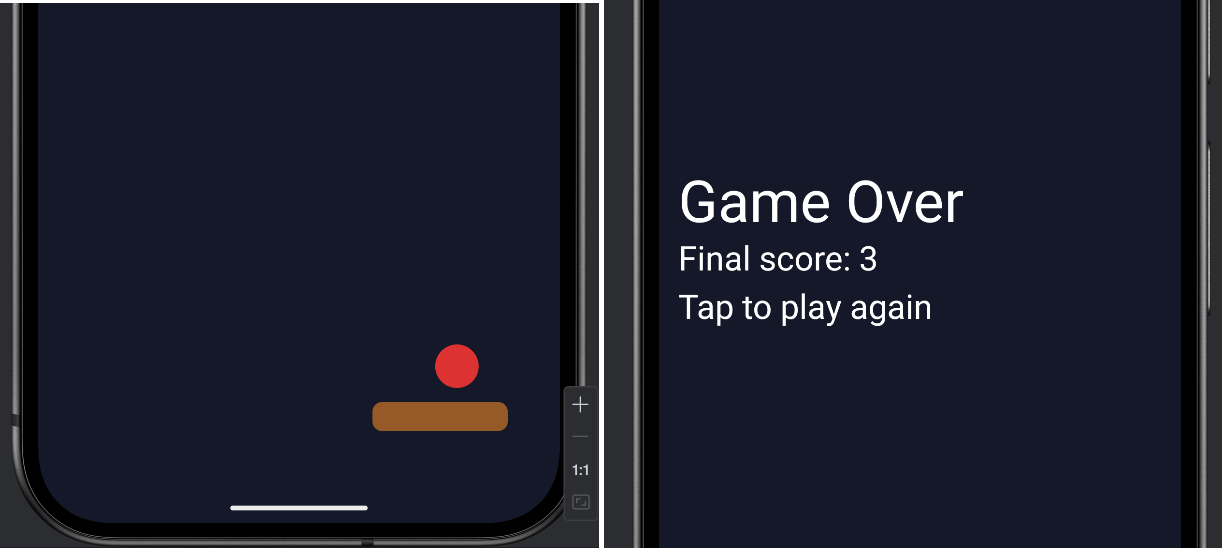
Take a moment with this one. It is a small game, but it is genuinely yours, built line by line from nothing but the fundamentals.
Understanding the Code
Step back and look at the shape of what you built. The onDraw function is only a dozen lines long, yet it runs the entire game — because every real job is delegated to a function with a clear name. update holds the rules. spawnApple and overlapsPaddle handle the apple's life and the catch. The four draw... functions each paint one thing. onTouchEvent and restartGame deal with the player. If this game were one giant onDraw instead, it would be a hundred lines of mixed-up logic that nobody could read. Split into functions, every part is findable and changeable on its own.
That structure is the real lesson of the capstone, and it is why this chapter comes right after the one on functions. You used variables to hold the game's state, if statements and logical operators to enforce its rules, arithmetic to move and position everything, and functions to keep the whole thing organized. That is Act 1, complete, working together in one program.
Experimenting
This is your game now — bend it to your will. Each of these is a small change.
- Make it easier or harder. Change the starting
appleSpeedfrom12fto8ffor a gentler game, or18ffor a brutal one. ChangeappleSpeed += 0.5fto+= 1.5fto make the difficulty ramp up faster. - A bigger basket. Bump
paddleWidthup to400f. Or shrink it to150ffor a real challenge. - More lives. Start
livesat5instead of3. - Change the colors. The apple, the basket, and the background are all set with
Color.rgb(...). Pick your own. - Bonus points for speed. In
update, when an apple is caught, tryscore += 2onceappleSpeedpasses a certain value, so fast catches are worth more. (This will need anifinside the catch — a nice little test of Chapter 4.)
Every one of these is a quick edit that changes how the game feels. That is the reward for building it cleanly: it is easy to play with.
Summary
You have built a complete, playable game using nothing but the fundamentals of Act 1. Fruit Catcher has movement, player control, collision detection, scoring, lives, increasing difficulty, and a game over screen — and not one piece of it required anything beyond variables, flow control, arithmetic, and functions. More importantly, you built it the right way: as a slim game loop calling a set of small, single-purpose functions, the structure that every serious game shares.
That brings Act 1 to a close. You started this book unable to draw a square, and you end it having written a real game by hand, understanding every single line. That is a genuine achievement — take a moment to feel it.
Act 2 is where things scale up. Right now our game juggles exactly one apple, because tracking more would mean a separate variable for every single one — apple2X, apple3X, and madness. In the next chapter we meet arrays and lists: Kotlin's way of holding many things in a single, manageable collection. With them, one apple becomes a hundred, and our games take a giant leap forward.
AI Exercise (Optional)
You have built a complete game, which makes this the perfect moment for your first proper vibe-coding challenge. The rules are relaxed: if your idea works, fantastic; if it doesn't, you have lost nothing and you will have learned something about how the game fits together. The author's own experiment lives in the code repository for anyone curious to see one possible result — but yours will be different, and that is exactly the point.
Open your AI chatbot and try a prompt like this:
"I have a complete Kotlin Android game called Fruit Catcher, built with a custom Canvas View (no Jetpack, no game engine). A basket at the bottom catches a single falling apple; I track score, lives, and a game-over state, and the whole game is organized into functions like update(), spawnApple(), overlapsPaddle(), drawApple(), and drawPaddle(). I'm a beginner: I know variables, if/when, loops, and functions, but I have NOT learned about lists, arrays, or classes of my own yet. Without using any of those, show me how to add a second, faster 'golden apple' worth 5 points that appears occasionally, using only more variables and functions of the same kinds I already have. Paste the full View code so I can compare it to mine, and add a comment on each new or changed line."
Look closely at the constraints in that prompt. We tell the AI exactly what we know and — just as importantly — forbid the lists and classes it would otherwise reach for. A second apple, tracked with a second set of variables, is entirely doable with Act 1 tools, and it is a great preview of why Act 2's collections exist: by the time you want a third apple, you will be aching for a better way than apple3X.
When the code comes back, read every new line against your own. Where did the AI add the golden apple's state? Where does it decide to show it? Trace its catch logic and confirm it makes sense before you trust it. If a line uses something you do not recognize, paste it back and ask the AI to explain it as if you had never seen it. You are the boss; make the AI work to your level.