
In the last chapter, we worked through Int, Float, and Boolean in the abstract. Boxes with labels on them. That is a fine way to learn what variables are, but it doesn't quite show you what they do.
The point of this chapter is to take those building blocks and make them produce something visible. By the end, you will have a bright red ball bouncing around the screen, and every single thing about that ball — its position, its size, its speed — will be controlled by a variable you can change.
This is the first project where you will feel that satisfying click of theory turning into pixels. It is also the first thing you have built that genuinely behaves like a game: it moves, it reacts to its surroundings, and it keeps going until you stop it.
In this chapter, we will:
- Set up a new Android Studio project.
- Use
Floatvariables to track the ball's position and speed. - See how simple math produces movement.
- Make the ball react when it hits the edge of the screen.
- Create our first game loop to keep the screen drawing.
- Run the app and experiment with the values.
- Try an optional AI exercise to extend the project.
Let's build it.
Code for this chapter: the complete project lives in the
Chapter 3folder of the accompanying code at github.com/EliteIntegrity/Learning-Kotlin-by-Building-Android-Games. If anything goes wrong as you type, you can check your version against that one.
Setting Up the Project
Open Android Studio and follow the exact same steps you used in Chapter 1.
- New Project, pick Empty Views Activity.
- Name the application BouncingBall.
- Make sure the Language is set to Kotlin.
- Click Finish.
Once the project syncs, expand the app > java > com.example.bouncingball folder, open MainActivity.kt, and delete all the code inside it, just like we did last time.
Coding the Game
We are going to build the program piece by piece.
The Setup and Variables
Start by typing or pasting this at the very top of your empty MainActivity.kt file:
package com.example.bouncingball

import android.content.Context
import android.graphics.Canvas
import android.graphics.Color
import android.graphics.Paint
import android.os.Bundle
import android.view.View
import androidx.appcompat.app.AppCompatActivity

class MainActivity : AppCompatActivity() {
    override fun onCreate(savedInstanceState: Bundle?) {
        super.onCreate(savedInstanceState)
        setContentView(BouncingBallView(this))
    }
}

class BouncingBallView(context: Context) : View(context) {

    private val paint = Paint()

    // Ball variables
    var ballX = 200f
    var ballY = 200f
    var ballVelX = 15f
    var ballVelY = 12f
    val ballRadius = 50f

    init {
        paint.color = Color.RED
        paint.style = Paint.Style.FILL
    }
The code will have errors because there is a missing ending curly brace }. We will add it in the final block of code — or feel free to add it now. This is often the case throughout the book as we add code in multiple chunks. Feel free to add the code in one go by copying it from GitHub and then follow along with the chunks in the book just to learn about it.
This should look very familiar from Chapter 1. We create our MainActivity and tell it to display our custom BouncingBallView.
Inside BouncingBallView, we define the variables for our ball. ballX and ballY are the ball's position on the screen. We start the ball at coordinates (200, 200).
ballVelX and ballVelY are the ball's velocity — how many pixels it should move each time the screen redraws. A positive ballVelX means the ball is moving to the right. A positive ballVelY means it is moving down. If we made them negative, the ball would move left and up. The behavior of the ball is wired directly to the values in these boxes.
We also use a val for ballRadius. The radius won't change while the game is running, so making it a val is perfect. Notice the f on the end of every number. We are using Float because Android's drawing system requires precise decimal numbers.
Finally, we have an init block. This block of code runs exactly once when the BouncingBallView is first created. It is the perfect place to set our paintbrush color to red so we don't have to do it over and over again.
The Game Loop and Movement
Now, let's add the drawing and movement logic. Type this right below the init block, but make sure it is still inside the BouncingBallView class (before the final closing } brace).
    override fun onDraw(canvas: Canvas) {
        super.onDraw(canvas)

        // Clear the screen
        canvas.drawColor(Color.DKGRAY)

        // Update the ball's position
        ballX += ballVelX
        ballY += ballVelY
Here, we clear the screen to dark gray. Then, we use the compound assignment operator += that we met in Chapter 2.
ballX += ballVelX means "take the current horizontal position, add the velocity to it, and store the new position." If ballX is 200 and ballVelX is 15, the ball moves to 215. The next time this runs, it moves to 230. Two lines of math, and our ball is smoothly moving diagonally across the screen.
Bouncing Off the Walls
If we stopped there, the ball would slide off the bottom-right of the screen and never come back. We need to check if it has hit a wall and reverse its direction. Continue adding this code:
        // Bounce off the left wall
        if (ballX - ballRadius < 0f) {
            ballX = ballRadius
            ballVelX = -ballVelX
        }

        // Bounce off the right wall
        if (ballX + ballRadius > width.toFloat()) {
            ballX = width.toFloat() - ballRadius
            ballVelX = -ballVelX
        }

        // Bounce off the top wall
        if (ballY - ballRadius < 0f) {
            ballY = ballRadius
            ballVelY = -ballVelY
        }

        // Bounce off the bottom wall
        if (ballY + ballRadius > height.toFloat()) {
            ballY = height.toFloat() - ballRadius
            ballVelY = -ballVelY
        }
We will cover the if statement properly in the next chapter, but the logic is intuitive: "If this condition is true, run the code inside the braces."
The condition ballX - ballRadius < 0f is asking, "Has the left edge of the ball gone past the left edge of the screen?" If yes, we park the ball flush against the wall and flip the horizontal velocity with -ballVelX.
That little minus sign does the heavy lifting. If ballVelX was 15f, it is now -15f. The ball is now moving left!
Notice we use width.toFloat() and height.toFloat(). Android views automatically know their own width and height, but they store them as whole numbers (Int). We use .toFloat() to convert them so they play nicely with our Float math.
Drawing and Looping
Finally, let's draw the ball and keep the engine running. Add this to finish the onDraw function:
        // Draw the ball
        canvas.drawCircle(ballX, ballY, ballRadius, paint)

        // Tell Android to redraw this view immediately
        invalidate()
    }
}
We draw the circle at our new coordinates. Then we hit the magic function: invalidate().
Normally, Android only calls onDraw when it thinks the screen needs updating. By calling invalidate() at the end of onDraw, we are telling Android, "Hey, this screen is already invalid (out of date). Draw it again immediately."
Android will finish drawing the frame, realize it is invalid, and instantly call onDraw again. The position updates, the ball moves, it draws, and it invalidates again. We have just created a game loop.
It is worth being honest about one thing here. Our ball moves a fixed number of pixels per frame, and invalidate() draws frames as fast as the device can manage. That means the exact same code will run the ball a little faster on a powerful phone than on an older one. For a bouncing ball nobody will notice or care. But when we start building real games in Act 3, we will replace this simple invalidate() approach with a proper game loop running on its own thread, one that measures how much time has passed between frames and moves things accordingly. That is what keeps a game running at the same speed everywhere. For now, invalidate() is the perfect tool to get pixels moving with code we already understand.
Playing the Game
Hit the green Play button at the top of Android Studio.
An emulator window will open. You will see a dark gray screen, and a red ball will drift away from the center, hit the edge, and bounce. It will keep bouncing forever until you close the app.
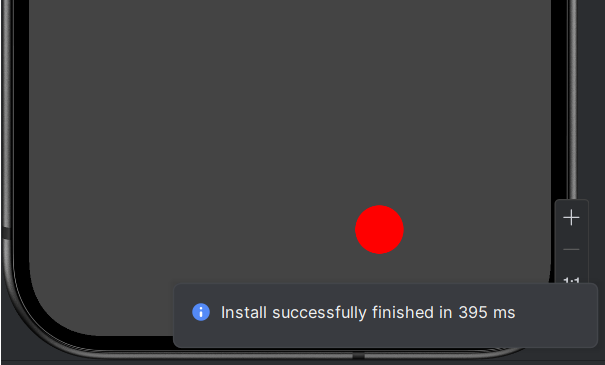
Sit and watch it for a minute. It is strangely satisfying.
Experimenting
Now that you have it running, the best thing you can do is mess with it. Each of these is a one-line change. Stop the app, change the code, and run it again to see what happens.
- Change
ballRadiusto150f. A massive ball. - Change
ballRadiusto10f. A tiny ball. Notice how much further it can travel before hitting a wall. - Change
ballVelXto50fandballVelYto40f. A frantic, fast ball. - Make one velocity negative — say,
ballVelX = -15f. The ball starts moving left instead of right. - Change
paint.color = Color.REDtoColor.CYANin theinitblock. A whole new mood.
None of this changes the structure of the program. But the result on screen is dramatically different. That is what variables give you. The structure stays put; the behavior flexes.
Summary
You have taken the variables we covered in the last chapter and turned them into a bouncing ball. The position is a variable. The velocity is a variable. The size is a constant (val). Tweaking any of them changes the game's behavior immediately.
That tight loop between "change a value" and "see something different on screen" is the most important thing a beginner programmer can experience. It is the moment code stops feeling like a foreign language and starts feeling like a set of dials you are learning to turn.
In the next chapter, we will teach our code to make decisions: if, else, and logical operators. That is the missing piece that turns "things on screen" into "things on screen that react." Then in Chapter 5, we will use those decisions to build something a lot more interactive than a ball minding its own business.
AI Exercise (Optional)
If you would like to take this project a little further with AI help, try this low-stakes challenge.
Open your AI chatbot and try a prompt like this:
"I have a small Kotlin Android program that uses a custom Canvas View to bounce a single red ball around the screen. I have variables for
ballX,ballY,ballVelX,ballVelY, andballRadius. I'm a beginner who has only just learned about variables and basic math operators — no loops, no complex functions, no arrays yet. Show me how to add a second ball of a different color, using only more variables of the same kinds I already have. Don't introduce any new Kotlin features or complex game loops. Paste your full View code so I can compare it to mine."
Notice the constraints! We explicitly told the AI not to use advanced features like arrays or objects. Without that constraint, the AI will happily give you a complex List<Ball> architecture that you don't know how to read yet.
When the AI comes back, read every line. Can you spot the new variables? Can you follow the bouncing logic for the second ball? Make the AI work to your level.